
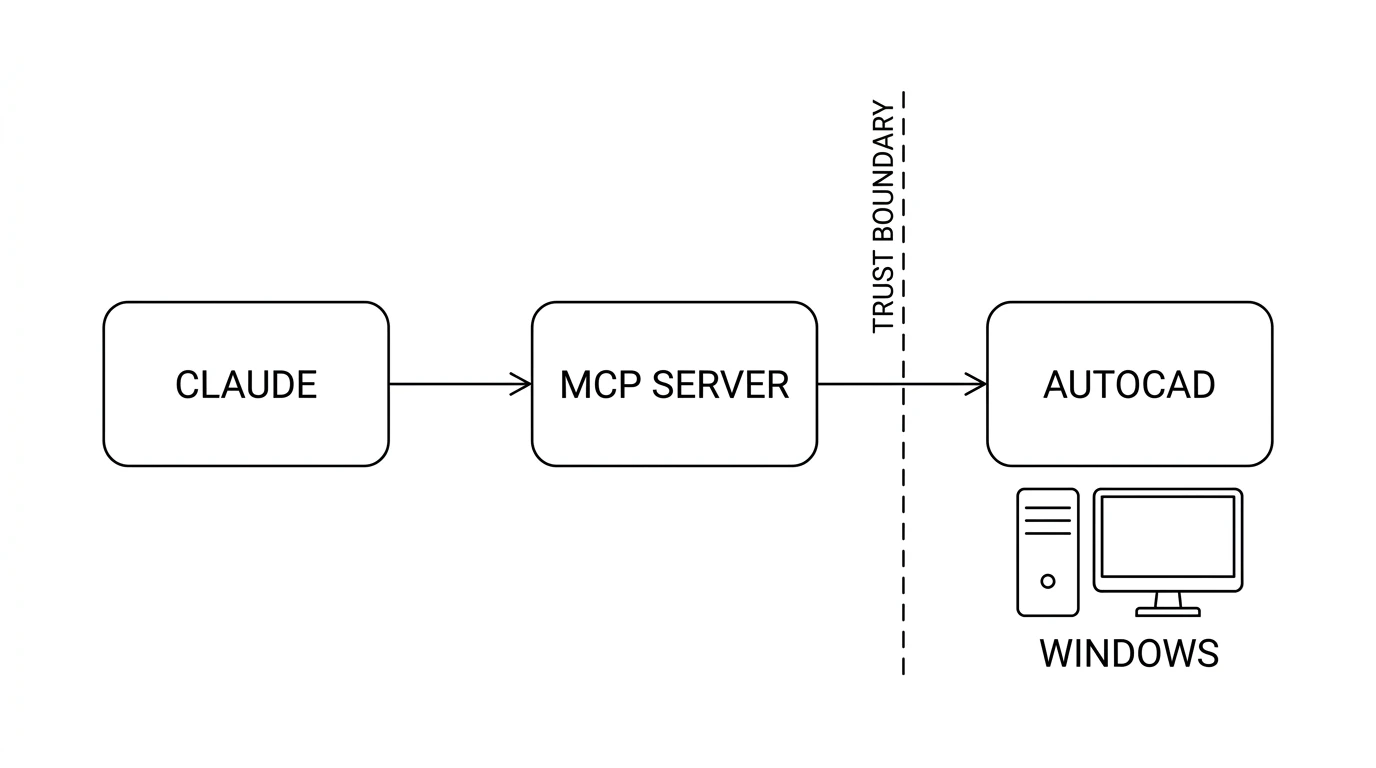
People keep searching for how to plug Claude into AutoCAD, and the answers online are mostly demo videos with the boring parts cut out. Here is the honest version: what Autodesk actually ships, what the community servers do, the requirements that will stop half of you at step one, and the class of work this setup still cannot touch no matter how good the model gets. If what you need is a building model rather than DWG linework, AIBIMTool, the AI BIM software made by the team behind TechDraw AI, builds one from a written brief and exports IFC4 for Revit and Rhino.
Our articles are still written by humans!
Get human written articles in your Google feed.


What MCP actually is
The Model Context Protocol is an open standard Anthropic published in late 2024 for connecting AI assistants to outside tools and data. The useful mental model is a plug standard rather than a feature: an MCP server exposes a set of tools, and an MCP client such as Claude Desktop or Claude Code discovers those tools and calls them on your behalf. The protocol itself knows nothing about CAD.
That distinction matters for expectations. When somebody says “Claude can now use AutoCAD”, what they mean is that somebody wrote a server exposing AutoCAD operations as tools, and Claude is calling them. The quality of the result depends on that server as much as on the model. It is closer to giving Claude a keyboard than to giving it CAD skills.
What Autodesk officially ships
This is where most write-ups get sloppy, so be precise about it. Autodesk has released the Product Help MCP Server, which gives AI assistants secure, read-only access to official Autodesk help content across more than 110 products, at no cost. It is genuinely useful. If you have ever lost twenty minutes to a command flag or a system variable, having the documentation answerable in conversation is a real time saver.
It also does not touch your drawings. It reads documentation. Autodesk has separately published guidance on building MCP servers against Autodesk Platform Services, which covers cloud side work such as browsing hubs and projects through the Data Management API. That is document management, not drafting.
The servers that drive the desktop app
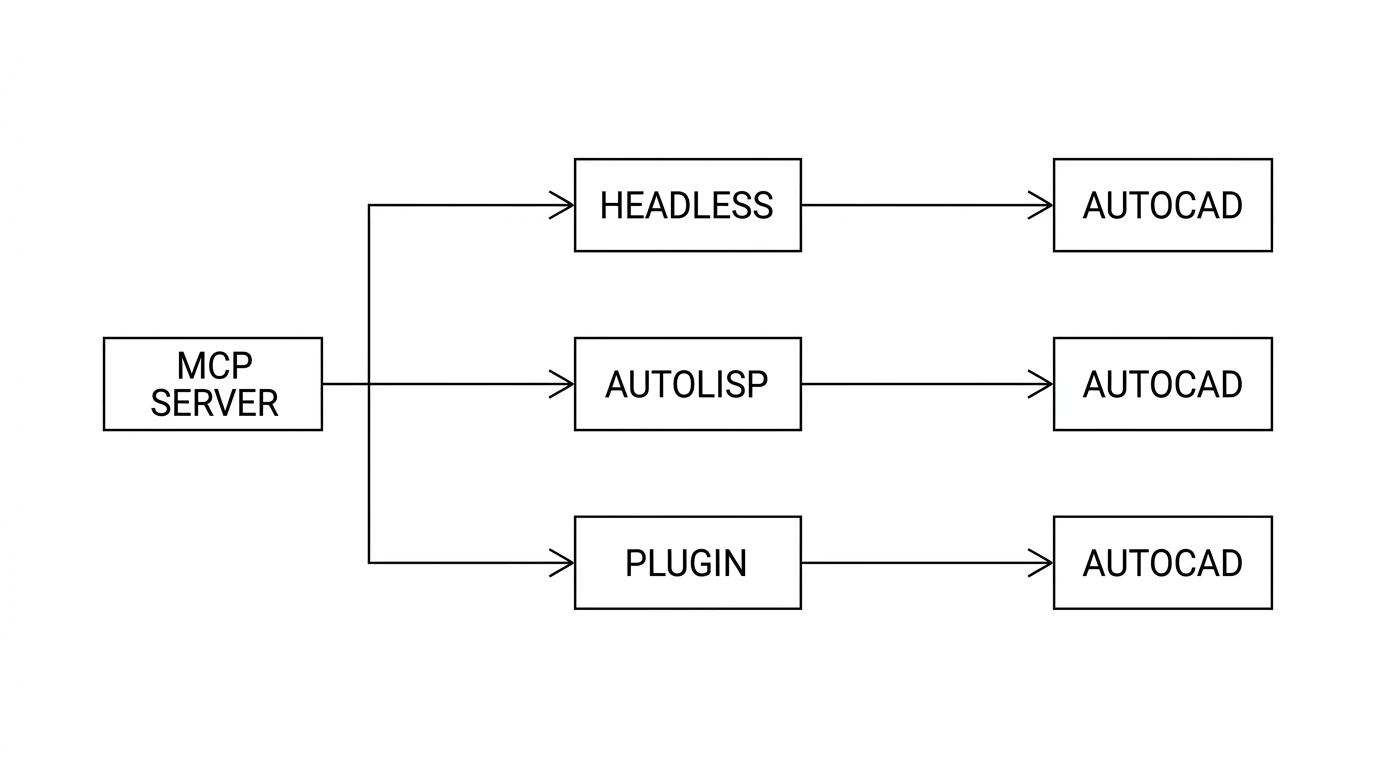
Several community projects expose AutoCAD itself. They differ mostly in how they get commands into the application, and the route determines what works.
Headless script execution
Runs .scr and .lsp scripts against .dwg files using accoreconsole.exe, the console version of AutoCAD. No visible application, no user interface, which makes it the right shape for batch work across many files. You will not get a screenshot back, so verification is on you.
AutoLISP dispatch into the running app
The most common approach on LT. One well documented project posts keystrokes into AutoCAD's window to trigger an AutoLISP dispatch command, exchanging commands and results through JSON files on disk. It is inventive, and it works, and it is also exactly as fragile as it sounds if the window loses focus or a modal dialog appears.
A .NET plugin
A custom plugin loaded inside AutoCAD gives real-time command execution with a proper API rather than synthesised keystrokes. Cleaner, but it needs full AutoCAD rather than LT, since LT does not load .NET plugins.
Tool coverage across these projects lands in a similar place: creating and opening drawings, entity operations for lines, circles, polylines, arcs and rectangles, layer management, blocks and attributes, text and dimensions, viewport control, plotting and export. Some go further with P&ID symbols, external references and layout handling. One exposes eight consolidated tool groups, another nineteen, and the difference is mostly packaging.
What you need before you start
This section will save some of you an afternoon. The requirements are stricter than the demo videos suggest.
Typical requirements for a desktop AutoCAD MCP server
Two disappointments worth stating plainly. AutoCAD LT for Mac does not support AutoLISP, so the LISP based servers will not run there at all. And LT has no ActiveX or COM automation and no Visual LISP IDE, which rules out any project built on those older automation paths, including a fair number of tutorials still floating around.
Individual tools have their own gaps too. In at least one project, offset, fillet and chamfer work only through the live application path and not the headless backend, and the P&ID tools need a specific third-party symbol library installed at a specific path. Read the limitations section of whichever project you pick before you build a workflow on it.
Wiring it up
- Pick a server and read its source. These are community projects of varying maturity, and you are about to give one write access to your drawings. Half an hour reading beats a week recovering.
- Check your AutoCAD version and edition against the table above. This is where most attempts stop.
- Install the server and its dependencies natively on Windows, following the project instructions rather than a video.
- Register the server in your MCP client config so Claude Desktop or Claude Code can see it. Restart the client afterwards.
- Open AutoCAD and load whatever plugin or LISP the server needs.
- Test on a scratch drawing. Ask for something small and verifiable, like a rectangle at a known size on a named layer, and confirm it landed correctly before trusting anything larger.
What it is genuinely good at
Having used this class of tooling, the pattern is consistent. It is strong wherever the work is describable in words and tedious to do by hand:
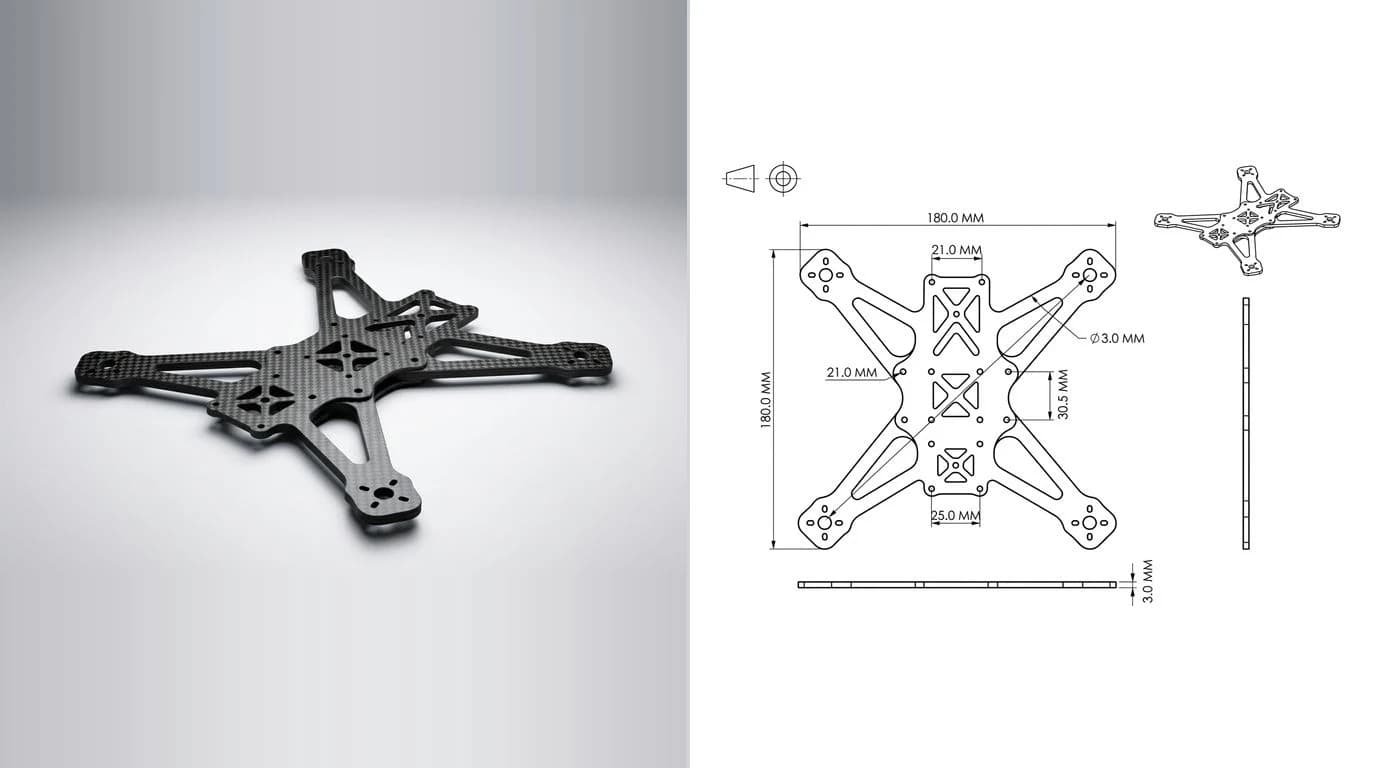
- Repetitive geometry. A bolt pattern, a grid of identical openings, a run of parallel lines at a fixed spacing. You describe the rule and it executes it.
- Layer and standards cleanup. Auditing a drawing against a layer standard and moving entities where they belong is exactly the kind of tedious pattern matching this handles well.
- Batch operations. The headless path over a folder of drawings, running the same export or purge on each.
- Scripting without learning AutoLISP. Describing what you want and having it write and run the LISP is a real productivity shift for people who never had time to learn it.
- Answering questions about a drawing, such as counting entities on a layer or reporting which blocks are used.
For a wider view of what current models can and cannot do with CAD data generally, our post on whether Claude can read CAD files covers the format side, and whether Claude can make technical drawings covers the drawing side without any MCP involved. If you are wiring an OpenAI model to the same servers instead, the client rules are different: connecting GPT-6 Astra to AutoCAD covers why chatgpt.com cannot see a local server and Codex can. For Google's model, we ran the same server 12 times in how to connect Gemini 4 Argon to AutoCAD.
What it still cannot do
Here is the part the demo videos skip, and it is the part that decides whether this solves your actual problem.
An MCP server gives Claude a command channel, not perception. It can issue a command to draw a 40 by 25 rectangle. It has no way to know that your part is 40 by 25 unless you tell it. Every dimension in the output came from you or from a guess, and a confidently drawn guess is worse than no drawing at all.
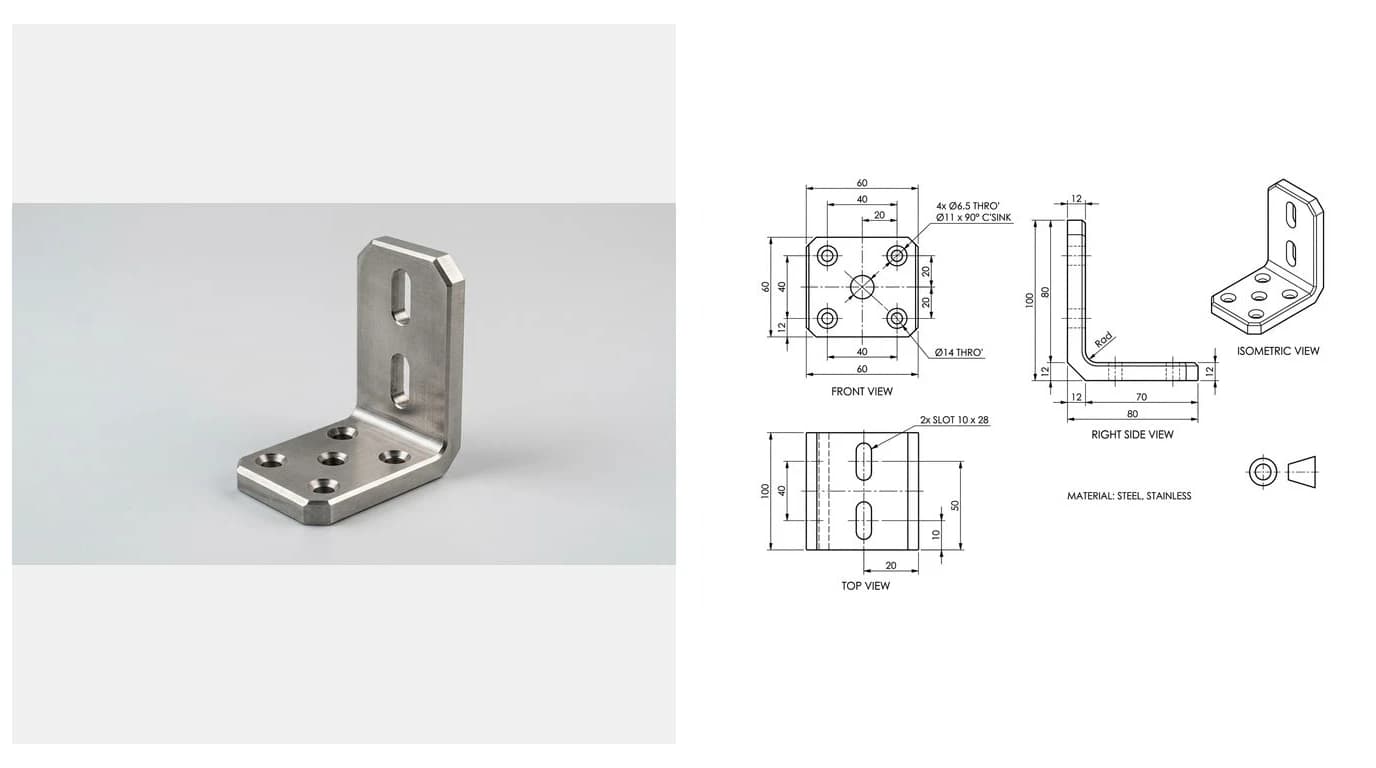
That rules out the thing most people actually want. If you have a physical part, a photo, a scanned sketch or a supplier drawing, and you want a dimensioned CAD drawing of it, no AutoCAD MCP server will get you there. The bottleneck is not the command channel. It is working out the geometry and scale from an image, which is a different problem entirely, covered in getting dimensions from a photo.
That half does have an MCP server, though, and it is worth knowing before you write the whole approach off. TechDraw AI publishes one for exactly this step: you hand Claude a photo and a real measurement, and it comes back with a dimensioned drawing and a DXF at true size. Run it alongside an AutoCAD server and one agent covers both halves, perception and command channel, in the same conversation. It is the same tooling either way, so if you would rather script it than chat to it there is a command-line version and a REST API behind the same account.
The other honest limits:
- It does not know your standards. Title blocks, layer conventions, dimension styles and the way your shop wants things annotated all have to be specified, every time, unless you build them into a template first.
- Verification is still yours. The headless path gives you no visual feedback at all, and even with screenshots you are the one deciding whether the drawing is right.
- It is not deterministic. The same request twice can produce slightly different command sequences. Fine for exploratory work, a problem for anything you need to reproduce exactly.
- Complex or fragile drawings punish it. Deeply nested references, heavy constraints and unusual custom objects are where things go quietly wrong.
Letting a model run code on your machine
This deserves more attention than it gets. Several of these servers expose a tool that executes arbitrary AutoLISP, which is the point, since it is what makes them flexible. It also means the practical trust boundary is not the tool list, it is whatever the model decides to write.
At least one project drives AutoCAD by posting keystrokes into the running application window. That works, and it also means anything else listening to that window is part of the picture, and a stray dialog can put a command somewhere you did not intend.
Sensible precautions, none of which are exotic:
- Work on copies, not live production drawings, until you trust the setup.
- Keep it off shared network paths where a mistake becomes everyone's mistake.
- Have real version control or backups, because undo across a scripted batch is not a plan.
- Read what the server exposes and disable the tools you do not need.
- Watch the first runs. Approving tool calls one at a time is tedious and it is also how you learn what it actually does.
Where this fits in a real workflow
The clean way to think about it is that these are two different problems with two different tools.
Two different jobs
They compose well. Generate the drawing from the part with our AI technical drawing generator, export DWG or DXF, open it in AutoCAD, then let an MCP server handle the repetitive cleanup and standards work inside the file. Register both servers, and that handoff stops being manual: the same agent photographs the part, gets the dimensioned DXF, and then drives AutoCAD to tidy it up against your standards. What does not work is expecting one of them to do the other's job, which is where most of the disappointment with this tooling comes from.
If you are choosing where to spend your setup time: the official docs server is free and takes minutes. A desktop server is worth it if you do genuinely repetitive AutoCAD work and are on a supported Windows setup. And if what you actually needed was a drawing of something you can photograph, start there instead, because no amount of MCP configuration will get you to it. Image to AutoCAD walks through that route end to end, including the DWG version AutoCAD opens natively. On SolidWorks rather than AutoCAD, the servers and their traps are different, and they are in how to connect Claude to SolidWorks and the official Autodesk route for Fusion is in how to connect Claude to Fusion 360. Onshape ships its own server too, covered in how to connect Claude to Onshape.
Frequently asked questions
Can Claude control AutoCAD?
Yes, through an MCP server, but not out of the box. Autodesk's own MCP server is read-only access to help documentation and does not touch your drawings. To have Claude actually draw, you install a community MCP server that connects to AutoCAD on your machine, either by running scripts headlessly through accoreconsole.exe or by driving the running application through AutoLISP or a .NET plugin.
How do I connect AutoCAD to Claude?
Install an MCP server that targets AutoCAD, then register it in your MCP client config so Claude Desktop or Claude Code can see it. Most desktop servers need Windows 10 or 11, AutoCAD or AutoCAD LT 2024 or newer, and Python installed natively rather than under WSL. Once the server is registered and AutoCAD is running, the tools appear to Claude and you drive them with plain language.
Does this work on AutoCAD LT?
On Windows, yes. AutoLISP arrived in AutoCAD LT in the 2024 release, and the LISP-based MCP servers depend on it, so LT 2024 or newer works. AutoCAD LT for Mac does not support AutoLISP, so those servers will not run there. LT also has no ActiveX or COM automation and no Visual LISP IDE, which rules out servers built on those older automation paths.
Can Claude make an AutoCAD drawing from a photo?
No. An MCP server gives Claude a command channel into AutoCAD: it can draw geometry, set layers, place dimensions and run scripts. It does not give Claude any way to look at a photograph of a physical part and work out what shape and size it is. Photo to dimensioned drawing is a different problem, and it is the one TechDraw AI solves, through its own MCP server at techdrawai.com/mcp, which you can run alongside an AutoCAD one.
Is it safe to let Claude run commands in AutoCAD?
Treat it the way you would treat any script from the internet. Several of these servers expose a tool that executes arbitrary AutoLISP, and at least one drives AutoCAD by posting keystrokes into the running application window. That is a lot of trust to hand a process. Read the source, run it against copies rather than live production drawings, keep it off shared network paths, and make sure your version control or backups are real.
What is the difference between the Autodesk MCP server and a community one?
Autodesk's Product Help MCP Server is read-only: it lets an AI assistant look up official documentation across their product range, and it is free. Autodesk Platform Services also has MCP examples for cloud data, such as browsing hubs and projects. Neither draws anything. Community servers are the ones that reach into AutoCAD on your desktop and create geometry, and they carry all the compatibility and trust caveats that come with third-party code.
Sources
- Anthropic: Introducing the Model Context Protocol
- Model Context Protocol: official specification and docs
- Autodesk launches Product Help MCP Server to bring trusted documentation to AI assistants
- Autodesk Platform Services: Building Custom MCP Servers with APS
- puran-water/autocad-mcp: an AutoLISP-based MCP server for AutoCAD LT
- Autodesk: AutoLISP support in AutoCAD LT 2024