TechDraw AI MCP
Give your AI agent a drafting board. Nine tools over the Model Context Protocol: photograph a part or describe it, get a dimensioned drawing, CAD geometry, a 3D mesh or a product render, without leaving the conversation.
Connect your agent
Pick your MCP client:
One command adds the server:
claude mcp add techdrawai -- npx -y techdrawai-mcpThen sign in once with npx -y techdrawai-mcp auth login. The key is stored on your machine, so it never has to live in a config file.
Every client runs the same package, techdrawai-mcp, so nothing else has to be installed. A key in the env block is optional: with none, the server uses whatever techdrawai auth login stored on your machine, which keeps the secret out of a file you might commit.
How it works
The server is a thin client over the TechDraw AI API. Nothing is computed on your machine, so there is no CAD kernel to install and no model to download. The agent calls a tool, we do the work, and the result lands as a file in your working directory.
Tools return paths, not bytes. That keeps megabyte-scale images out of the agent's context and makes chaining the natural thing to do: the drawing one tool just wrote is the input to the next.
 you send this
 generate_technical_drawing
 photo_to_3d
You: Here's a bracket, ~/photos/bracket.jpg. It's 120 mm
across. I need a DXF for the laser cutter.
Claude: [identify_product] → "steel wall bracket"
[generate_technical_drawing]
image: ~/photos/bracket.jpg
product_name: "steel wall bracket"
measurements: [{ value: "120", unit: "mm",
position: "overall width" }]
standard: ISO · paper_size: A3 · drawing_type: working
→ ./techdrawai-output/drawing-2026-07-27_15-04-11.png
5 credits used
[image_to_dxf]
image: ./techdrawai-output/drawing-2026-07-27_15-04-11.png
width_mm: 120
→ ./techdrawai-output/drawing-2026-07-27_15-04-11.dxf
34 contours · 120.0 × 84.6 units · free
Done. The DXF is at true size, 120 mm across, so it goes
straight to the cutter without rescaling.What you can build
Nine tools, but the interesting part is the combinations. What a person asks for, and what the agent actually does:
 furniture
 machined parts
 printed parts
“Draw me a steel L bracket, legs 80 and 60 mm, 40 wide, 5 thick, two 8.5 mm holes in each leg.”
text_to_technical_drawing (standard: ISO, paper_size: A3)
“Here's a photo of a bracket, it's 120 mm across. I need a DXF for the laser cutter.”
identify_product → generate_technical_drawing → image_to_dxf
“Draw this part as an assembly drawing with a parts list, ANSI, third-angle.”
generate_technical_drawing (drawing_type: assembly, standard: ANSI)
“Document every photo in ./parts and put the DXFs in ./cad.”
a loop over the folder, two tools per part
“Turn this drawing into a product shot for the catalogue, brushed aluminium.”
render_product (style: studio, material: brushed aluminium)
“Make a patent figure from this photo, numbered references, no dimensions.”
generate_technical_drawing (drawing_type: patent)
“I need a 3D model of this to check clearance before I machine it.”
photo_to_3d (detail: high)
“Turn this drawing into something I can look at in 3D.”
drawing_to_3d (style: clay)
Tools
generate_technical_drawing
5 creditsTurns a photograph into a dimensioned, standards-compliant technical drawing. Takes the drafting standard, sheet size, projection angle, drawing type, which views to include, and most importantly any real measurements the user took.
text_to_technical_drawing
5 creditsDraws a part from a sentence, no photo: what it is and every size you know. Stated numbers are drawn as given; anything left out is estimated and the sheet says so. For parts that do not exist yet.
image_to_dxf
FreeTraces any image into real CAD contours and writes a DXF. Set width_mm and the geometry arrives in CAD at true size. Add dwg: true for AutoCAD's native format.
image_to_stl
FreeTraces an image and extrudes it into a solid, watertight STL ready to slice. size_mm sets how big the model comes out and thickness_mm how tall it stands. Artwork given a thickness, not a reconstruction — photo_to_3d does that.
render_product
5 creditsThe reverse of drafting. It reconstructs the object described by a drawing and renders it as a finished product photo, in a photoreal, studio, matte clay or lifestyle look.
photo_to_3d
80 creditsReconstructs a textured 3D mesh from a single photo of one object. Downloads the GLB and reports where it landed. Takes one to three minutes.
drawing_to_3d
80 creditsTurns a technical drawing into a 3D mesh. A drawing is line art, so the server renders the object the views describe and reconstructs that — both halves in one call and one charge, where chaining render_product into photo_to_3d costs twice. The model follows the drawing's proportions, not its dimensions.
identify_product
FreeNames the main object in a photo. Cheap groundwork: an agent that knows it is looking at a 'cast-iron bracket' writes a much better title block and estimates far better dimensions.
check_credits
FreeBalance, plan and per-operation costs, so an agent can check before starting a batch instead of failing halfway through one.
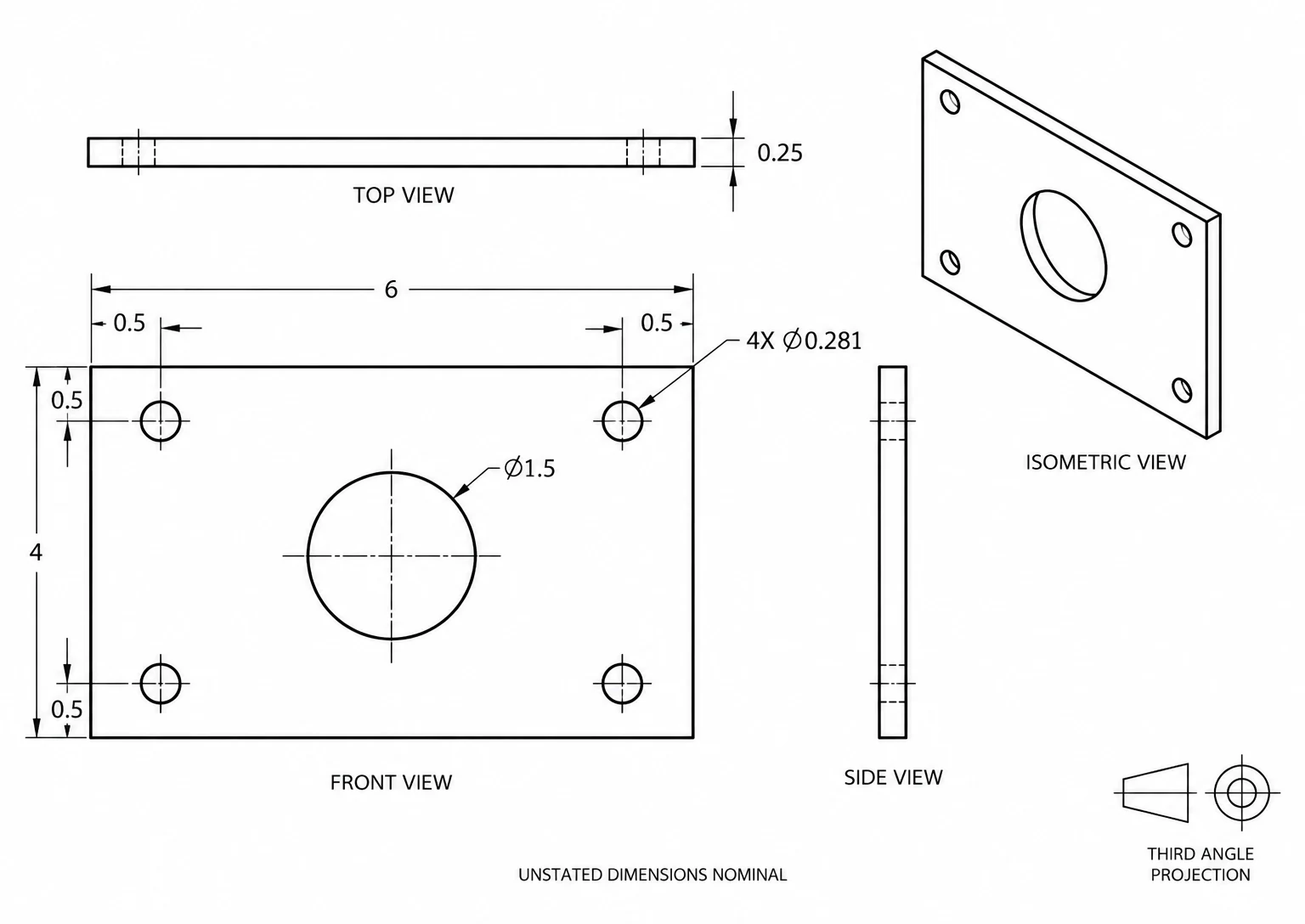
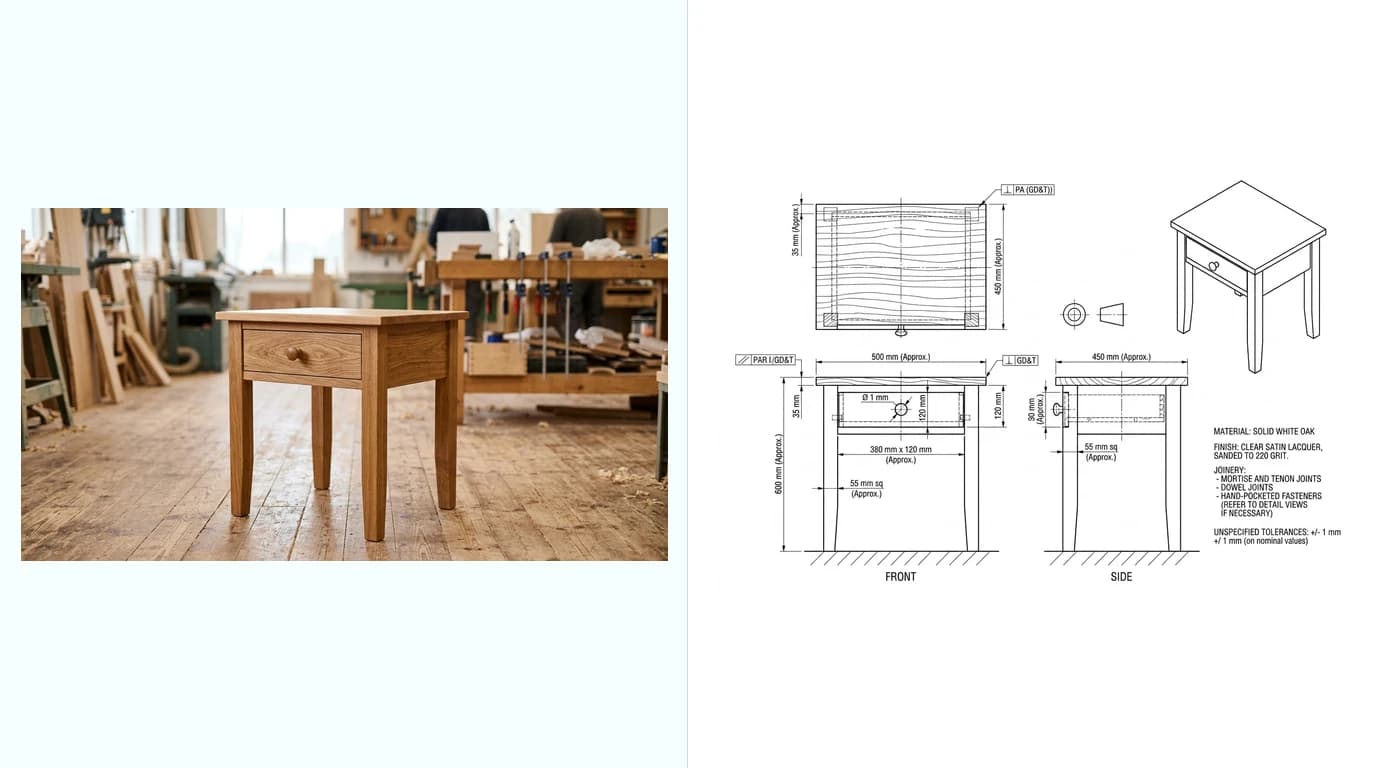
Full parameter lists live in the API reference, where each tool maps onto one endpoint. The package also ships an agent skill carrying the drafting judgement the schemas cannot: ask for one real measurement, ISO with first-angle projection for Europe and ANSI with third-angle for North America, and always offer the DXF. Both skills, the Claude Code plugin and the Claude Desktop extension are on GitHub, installable in one command:
npx skills add MeltFlexDevs/techdrawai-skillsConfiguration
Two environment variables, both optional. TECHDRAWAI_API_KEY overrides the stored config, which is how a shared or headless setup avoids an interactive login. TECHDRAWAI_BASE_URL points the server at a different deployment.
# Verify the server runs and can see your account
npx -y techdrawai-mcp whoami

# List what the agent will be given
npx -y techdrawai-mcp credits
If a tool reports that no API key is configured, run techdrawai auth login or check the env block. The server writes its diagnostics to stderr, which most clients surface under the server's logs.
FAQ
Do I need an API key?
Yes, and it must be your own. The server runs under your account, so every generation is billed to your credits. Either run techdrawai auth login once, or put the key in the env block of your client config.
Which plan do I need?
Studio. MCP, the CLI and the API are all part of it. See plans.
Whose credits get used?
Yours. A drawing or a render is 5 credits; a 3D model is 80 credits, from a photograph or from a drawing alike, because the reconstruction is the expensive half. Tracing to DXF or DWG and identifying an object are free. Failed generations are refunded, so an agent that retries a bad prompt does not quietly drain the balance.
Why do the tools return file paths instead of images?
Because a technical drawing is a megabyte-scale image, and pushing that through the protocol would burn the agent's context on something it usually just hands to the next tool. Every tool writes to ./techdrawai-output/ (or wherever output_path says) and returns where it landed. The agent can read the file whenever it actually needs to look at it.
Is it safe to give an agent?
The MCP layer adds no capability the same key does not already have over plain HTTP. Credit limits, refunds and the plan check all live server-side, so the worst an agent can do is spend your own credits. It cannot create more keys either, because minting a key needs a browser session, never a key.
My client isn't listed.
Anything that speaks the Model Context Protocol works. Use the standard command / args / env shape shown above, pointing at npx -y techdrawai-mcp.
Prefer a terminal? The same package is a CLI. Building your own integration? See the API reference.