TechDraw AI CLI
Drafting, CAD export, 3D reconstruction and product renders from your terminal. Sign in once through the browser, then script it into anything: a batch over a folder of photos, a CI job, a Makefile.
Install
Node 18 or newer, on macOS, Linux or Windows. Nothing is computed locally, so there is no CAD kernel and no native build step. The source is on GitHub if you would rather read it before installing it.
npm install -g techdrawai-mcpOr run it without installing anything:
npx -y techdrawai-mcp --helpSign in
One command. It opens your browser, mints a key from your signed-in session and hands it back to the terminal. You never copy, paste or type a secret, so none of it ends up in your shell history.
techdrawai auth loginOpening your browser to sign in...
If it doesn't open, visit:
https://techdrawai.com/cli/authorize?port=54321&state=8f2c1d09
Signed in. API key saved to ~/.techdrawai/config.jsonThe key travels over the loopback interface only, and the CLI verifies a one-time state token before accepting it. Check it landed:
$ techdrawai whoami
Authenticated (key tda_sk_9f3a1c07...) https://techdrawai.com
Account: you@example.com · plan studio · 747 credits
techdrawai auth logout forgets it again. You can also create keys by hand in Settings → API keys and pass them as TECHDRAWAI_API_KEY.
Commands
| Command | What it does |
|---|---|
| techdrawai auth login | Sign in through your browser. A key is minted from your session and handed back over loopback, so there is nothing to copy or paste. |
| techdrawai whoami | Which account the stored key belongs to, verified against the server. |
| techdrawai credits | Balance, plan and per-operation costs. |
| techdrawai identify -i <photo> | Name the object in a photo. Free. |
| techdrawai draw -i <photo> [options] | Photo to technical drawing. Anchor it with --measure, then pick the standard, sheet size, projection, drawing type and views. |
| techdrawai text "<part>" [options] | Description to technical drawing, no photo. Put every size in the quotes; --standard, --paper, --projection and --units as for draw. |
| techdrawai dxf -i <image> [options] | Image to DXF. --width-mm brings it into CAD at true size, and --dwg writes AutoCAD's format beside it. Free. |
| techdrawai stl -i <image> [options] | Image to a 3D printable STL. --size-mm sets the finished size and --thickness-mm how tall it stands. Free. |
| techdrawai render -i <drawing> [options] | Drawing to photorealistic product render. |
| techdrawai model3d -i <photo> [options] | Photo to 3D mesh, downloaded as GLB. |
| techdrawai drawing3d -i <drawing> [options] | Drawing to 3D mesh, downloaded as GLB. One call and one charge; --style clay gives the cleanest geometry. |
Drawing. The main event. A photo becomes a dimensioned sheet.
techdrawai draw -i bracket.jpg \
--name "steel wall bracket" \
--measure 120:"overall width" \
--measure 45:"height" \
--units mm --standard ISO --paper A3 \
--type working --views front,top,side \
--out drawings/bracket.png -i lamp.jpg
 -o lamp.png
| Flag | Meaning |
|---|---|
| -i, --image <path|url> | Product photo: a file path, an http(s) URL or a data URL. Required. |
| -n, --name <text> | What the object is, e.g. "oak dining chair". |
| -m, --measure <value:where> | A real measurement. Repeatable. |
| -u, --units <mm|cm|m|in> | Primary unit. Default mm. |
| -s, --standard <ISO|ANSI> | Drafting standard. Default ISO. |
| -p, --paper <A4..A0|ANSI A..E> | Sheet size. Default A3 (ISO) or ANSI B. |
| --projection <first-angle|third-angle> | Projection angle. Default first-angle. |
| -t, --type <working|assembly|as-fitted|patent> | Drawing type. Default working. |
| -v, --views <front,top,side,isometric> | Views to include. Default front,top,side. |
| --notes <text> | Material, finish, tolerances, anything to state on the sheet. |
| -o, --out <path> | Where to save. Default ./techdrawai-output/. |
CAD geometry. Trace any image into a DXF: a generated drawing, a scan, a sketch. No credits.
techdrawai dxf -i drawings/bracket.png --width-mm 120 --dwgSaved to /work/techdrawai-output/drawing-2026-07-27_15-04-11.dxf
Saved to /work/techdrawai-output/drawing-2026-07-27_15-04-11.dwg
34 contours · 120.0 × 84.6 units · threshold 137 · no credits used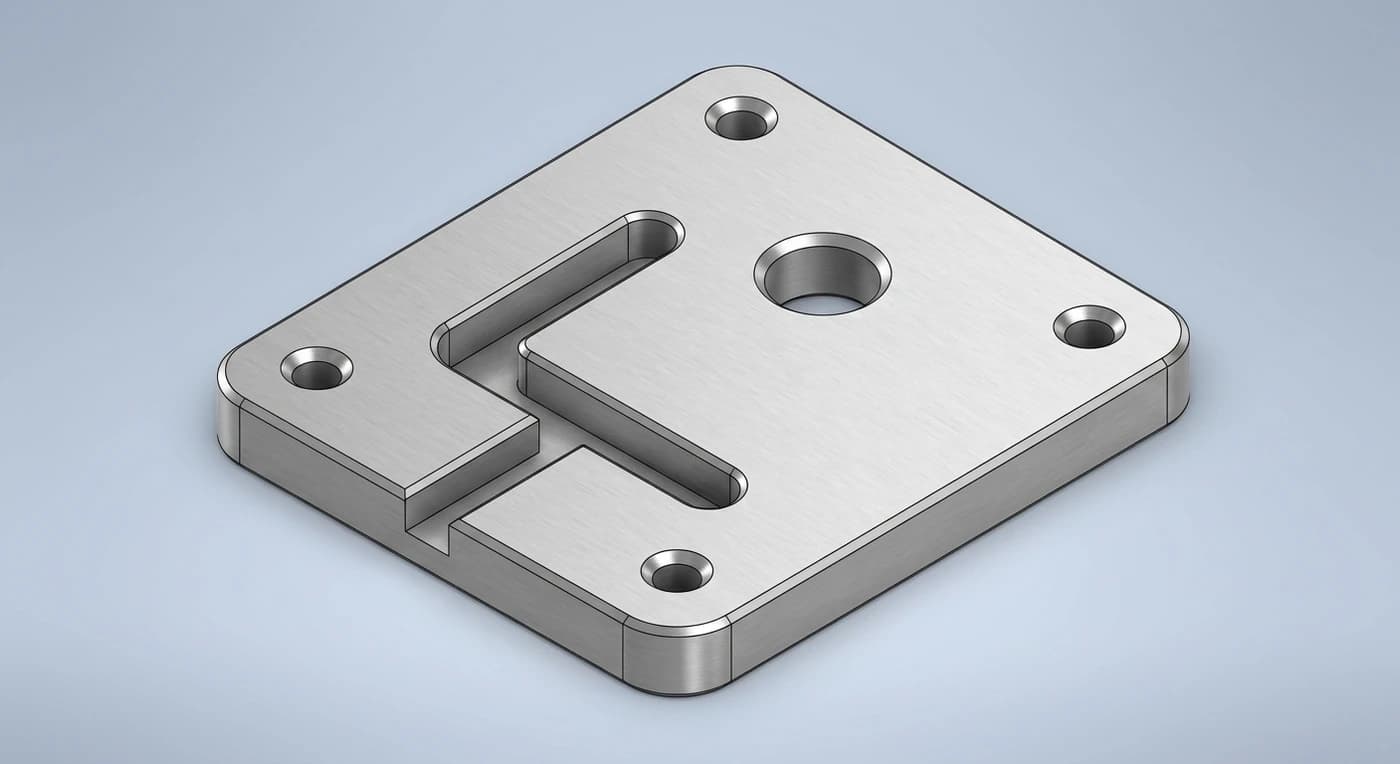
| Flag | Meaning |
|---|---|
| -i, --image <path|url> | Image to trace. Required. |
| --width-mm <number> | Real-world width in millimetres. Without it, one DXF unit per pixel. |
| --threshold <0-255|auto> | Ink/paper cut-off. Default auto. |
| --invert | Trace light lines on a dark background. |
| --smoothing <number> | 1 keeps detail, higher smooths. Default 1. |
| --dwg | Also write a .dwg beside the .dxf. |
| -o, --out <path> | Where to save the .dxf. |
Something to print. The same trace, extruded into a solid STL your slicer will open. Also free.
techdrawai stl -i logos/mark.png --size-mm 120 --thickness-mm 4Saved to /work/techdrawai-output/model-2026-07-27_15-06-42.stl
1260 triangles · 120 × 72.4 × 4 mm · threshold 137 · no credits used| Flag | Meaning |
|---|---|
| -i, --image <path|url> | Image to trace and extrude. Required. |
| --size-mm <number> | Longest side of the finished model. Default 100. |
| --thickness-mm <number> | How tall the extrusion stands. Default 3. |
| --threshold <0-255|auto> | Ink/paper cut-off. Default auto. |
| --invert | Trace light lines on a dark background. |
| --smoothing <number> | 1 keeps detail, higher smooths. Default 1. |
| --max-dim <pixels> | Longest traced side. Default 1600. |
| --min-feature-mm <number> | Drop detail finer than this. Default 0.3. |
| -o, --out <path> | Where to save the .stl. |
Render and 3D. Turn a drawing into a product shot, a photo into a mesh, or a drawing straight into a mesh — the last one renders and reconstructs in a single call, and is charged once rather than twice.
techdrawai render -i drawings/bracket.png \
  --style studio --material "brushed aluminium" \
--out renders/bracket.pngtechdrawai model3d -i bracket.jpg --detail high --out models/bracket.glbtechdrawai drawing3d -i drawings/bracket.png \
--style clay --out models/bracket.glbMeasurements
--measureis the flag that decides whether you get a picture of a drawing or a drawing someone can manufacture from. Without it, dimensions are the model's best estimate and are marked nominal. With even one real measurement, every other feature is scaled proportionally from it and the whole sheet becomes internally consistent.
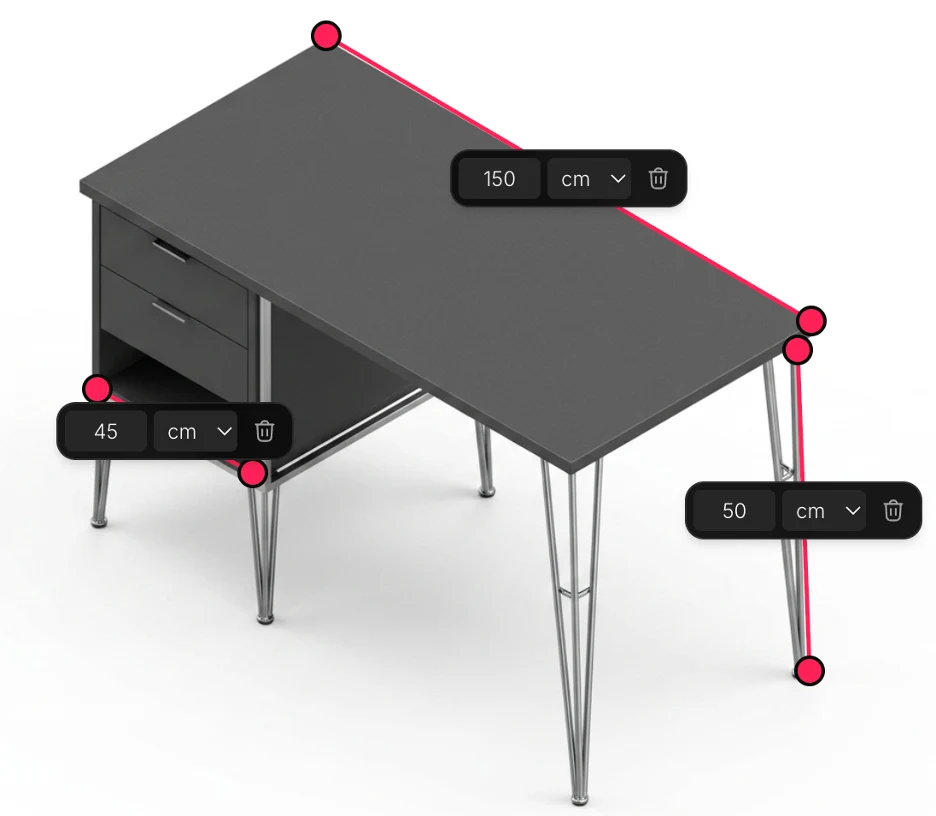
--measure 120:"overall width"    # value : where you took it
--measure 45:"height"            # "height" reads as a vertical dimension
--measure 88:"diagonal across"   # "diagonal" reads as one too
The wording after the colon is not decoration. It tells the drafter which edge the number belongs to, and whether it is a width, a height or a diagonal.
Recipes
A folder of photos to a folder of DXFs. The shape most people want on day one.
 photos/01.jpg
 photos/02.jpg
 photos/03.jpg
#!/usr/bin/env bash
# Every photo in ./photos becomes a drawing and a true-size DXF.
set -euo pipefail
for photo in photos/*.jpg; do
base=$(basename "$photo" .jpg)
# Let the model name it, so the title block is not "product".
name=$(techdrawai identify -i "$photo")
techdrawai draw -i "$photo" --name "$name" \
--paper A3 --type working \
--out "out/$base.png"
techdrawai dxf -i "out/$base.png" --width-mm 120 \
--out "out/$base.dxf"
echo "$base → $name"
doneIn CI. With the key in the environment there is no interactive step, so this runs anywhere.
# .github/workflows/drawings.yml
- name: Generate drawings for new parts
  env:
    TECHDRAWAI_API_KEY: ${{ secrets.TECHDRAWAI_API_KEY }}
  run: |
    npx -y techdrawai-mcp draw -i parts/new-bracket.jpg \
      --measure 120:"overall width" --out artifacts/bracket.png
    npx -y techdrawai-mcp dxf -i artifacts/bracket.png \
      --width-mm 120 --out artifacts/bracket.dxf
Configuration
The key lives in ~/.techdrawai/config.json with owner-only permissions. Environment variables override it, so a container or a CI job never needs the interactive login.
# A key in the environment beats the stored config, so CI and
# containers need no interactive login at all.
export TECHDRAWAI_API_KEY=tda_sk_9f3a1c07...

# Point the CLI at another deployment (staging, a self-hosted instance).
export TECHDRAWAI_BASE_URL=https://staging.example.com
Results are written to ./techdrawai-output/ with a timestamped name unless --out says otherwise, so nothing is ever silently overwritten. Exit codes are 0 for success, 2 for out of credits or the wrong plan, and 1 for everything else.
FAQ
Which plan do I need?
Studio. The CLI, the API and the MCP server are all part of it. See plans.
Where does the API key end up?
~/.techdrawai/config.json, written with owner-only permissions. It travels from the browser to the CLI over the loopback interface only. It is never sent to a third party, and it never appears in your shell history, because you never type it.
Can I use it without the browser login?
Yes. Set TECHDRAWAI_API_KEY and the CLI uses it, ignoring the stored config. That is how CI, containers and headless boxes should run it. You can also paste a key once with techdrawai auth tda_sk_....
How do I check whether a command failed in a script?
Exit codes: 0 success, 2 out of credits or the wrong plan, 1 everything else. File paths go to stdout and progress to stderr, so $(techdrawai identify -i photo.jpg) captures only the answer.
Does it work on Windows?
Yes, on Node 18 or newer, on macOS, Linux and Windows. The browser login opens your default browser on all three.
Is this the same thing as the MCP server?
Same binary. Run techdrawai with no arguments and it speaks the Model Context Protocol over stdio for an AI agent; run it with a command and it behaves like a normal CLI. See MCP.
Working over HTTP instead? See the API reference. Driving it from an AI agent? See MCP.