




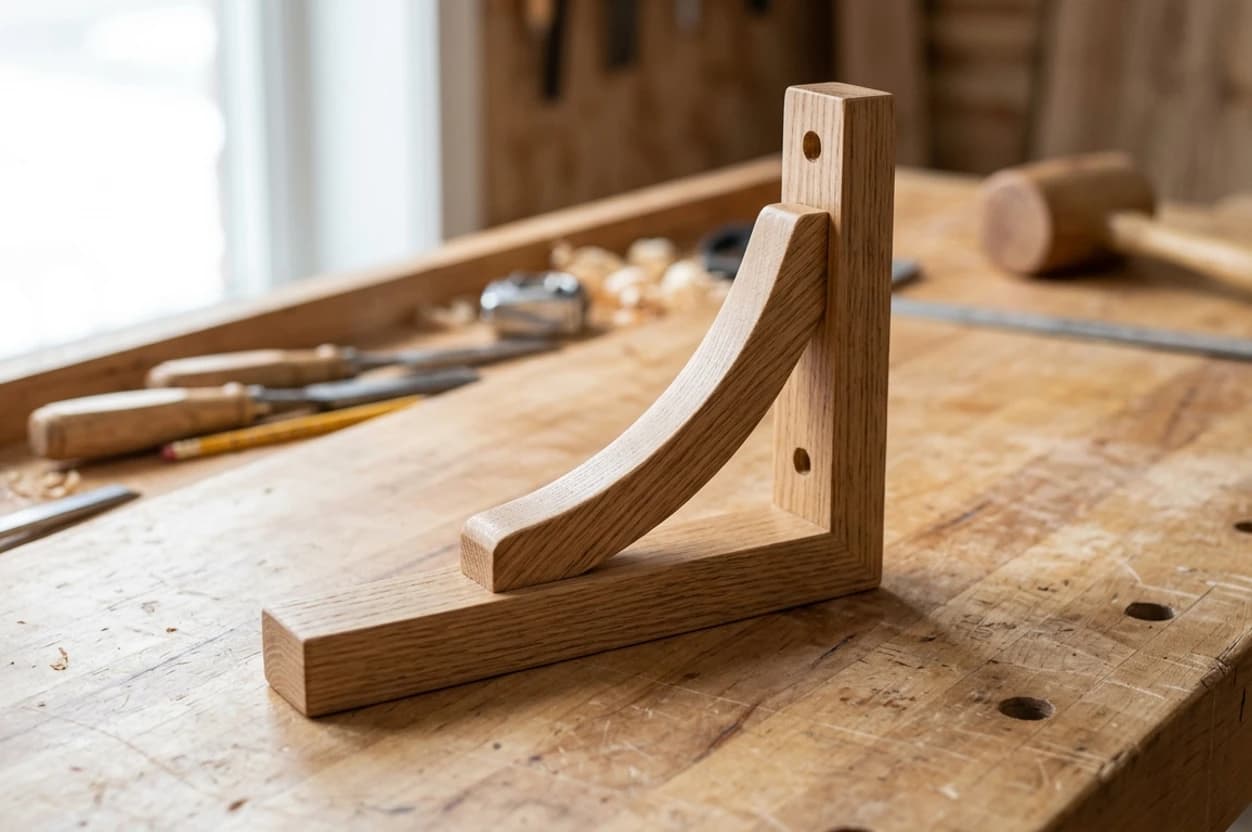
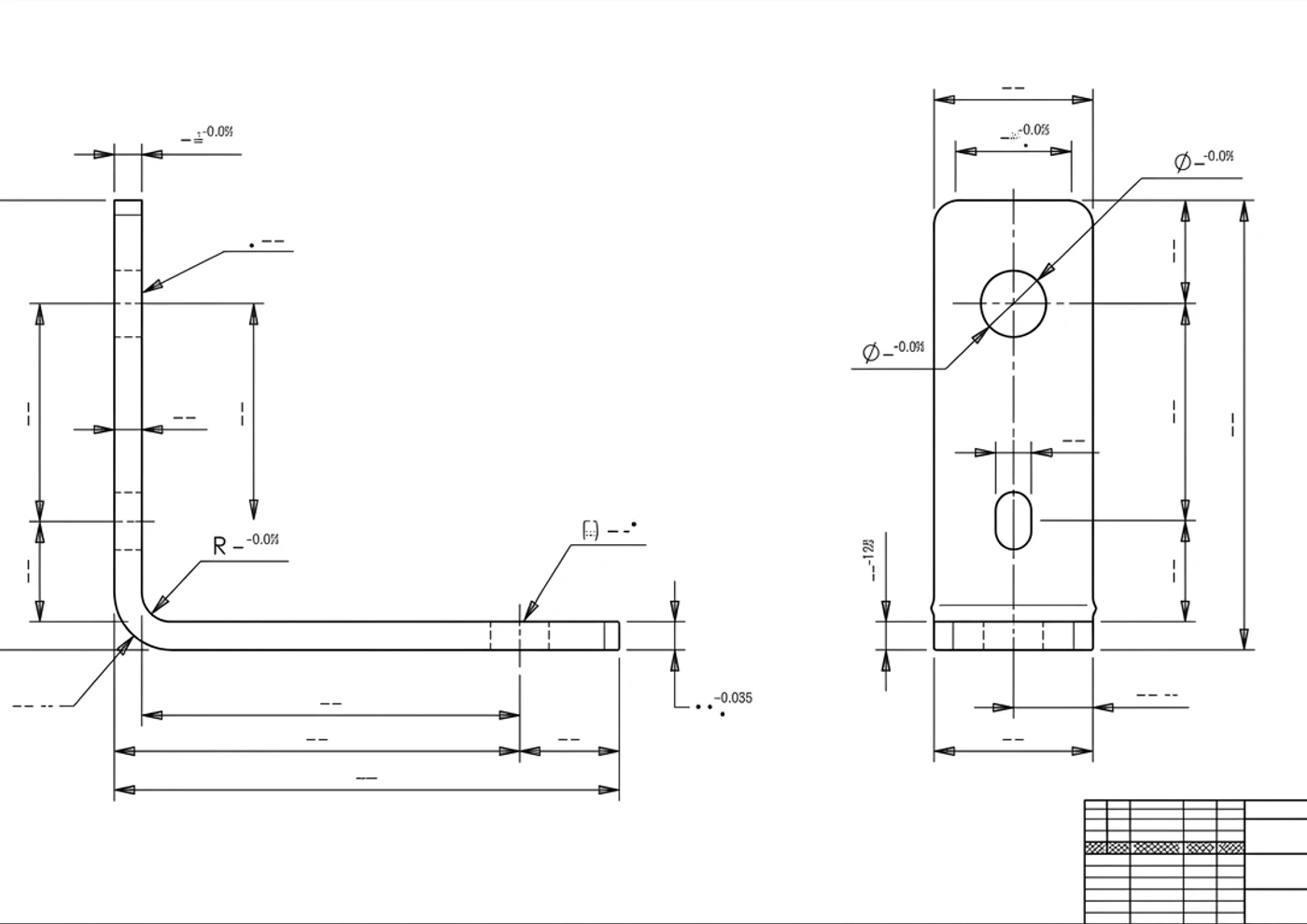
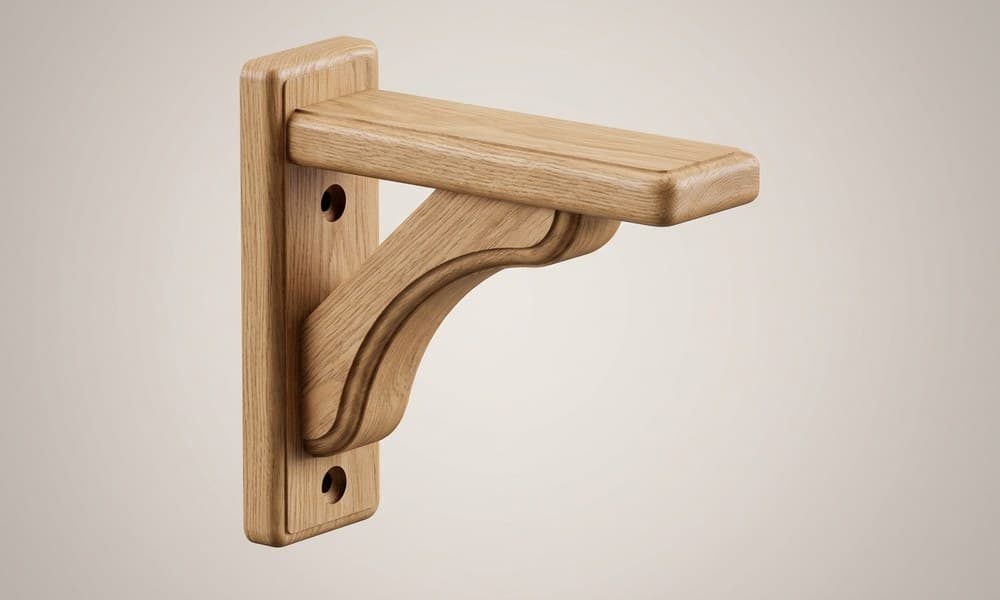
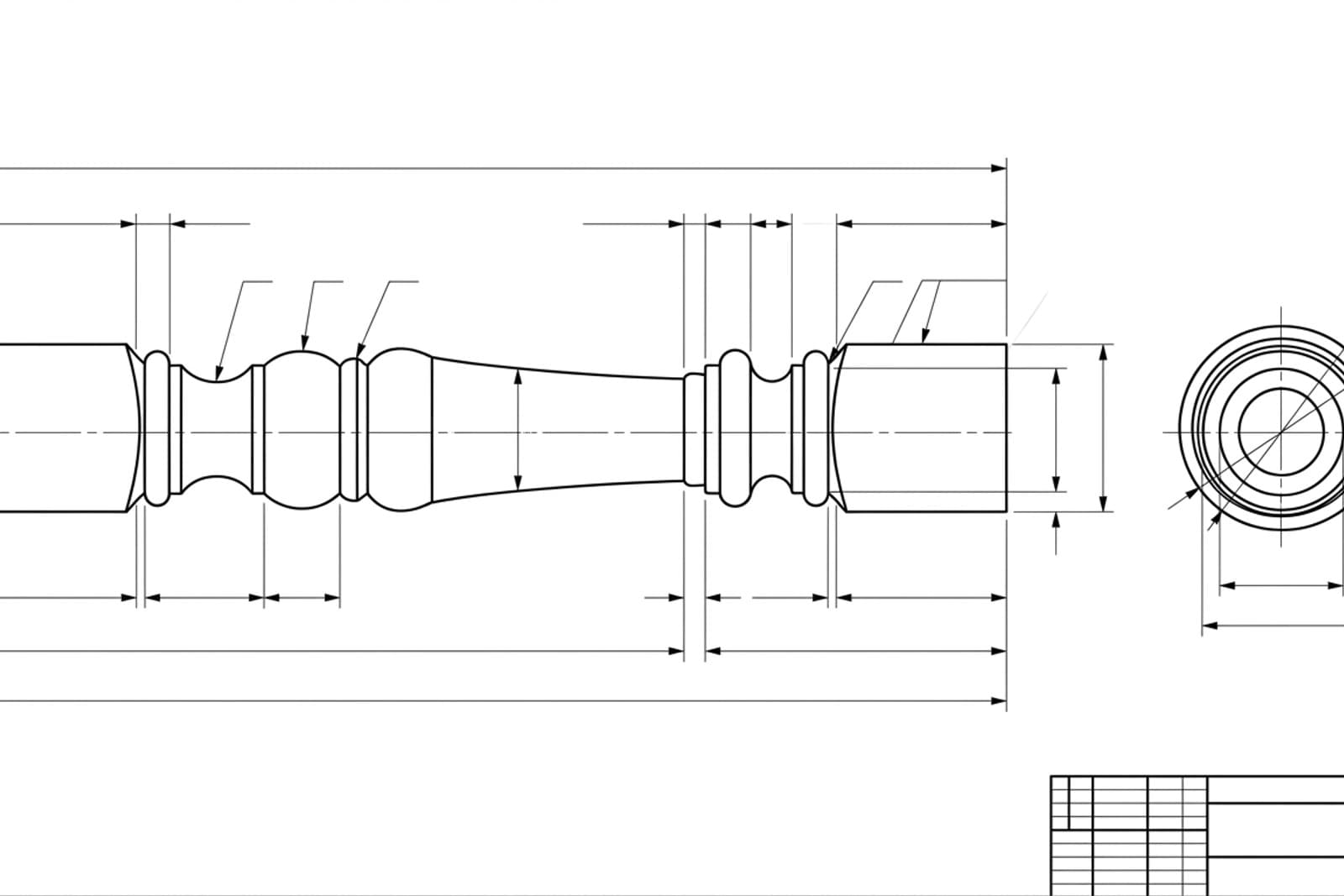

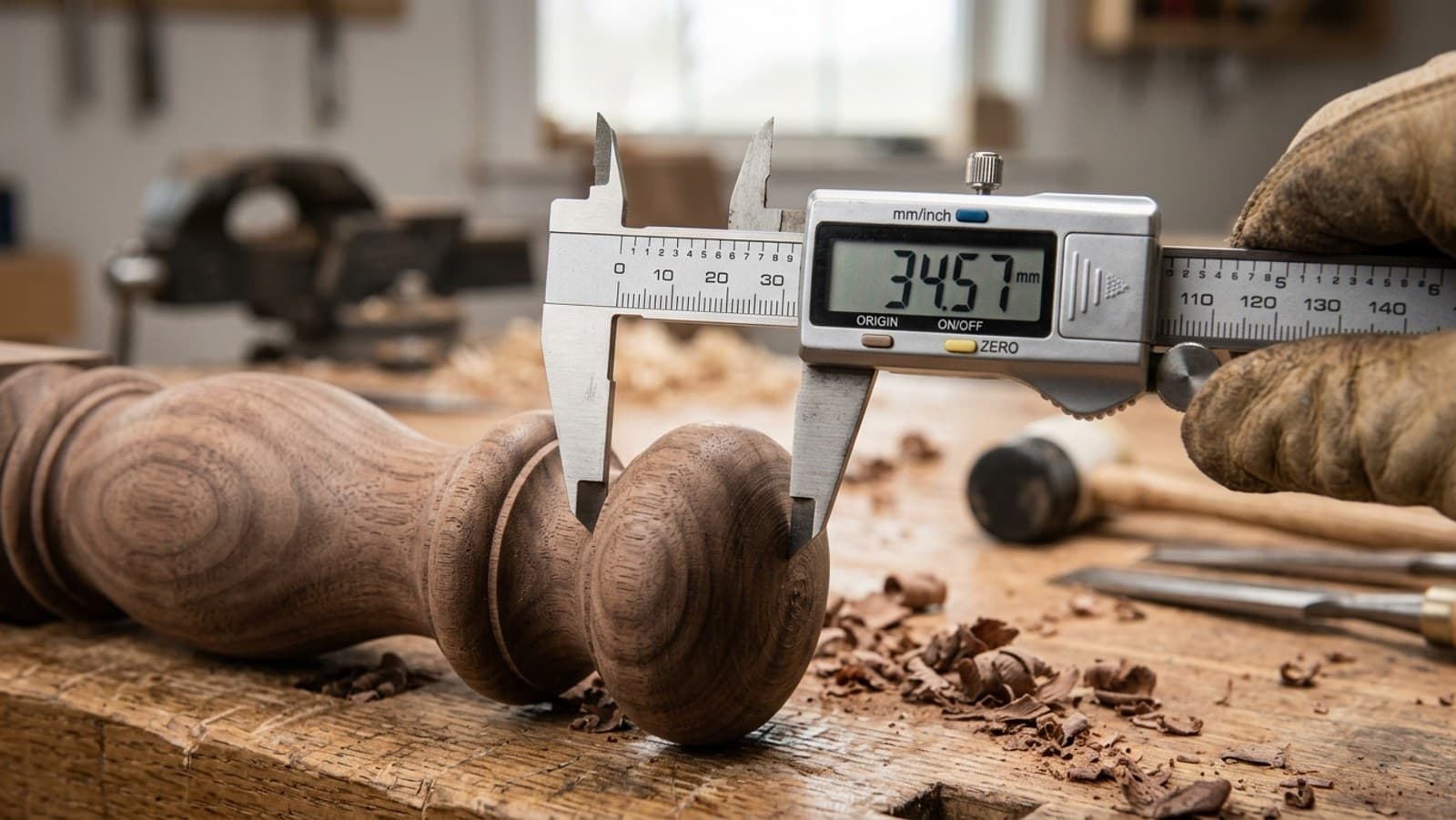
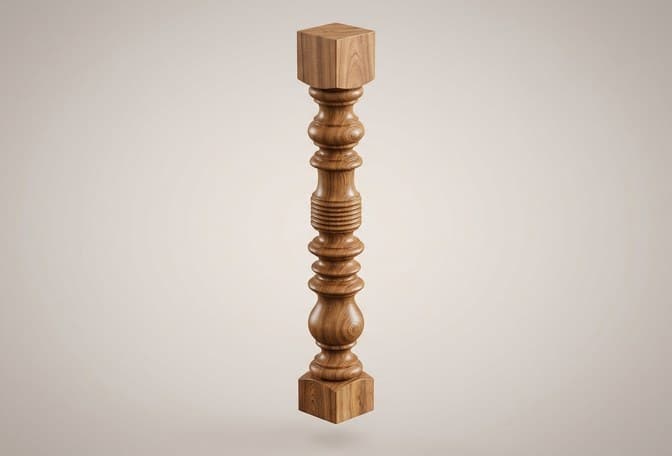
Photograph a part or a fitting, get the DXF, Push/Pull it in SketchUp, and design the whole piece around real measured dimensions instead of guesswork.
Turn a hand sketch or a photographed moulding into a dimensioned DXF, then model the profile and Follow Me it along the run — cornices, trim, handrails.
Once the model's right, SketchUp's plugins and LayOut turn it into cut lists and dimensioned shop drawings the bench can actually work from.
For CNC router work the DXF often goes straight to the machine; SketchUp just confirms and lays out the parts before it ships.
Who does what
Division of labour, not redundancy. Each tool owns the half of the job it's actually good at.
| Step in the job | TechDraw AI | SketchUp |
|---|---|---|
| Capture from a photo | ✓ | ✗ |
| Real measured dimensions | ✓ | ~ |
| DXF / DWG import (Pro) | ✓ | ✓ |
| Push/Pull a face to a solid | ✗ | ✓ |
| Follow Me for turned profiles | ✗ | ✓ |
| Fast for woodworking & architecture | ~ | ✓ |
| Imports DXF in the free web version | ✓ | ✗ |
| Best at | Photo → drawing | Drawing → 3D, fast |
See it for yourself
Drop in a photo of a part. You'll get a dimensioned drawing and a clean DXF, ready to import into SketchUp Pro. No account needed to start.
The five-step handoff
Once you've exported the drawing from TechDraw AI as a DXF, the import into SketchUp is short. If your part is flat, like a panel, shelf or template, the DXF is the cut file and you can stop after the import.
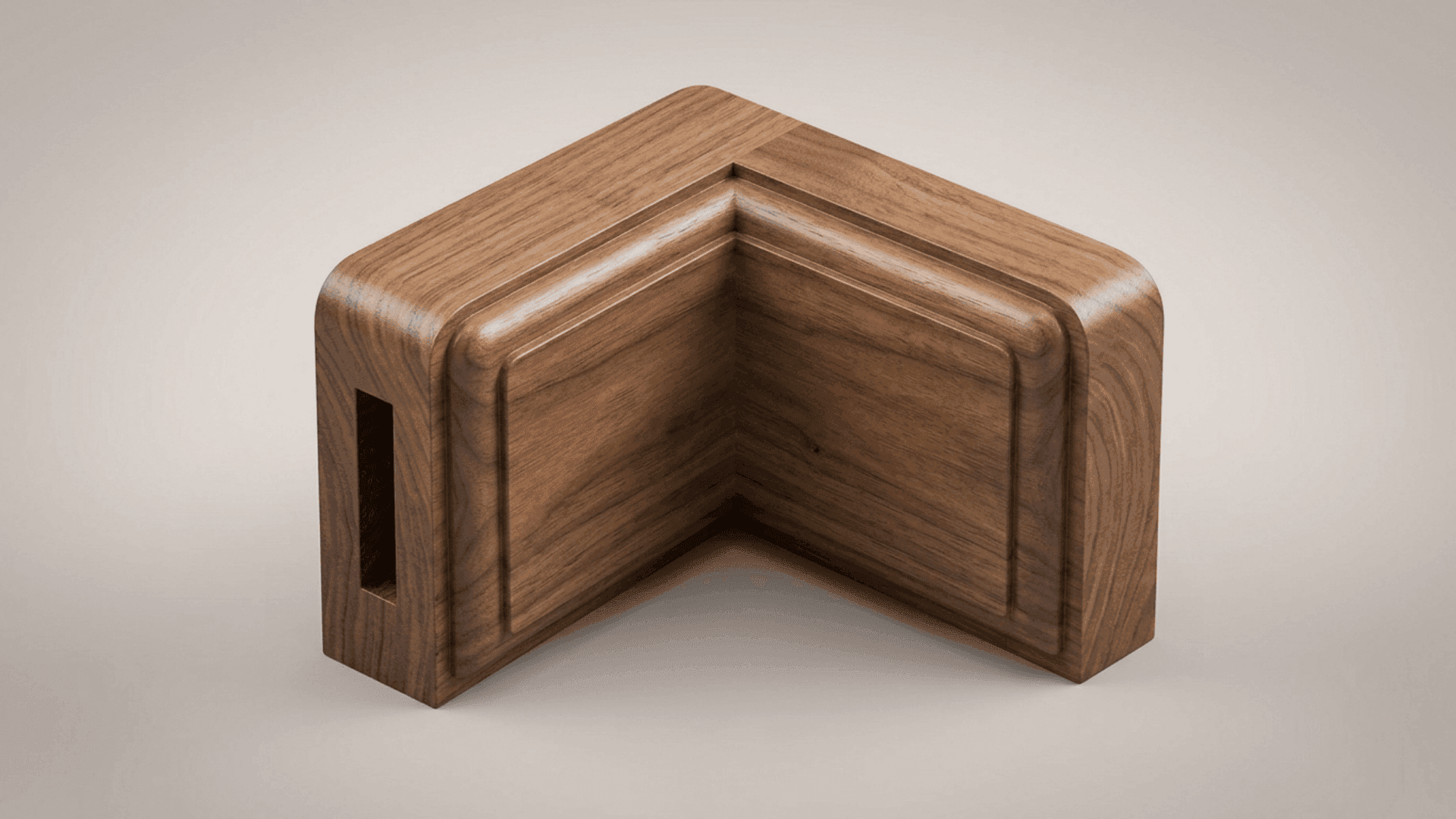
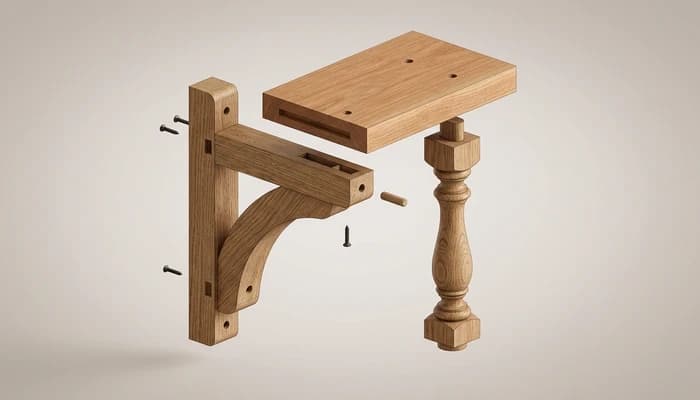
The seam is a DXF. Mind your units, exploding the import and closed coplanar loopsand it's a seam you barely notice. Geometry in, a Push/Pull model out.
Push/Pull vs. Follow Me
The DXF is always a flat 2D profile. Once the edges form a face, how you give it depth depends on the part.
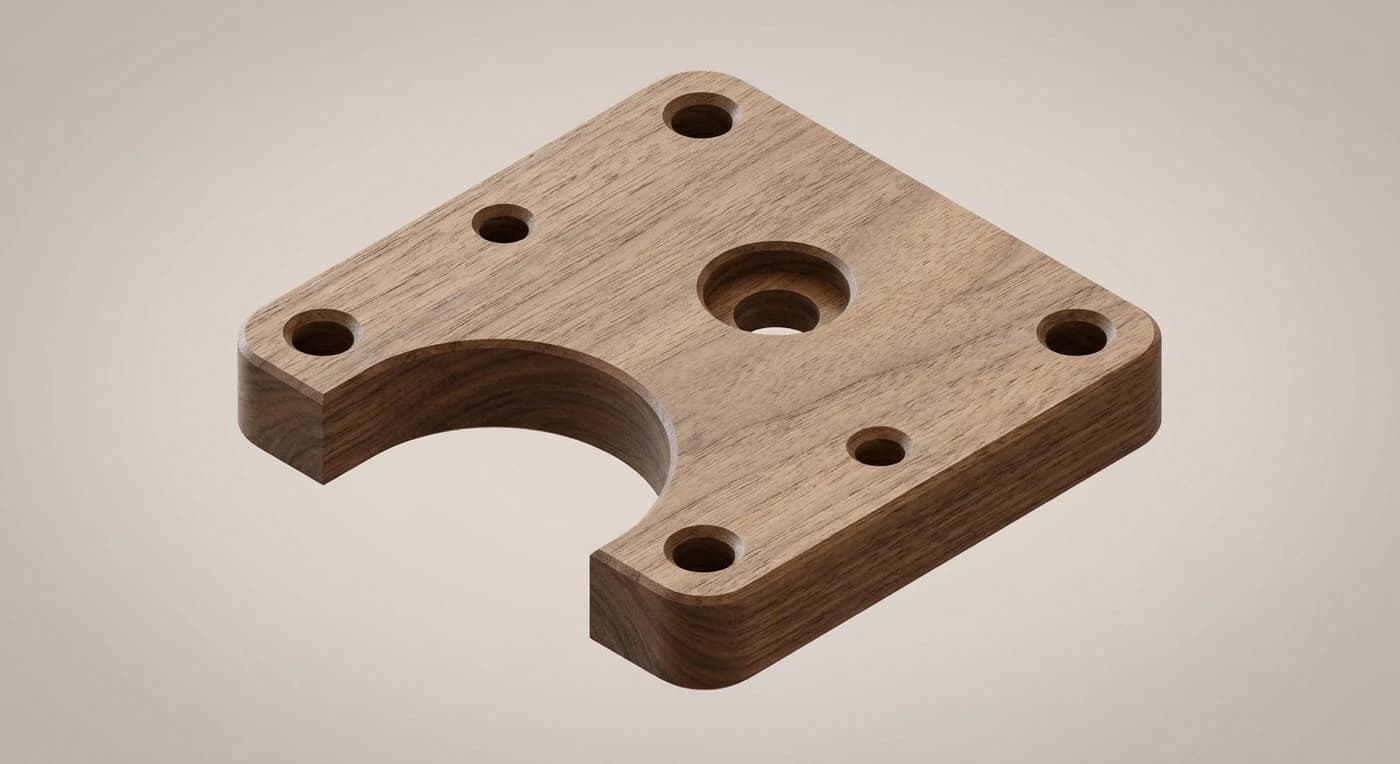
- Brackets, panels, boards, constant thickness
- Click the face and drag it into a solid
- Push a face inward to cut rebates and notches
- Keep Push/Pulling new faces — no history to re-open
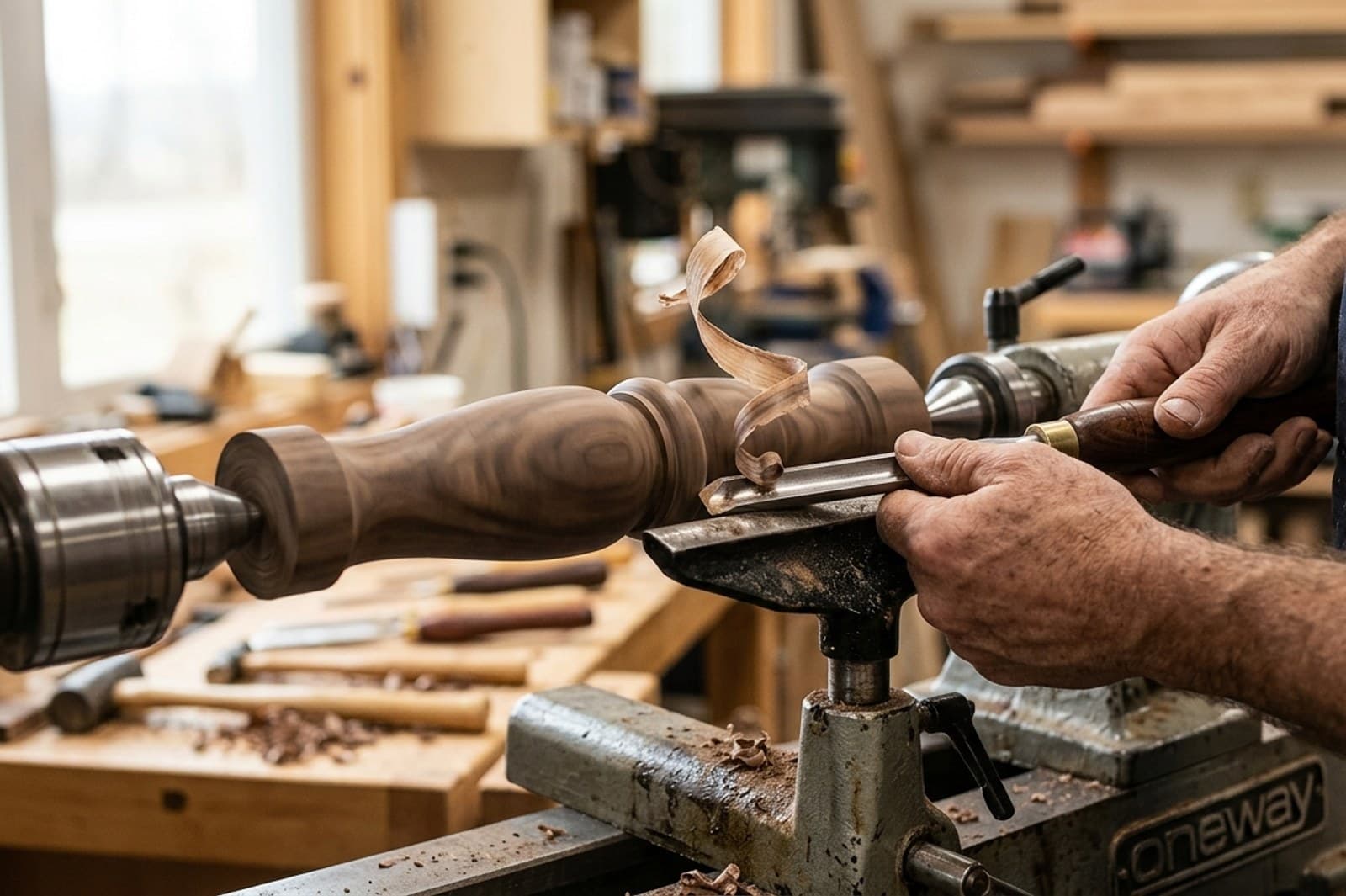
- Balusters, spindles, table legs, anything round
- Draw the half-profile and a circular path
- Follow Me spins it like a lathe
- Also runs mouldings and trim along a path
Three gotchas that break the import
Almost every “my DXF won't make a face in SketchUp” thread comes down to one of these. Knowing them up front saves the ten minutes.
Cleanest habit: from TechDraw AI, export one DXF of just the profile geometry to import and Push/Pull, and keep the full dimensioned drawing (or a PDF) open beside SketchUp as your spec. The model gets clean edges; you keep the numbers in view.
Where this combo earns its keep
| Job | TechDraw AI | SketchUp |
|---|---|---|
| Capture an undocumented part | ||
| Dimension it to real size | ||
| Build the 3D model | ||
| Woodworking & architecture speed | ||
| Cut lists & shop drawings |
Other CAD workflows
TechDraw AI hands a clean, dimensioned DXF to whatever you model in. Here's the same photo-to-3D handoff written up for other CAD tools.
Where the DXF comes from: a photo, one measurement, a dimensioned drawing.
All CAD workflows →The full hub: every TechDraw AI photo-to-DXF pairing in one place.
TechDraw AI + AutoCADExport DWG and just open it. AutoCAD can't trace a photo, so this is the half it was missing.
TechDraw AI + Fusion 360Insert the DXF into a Fusion sketch, then extrude or revolve it into a parametric model.
TechDraw AI + SolidWorksOpen the DXF with the DXF/DWG Import Wizard, then build a parametric SolidWorks model.
TechDraw AI + OnshapeImport the DXF, Use the curves in a Part Studio and model it in the browser.
TechDraw AI + Shapr3DImport the DXF onto a sketch plane, then Push/Pull or revolve it on iPad or Mac.
TechDraw AI + FreeCADImport the DXF in the Draft workbench, convert it to a sketch, then Pad or Revolve it — free.
TechDraw AI + InventorImport the DXF into a sketch, extrude or revolve it, then drive a production drawing and BOM.
TechDraw AI + TinkercadExport as SVG, import it into Tinkercad in the browser, and extrude it into a printable solid.
TechDraw AI + BlenderImport the DXF or SVG as a curve, convert to mesh, then Solidify or Screw it — free.
TechDraw AI + RhinoImport the DXF as exact curves, Join them, then ExtrudeCrv or Revolve into NURBS surfaces.
Start at the part, end at the 3D model
Generate the dimensioned DXF in minutes, then import it into SketchUp. No tracing, no blank canvas, no redrawing. Free to start, no account needed.
Frequently asked questions
Does TechDraw AI replace SketchUp?
No. They solve different halves of the job. TechDraw AI gets you from a physical part or an idea to a dimensioned 2D drawing and a clean DXF in minutes. SketchUp is the fast, intuitive Push/Pull modeller — built for woodworking and architecture — where that DXF becomes a 3D model you can build a whole piece around.
How do I import a TechDraw AI drawing into SketchUp?
Export the drawing as DXF from TechDraw AI. In SketchUp Pro, use File › Import, choose the DXF and set the units in Options. The geometry arrives as a group of edges — explode it so faces form on the closed loops, then Push/Pull. Note that DXF import is a Pro feature; the free web version can't import DXF.
Why didn't a face appear after I imported the DXF?
SketchUp only creates a face when a loop is closed and perfectly coplanar. After exploding the import, re-draw over any single edge of the loop to trigger the face. Tiny gaps between endpoints, or edges that aren't quite coplanar, will stop a face from forming.
The part is the wrong size, or small details vanished — why?
Two causes. Units: set them in the import Options — a 50 mm part read as inches lands 25.4× off. And SketchUp's tiny-geometry limit: it won't build faces below a small threshold, so fine detail disappears. The classic fix is to scale the model up 10–100×, model it, then scale it back down.
Can I import a DXF in the free SketchUp (web)?
Not directly — DXF and DWG import is a SketchUp Pro feature. On the free web version, bring the TechDraw AI drawing in as an image to trace over, or just model to the dimensions on the drawing. For full DXF import you'll need SketchUp Pro.