
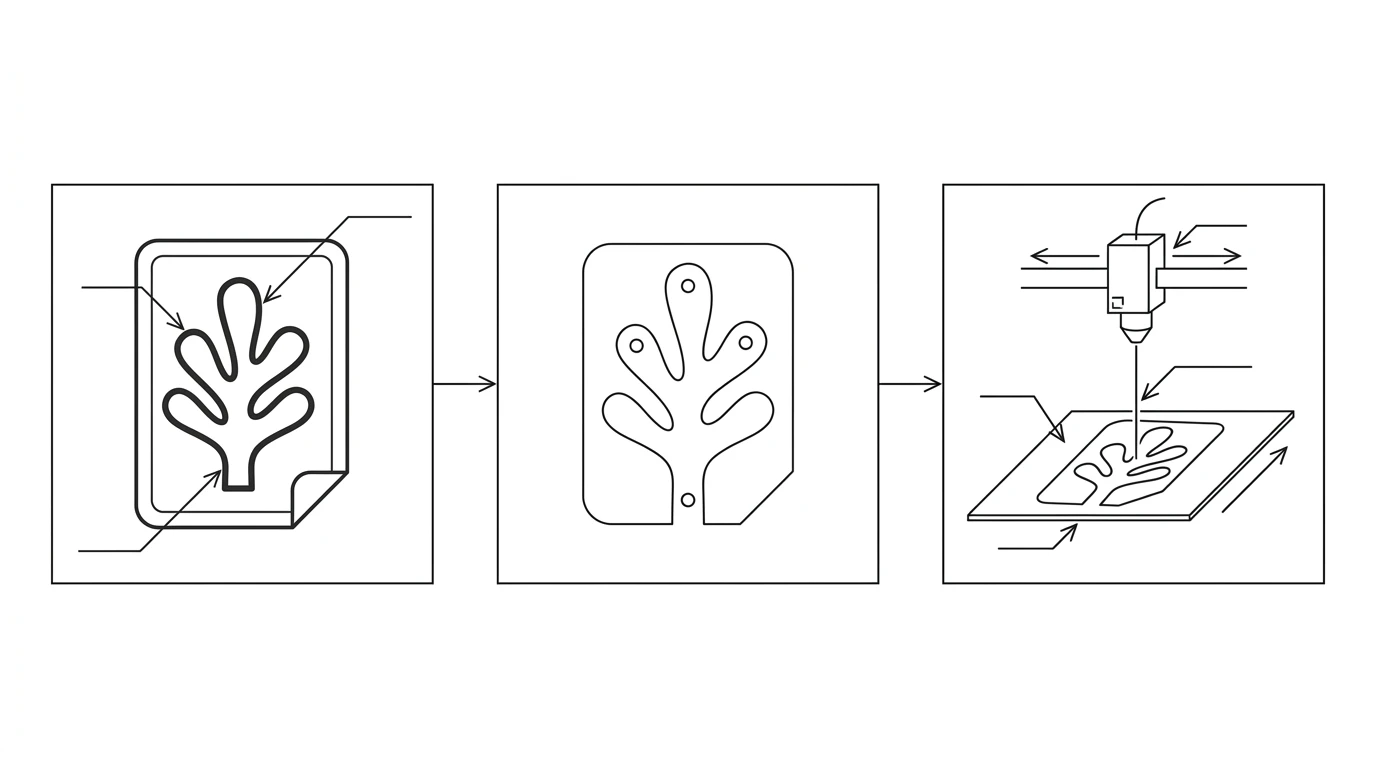
You have a logo, a sketch or a photo of a shape, and a Glowforge or an xTool sitting ready. Between the two is a step most guides skim over: the machine cannot cut your picture. It follows vector paths, and it decides what to cut, score or engrave from the colours and layers in the file, not from how the design looks on screen. Get that translation right and the job runs first time. Get it wrong and you score a line you meant to cut, or burn an edge twice. This guide is the translation, Glowforge and xTool side by side.
Our articles are still written by humans!
Get human written articles in your Google feed.
How Glowforge and xTool read a file
A laser cutter is a 2D profile machine: it drives a beam along a path across a flat sheet. That path has to exist as vector geometry, lines, arcs and closed loops, which is why a JPG or PNG means nothing to it on its own. The same logic underpins every laser, plasma and waterjet cutter, and we cover it in general in how to prepare a DXF for laser cutting. The Glowforge-and-xTool wrinkle is how each one decides what to do with a given path.
Both read three operations from your file, but they label them by colour and layer rather than by anything you draw:
- Cut — the beam goes full power along a closed loop and the part drops out.
- Score — a light surface line, drawn from an open path or a non-cut colour.
- Engrave — a filled area or raster image burned in as a shaded region.
The design that looks finished on your screen is only finished when those three are unambiguous in the file. Everything below is about making them unambiguous.
DXF or SVG? It depends on the machine
This is the single most common source of wasted time, because the right answer is different for the two machines. The short version: Glowforge does not import DXF at all, xTool imports both, and SVG carries the colour information that makes cut/score/engrave map cleanly. DXF is pure geometry, so it tends to land as “all cut” until you reassign operations by hand.
Export format by machine (2026)
So: design or trace to SVG and you can use either machine with the operations already separated by colour. If your shape came out of CAD as a DXF and you want its exact dimensions preserved, that is fine for xTool, but for Glowforge you convert it to SVG first. If you are unsure which format any cutter wants, our answer on what file format a laser cutter uses covers the general case.
The missing step: photo to vector
Here is the part the marketing pages gloss over. You cannot upload a photo and get a cut. The photo has to be traced, turned from pixels into outlines, before the machine has anything to follow. That tracing step is where most of the quality of the final cut is won or lost.
Our free image-to-DXF converter does the trace in your browser: drop in a logo or a high-contrast shape, tune the trace, and download closed vector paths. Export to SVG for Glowforge, or SVG or DXF for xTool. For a logo specifically, the dedicated walkthrough in converting a logo to a vector for laser engraving goes deeper, and if the result comes out rough, see why a traced image looks jagged and how to fix it.
Cut, score and engrave: colours and layers
Once you have vectors, you tell the machine what to do with them. The mechanism is colour, and the two machines differ in the details.
How each machine maps a path to an operation
On Glowforge the colour rule is strict and catches everyone at least once: a stroke that looks black but is actually #010101 or a dark grey is read as a score, not a cut. If a line you meant to cut comes out as a faint surface mark, the fix is to set the stroke to exactly #000000 in Inkscape and re-export as a plain SVG. On xTool you set the operation explicitly per path in XCS, so the colour matters less, but a tidy file with one colour per operation still saves you clicking through every shape.
For both, the rule from the general laser guide still holds: a shape you want to cut out must be a closed loop, and an open path is only right when you want a score or engrave line rather than a cut-out.
File size and complexity limits
Complex traces fail in a way that is easy to miss: the file uploads, looks fine, and then the machine refuses it or drops detail. Both platforms have practical ceilings worth knowing before you spend an hour on a design.
- Path count. A trace of a busy photo can produce thousands of tiny paths. Glowforge gets unhappy in the thousands; a design under a few hundred clean paths uploads and cuts far more reliably. Simplify the trace rather than fighting the upload.
- File size. Keep vector files small. A bloated SVG is almost always a sign of an over-detailed trace or an embedded bitmap that should not be there.
- Engrave resolution. For raster engraving, more DPI is not better past a point; around 300 DPI at burn size is plenty, and higher just lengthens the job.
- No embedded bitmaps in a cut file. An SVG that merely wraps a pasted JPG has nothing to cut. The machine only follows the vectors.
Where the auto-trace quietly fails
This is the section most tool guides leave out, because it is the part that makes their one-click button look less magical. An automatic trace is only as good as its input, and it fails in predictable ways. Knowing them saves you blaming the machine.
- Shaded photographs. A trace looks for edges between light and dark. A photo of a 3D object has soft gradients and shadows everywhere, so the tracer invents edges that are not really outlines. The fix is to start from flat art, or to simplify the photo to a clean silhouette before tracing.
- Low contrast. A pale design on a slightly-less-pale background gives the tracer nothing to lock onto. Boost contrast to near black-on-white first.
- Thin lines and small text. Below a certain width a stroke either disappears or doubles into two parallel lines, which then cut as a slit. Thicken fine detail, and convert text to outlines so it does not depend on a font the machine lacks.
- JPG artefacts. Compression speckle around edges traces as ragged, jagged contours. A clean PNG source traces noticeably better; see PNG to DXF versus JPG to DXF for the difference.
None of this means tracing is unreliable; it means tracing has a job it is good at, flat high-contrast art, and a job it is bad at, shaded photos. Match the input to the job and the output is clean.
Getting the real size right
A traced file gives you the shape, not the size. The outline is correct, but the absolute dimensions are whatever the tracer happened to output, which is rarely what you want on the bed. Before you cut:
- Set the design's real width or heightin your machine's software, or in the SVG before you import it.
- Confirm one known dimension against the on-screen ruler; thirty seconds here saves a scrapped sheet.
- Agree the units — most laser work is in millimetres, and a file read in the wrong unit comes out 25.4 times off, the exact trap in why a DXF imports at the wrong size.
The pre-upload checklist
Run this before you send a design to either machine:
- Exported as SVG for Glowforge, or SVG/DXF for xTool.
- Every cut profile is a closed loop; scores and engraves are open or filled on purpose.
- Cut strokes are pure black
#000000on Glowforge; operations assigned per path on xTool. - Text converted to outlines; no embedded bitmaps in a cut file.
- Trace simplified to a sane path count; thin detail thickened.
- Real size and units set, one known dimension checked.
- Test-cut on scrap before committing the good material.
That is the whole translation: photo to vector, vector to operations, operations to a clean cut. The slow, fiddly part, turning the picture into clean closed paths, is the step our image-to-DXF tool exists to do for you. You can try it free on your own design, then bring the file into Glowforge or xTool with the checklist above. And if you want to turn those files into a side income, see how to make and sell laser-cut files on Etsy for the craft marketplaces, or how to sell DXF files online if your files are headed to CNC and CAD buyers instead.
Frequently asked questions
Can I turn a photo into a Glowforge or xTool file?
Not directly. A photo is pixels and both machines cut along vector paths, so the photo has to be traced into outlines first and exported as SVG or DXF. A free in-browser tracer does that step; then you separate cut, score and engrave by colour and upload. The trace works best on flat, high-contrast art rather than a shaded photograph.
Does Glowforge accept DXF files?
Glowforge accepts SVG and PDF for vector work, plus common raster formats for engraving. It does not import DXF, so if your file is a DXF you convert it to SVG first. xTool's software (XCS) does accept DXF as well as SVG, which is the main practical difference between the two when you choose an export format.
DXF or SVG for xTool?
Either works in xTool Creative Space, but SVG carries colours and stroke styling that map cleanly onto cut, score and engrave, while DXF is pure geometry and tends to import as all-cut until you reassign operations. For most maker designs SVG is the smoother choice; DXF is better when the file came out of CAD and you want exact dimensions.
Why is my Glowforge scoring my line instead of cutting it?
Almost always the stroke colour. Glowforge reads a pure-black stroke (hex #000000) as a cut and any other colour as a score. A stroke that looks black but is actually #010101 or a dark grey is treated as a score. Fix the colour to exactly #000000 in Inkscape or your design tool and the line cuts.
What resolution should a photo be for laser engraving?
For engraving a raster image, aim for a clean image at roughly 300 DPI at the size you will burn it; far higher rarely helps and only slows the job. For cutting, resolution does not matter at all because the machine follows vectors, not pixels, so the priority there is a clean trace rather than a high-resolution source.