
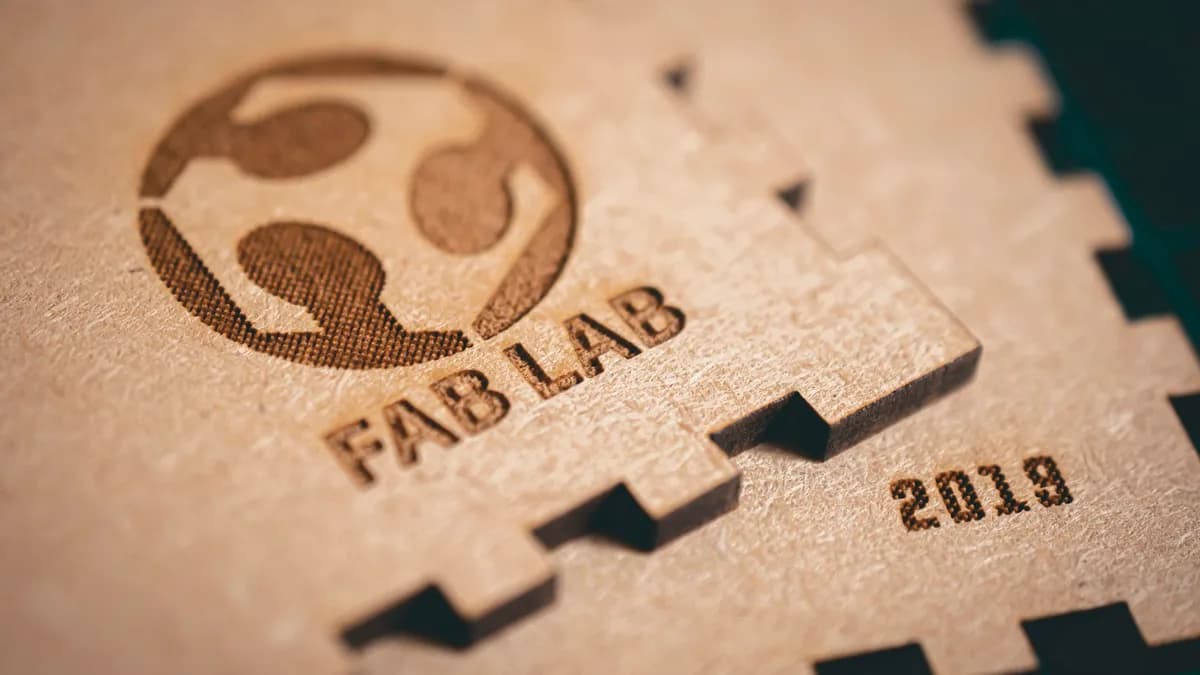
You have a logo as a PNG or a JPG, and you want it engraved on a coaster, a sign, a gift or a product. The catch is that a laser cannot use your logo as it is: it follows vector paths, and your logo is a grid of pixels. Converting it cleanly is a short, repeatable process, and getting it right is the difference between crisp lines and a fuzzy, jagged burn.
Our articles are still written by humans!
Get human written articles in your Google feed.
Why a laser needs a vector
A laser cutter drives its beam along paths: lines, arcs and curves with real coordinates. That is vector geometry. A logo saved as PNG or JPG is the opposite, a field of coloured pixels with no notion of an edge the machine can follow. To engrave a logo as crisp outlines, or to cut it out, you have to trace those pixels into vector paths and save them in a format the laser reads, normally DXF or SVG.
There is one exception worth knowing. Many lasers can also raster-engrave a photo or bitmap, burning it dot by dot as shades of grey, like a printer. That is great for photographic plaques but poor for a logo, where you want sharp, solid lines. For a clean logo, vector is the right path.
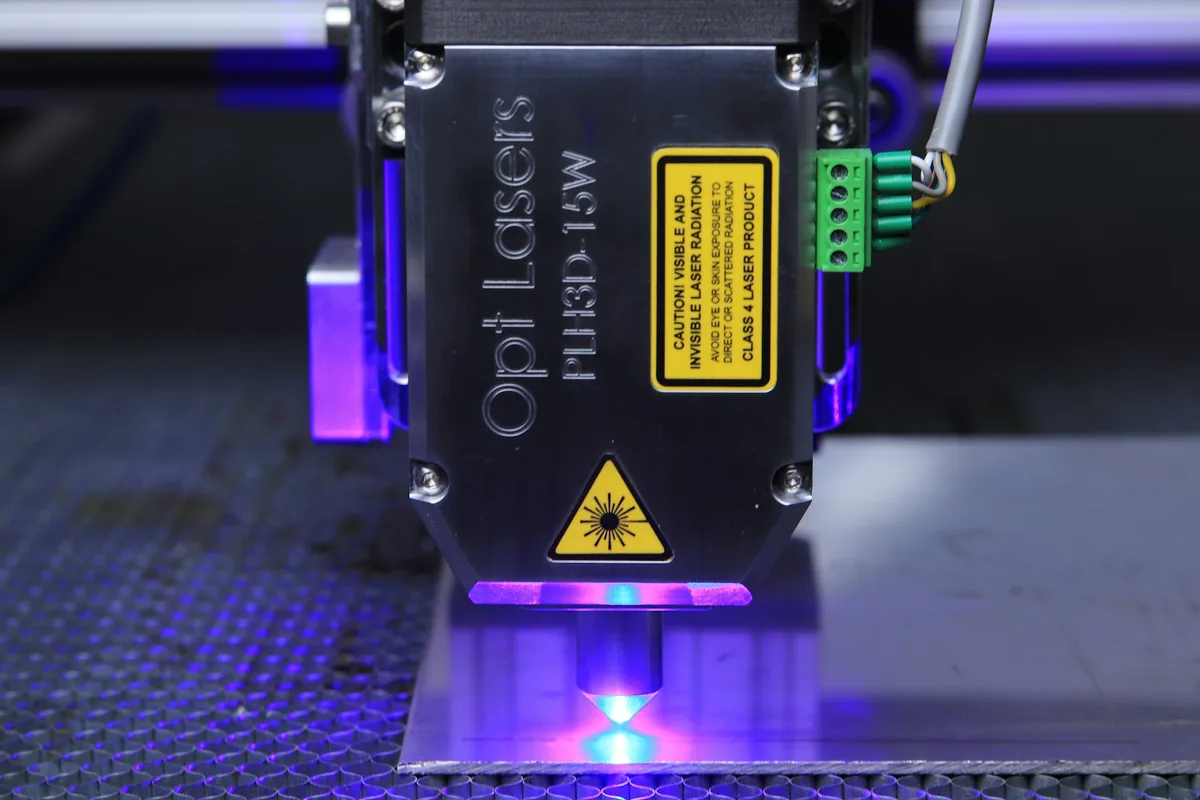
Engraving vs cutting a logo
Decide up front what you want, because it changes how you prepare the file:
- Engrave the outline (vector engrave).The laser scores the logo's lines into the surface at low power. You want clean outline paths.
- Engrave the fill (raster or filled vector). The laser fills solid areas, so a solid logo shows as a burned-in shape. You want closed filled regions.
- Cut the logo out. The laser cuts all the way through, so the logo drops out as a part. Every path that defines the outline must be a closed loop.
Most shops separate these operations by layer or colour in the file, then map each to a power and speed at the machine. Knowing your goal tells you which the logo needs.
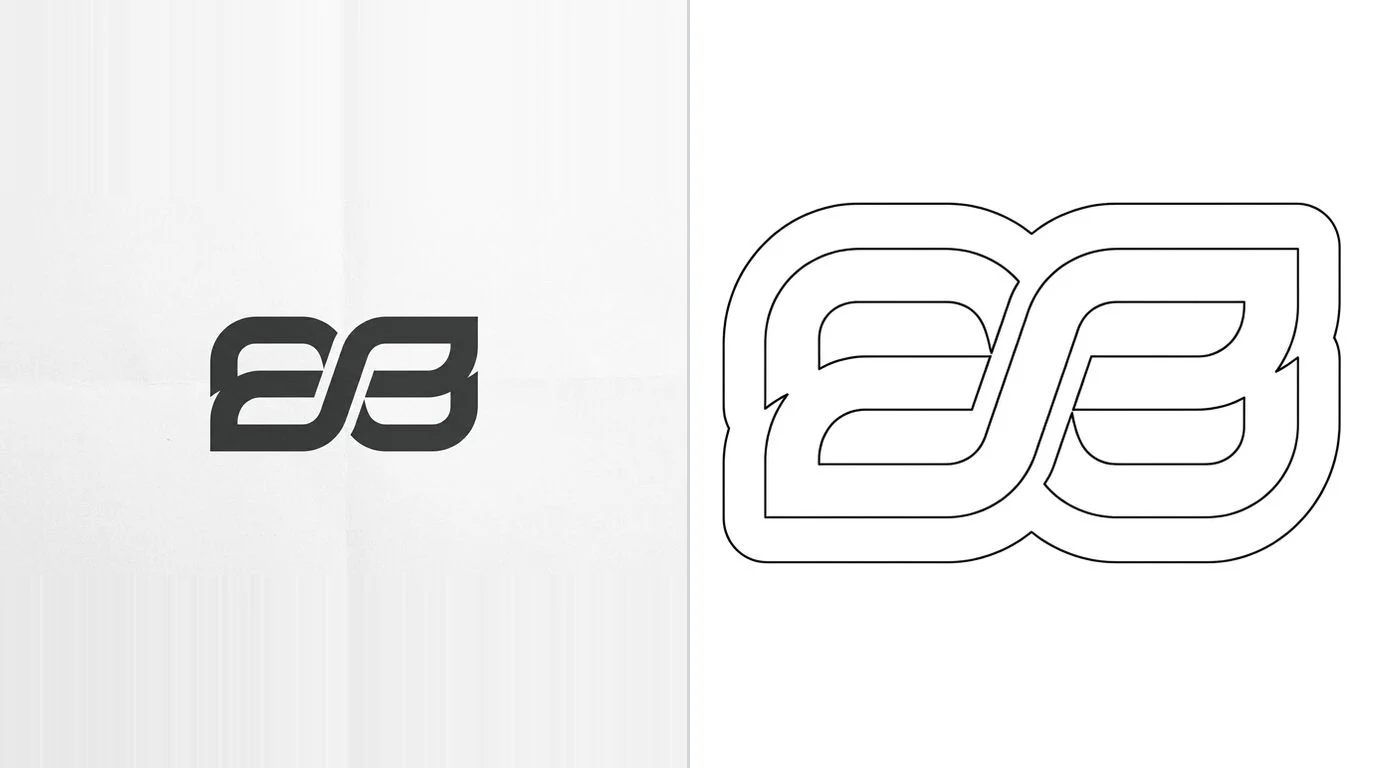
1. Prep the logo: black and white, high contrast
This step does most of the work. A tracer follows the boundary between dark and light, so the cleaner that boundary, the cleaner the vector. Before tracing anything:
- Start from the highest resolution you have. A tiny logo pulled off a website traces into rough, noisy edges. Find the original or the largest version.
- Convert to solid black on white. Drop colour and gradients. A laser engraves shape, not colour, so a flat black-on-white version traces far more cleanly than a shaded logo.
- Remove the background. Any background texture or box becomes geometry. Strip it so only the logo remains.
- Thicken hairline details. Very thin lines can vanish or break up when engraved. If a feature must survive, make sure it is thick enough to burn.
2. Trace it to a vector file
Now convert the prepared logo into vector outlines and export a DXF or SVG. Two routes work well.
The fast route is an automatic tracer. Our free image to DXF converter runs in the browser: drop in your black-and-white logo, tune the trace until the outline is crisp, and download closed DXF polylines ready for the laser. It is built for exactly this, flat, high-contrast line art, which is what a good logo is. We compare the dedicated converters in the best JPG to DXF converters, and the same tracing idea is covered from the CAD side in image to CAD. Cutting on a specific machine? See photo to a Glowforge or xTool cut file for the per-machine colour and format rules.
The manual route is to auto-trace in a vector editor like Inkscape (free) or Adobe Illustrator, then correct the paths by hand and export DXF or SVG. It is slower but gives the most control on a fiddly logo.
3. Clean the paths
A fresh trace almost always needs a tidy-up before the laser should touch it:
- Simplify the nodes. Auto-tracing can put hundreds of points on a curve that needs a handful. Too many nodes make jagged paths and make the laser stutter. Reduce and smooth them.
- Close the loops. Anything you cut out, or fill, must be a closed path. Join endpoints that should meet.
- Remove duplicate lines. Overlapping paths make the laser engrave or cut the same line twice, wasting time and scorching the edge.
- Convert text to outlines. So letters engrave exactly, regardless of the fonts on the machine.
If your trace comes out rough no matter what, the fix is usually upstream, a better source image and cleaner black-and-white prep. We go deep on this in getting a clean vector trace.
4. Set the size and placement
A traced logo carries the shape but not the size, because the source image had no real-world dimensions. The vectors come in at whatever size the tracer guessed, so set the real size before you engrave: scale the logo to fit your material, and confirm the units are right. A logo meant to be 60 mm wide that imports as 60 inches is a common and expensive surprise.
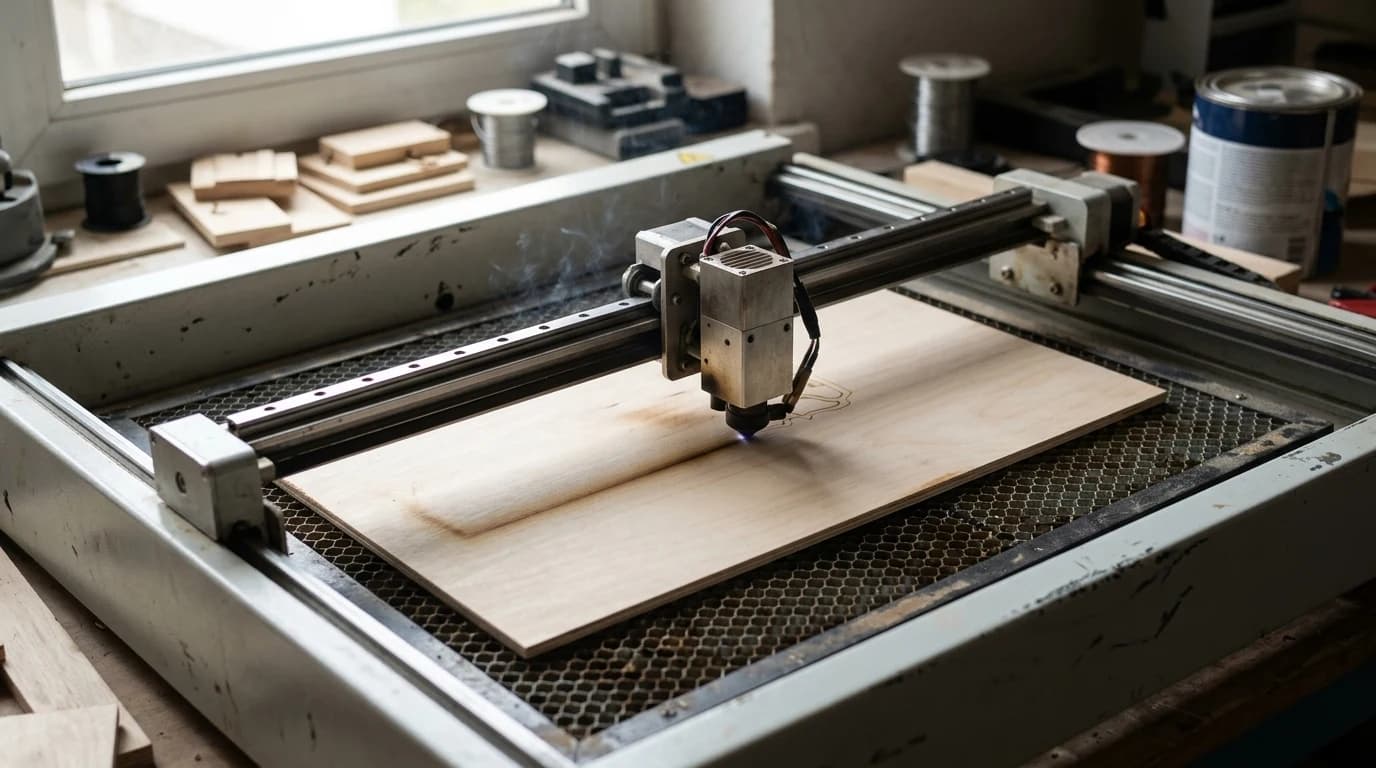
Notes for wood, acrylic and metal
The file is the same; the machine settings differ by material. Briefly:
- Wood engraves beautifully and shows fine logo detail. Grain and density change the burn, so test on an offcut and keep the surface smooth and dry.
- Acrylic engraves with a frosted look and cuts with a clean, often flame-polished edge. Cast acrylic frosts more evenly than extruded.
- Metal usually needs a fibre laser to mark or anneal directly, or a marking spray with a diode or CO2 laser. The vector file is unchanged; only the process differs.
Whatever the material, the vector prep above is the part that travels with the logo. Dial the power and speed to the material at the machine.
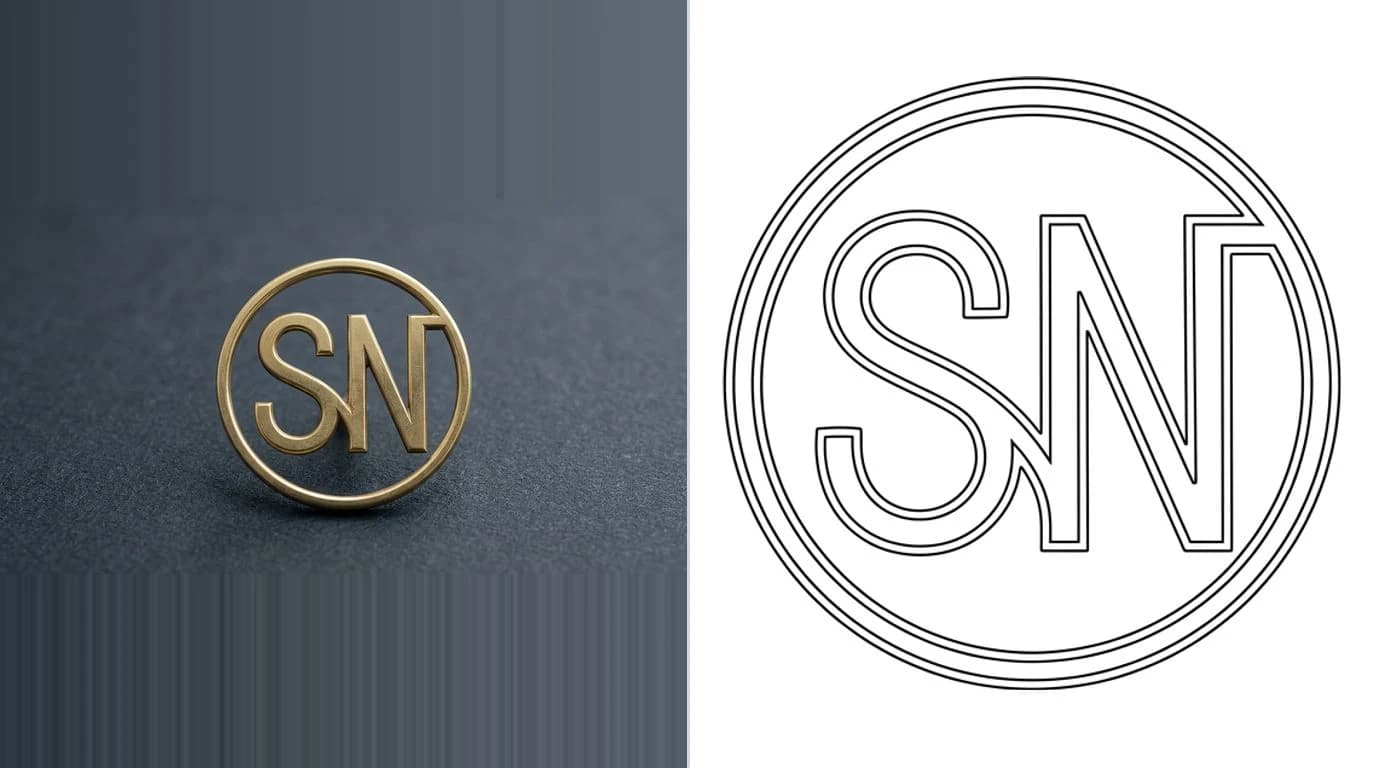
Five mistakes that ruin a logo engraving
- Tracing a tiny, low-res logo. Rough source in, rough vector out. Start big and clean.
- Leaving it in colour or with gradients. The laser sees shape, not colour. Flatten to black and white first.
- Skipping the node cleanup. Hundreds of stray points make jagged lines and slow, stuttering engraving.
- Leaving live text. Fonts shift or disappear on another machine. Outline every letter.
- Not setting the size. A traced file has no real scale. Set it, and test on an offcut before the real piece.
Get the source clean, trace, tidy the paths, set the size, and your logo will engrave as sharp as it looks on screen. If you are starting from a rough drawing rather than a finished logo, the sketch to CNC-ready DXF workflow covers that path instead.
Frequently asked questions
Can you laser engrave a PNG or JPG logo directly?
For a true vector engrave or a cut, no. A laser follows vector paths, and a PNG or JPG is pixels. You first convert the logo into vector outlines and export a DXF or SVG, then engrave or cut that. Some lasers can raster-engrave a bitmap as a grayscale image, but for crisp logo lines and any cutting, you want a vector.
What file format is best for laser engraving a logo?
DXF and SVG are the most widely accepted vector formats for laser work, and most machine software reads both. DXF is the safest for cutting and CAM; SVG is common for hobby lasers like Glowforge and xTool. Whichever you use, the logo must be vector paths, not an embedded image, and any text should be converted to outlines.
How do I convert my logo to a vector for free?
Trace it. A free in-browser tool can turn a high-contrast logo into vector DXF outlines, or you can auto-trace it in free software like Inkscape and export DXF or SVG. The cleaner and more high-contrast the source logo, the better the trace, so convert it to solid black on white first.
Why does my engraved logo look jagged or blurry?
Usually the source was low resolution or low contrast, so the trace picked up rough, noisy edges. Start from the highest-resolution version of the logo you have, convert it to crisp black and white, and simplify the traced paths so curves are smooth rather than made of hundreds of tiny segments.
Do I need to convert text in my logo to outlines?
Yes. Live text relies on a font the laser software may not have installed, which can shift or drop letters. Converting text to outlines turns each letter into vector geometry that engraves or cuts exactly as designed, regardless of fonts on the other machine.