
Type “jpg to dxf” into Google and you get a wall of nearly identical converters. Here are the 10 best, ranked, with what each one is actually for. One distinction explains the whole list and it is at the bottom: if your DXF keeps coming out with no dimensions, read that first.
Our articles are still written by humans!
Get human written articles in your Google feed.
The comparison table
JPG to DXF tools at a glance
Pricing moves around, so treat the notes below as a guide and check each site for the current numbers. The pattern is consistent: the free online converters cover simple line art, the AI tracers charge a small subscription or per-file credit, and the desktop tools cost more but add batch and text recognition.
The 10 tools, in order
1. TechDraw AI — best for a real part you need to make
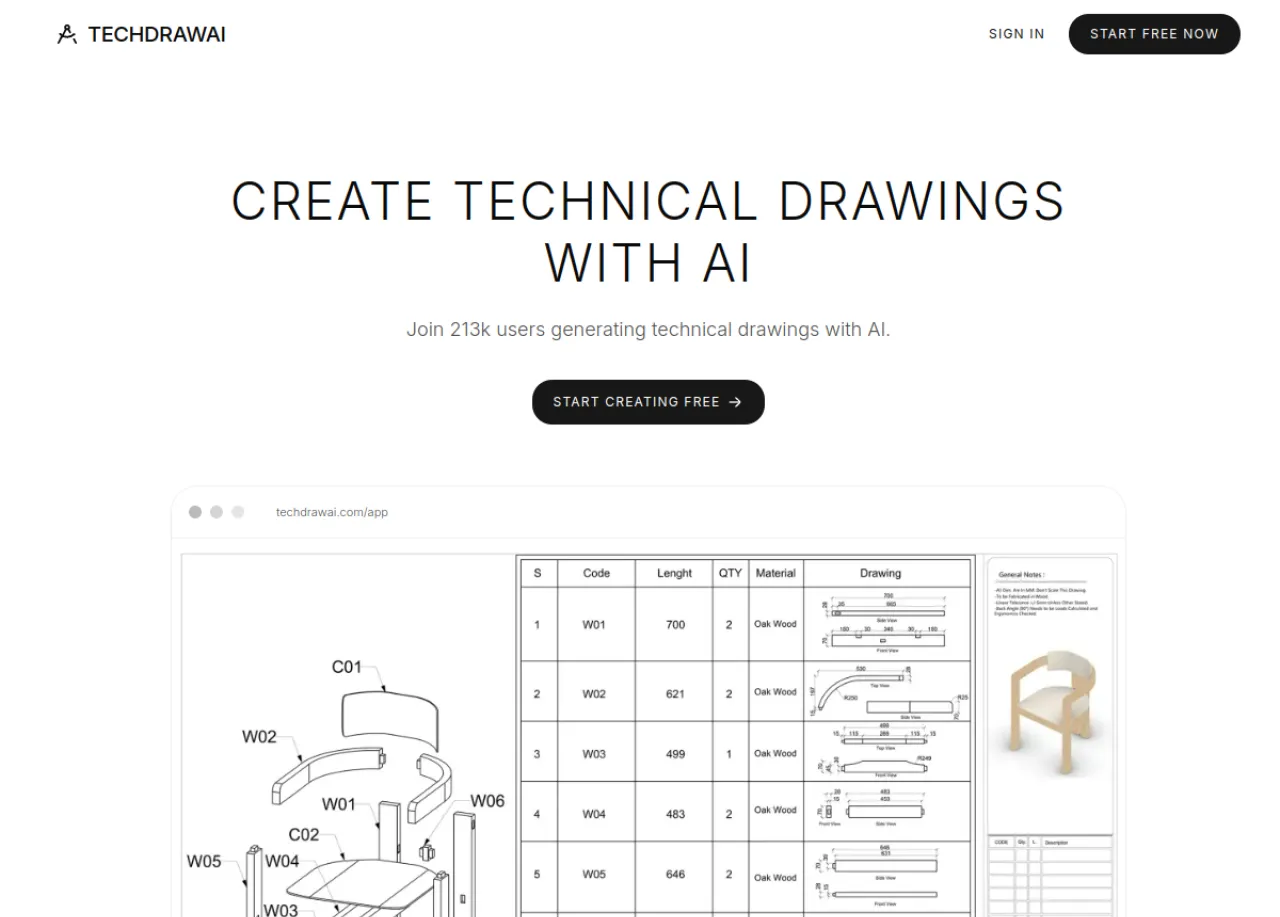
TechDraw AI is the one tool here that does not trace your image. You upload a photo or a sketch, confirm one real measurement so the drawing has true scale, pick the views, and it returns a clean, dimensioned technical drawing with a standards-compliant title block, then exports it to DXF, DWG, SVG and PDF. For the search that brought most people here, the photo of an actual part that has to be manufactured, this is the only output a workshop can quote and cut from directly.
- Pros: Real dimensions tied to a measurement; orthographic views and title block; DXF, DWG, SVG and PDF export; handles photos and rough sketches, not just clean line art; free tier to try.
- Cons: It is not a five-second pixel tracer, so for a flat logo it is more than you need. A human should always confirm the measurements, which is the honest workflow for any AI drawing.
If your goal is a drawing rather than an outline, start with image to CAD, converting a JPG to CAD and what makes a drawing manufacturing-ready.
2. Vectorizer.AI — best pure AI trace
The strongest dedicated vectorizer. Its AI trace handles curves and corners cleanly and gives you a free preview before you pay to download. For turning a logo, an icon or clean line art into a tidy DXF or SVG, this is the quality benchmark. It will not give you a dimensioned drawing, because that is not what a vectorizer does.
- Pros: Excellent trace quality; free preview; DXF, SVG, EPS and PDF output; good control over curves and grouping.
- Cons: Subscription or credits to download; outline only, no sizes or scale.
3. Scan2CAD — best for professionals at volume
A long-established desktop application built for raster-to-vector work, with optical character recognition that can pull text and even some handwriting off a scan. If you convert scans and images to CAD all day, its batch processing and cleanup tools earn their keep.
- Pros: Batch conversion; OCR; fine control over the trace; mature and reliable.
- Cons: Paid subscription; a learning curve; still a tracer, so no dimensions out of a photo.
4. AiDXF — fast AI outlines for laser and CNC
A focused AI converter aimed squarely at laser cutting and CNC. Upload an image, get a DXF outline. Free to start, quick, and good enough when you just need the profile path for a flat cut.
- Pros: Simple; AI trace; free to start; laser and CNC focus.
- Cons: Outline only; quality depends heavily on a clean, high-contrast input.
5. image2dxf — built-in background removal
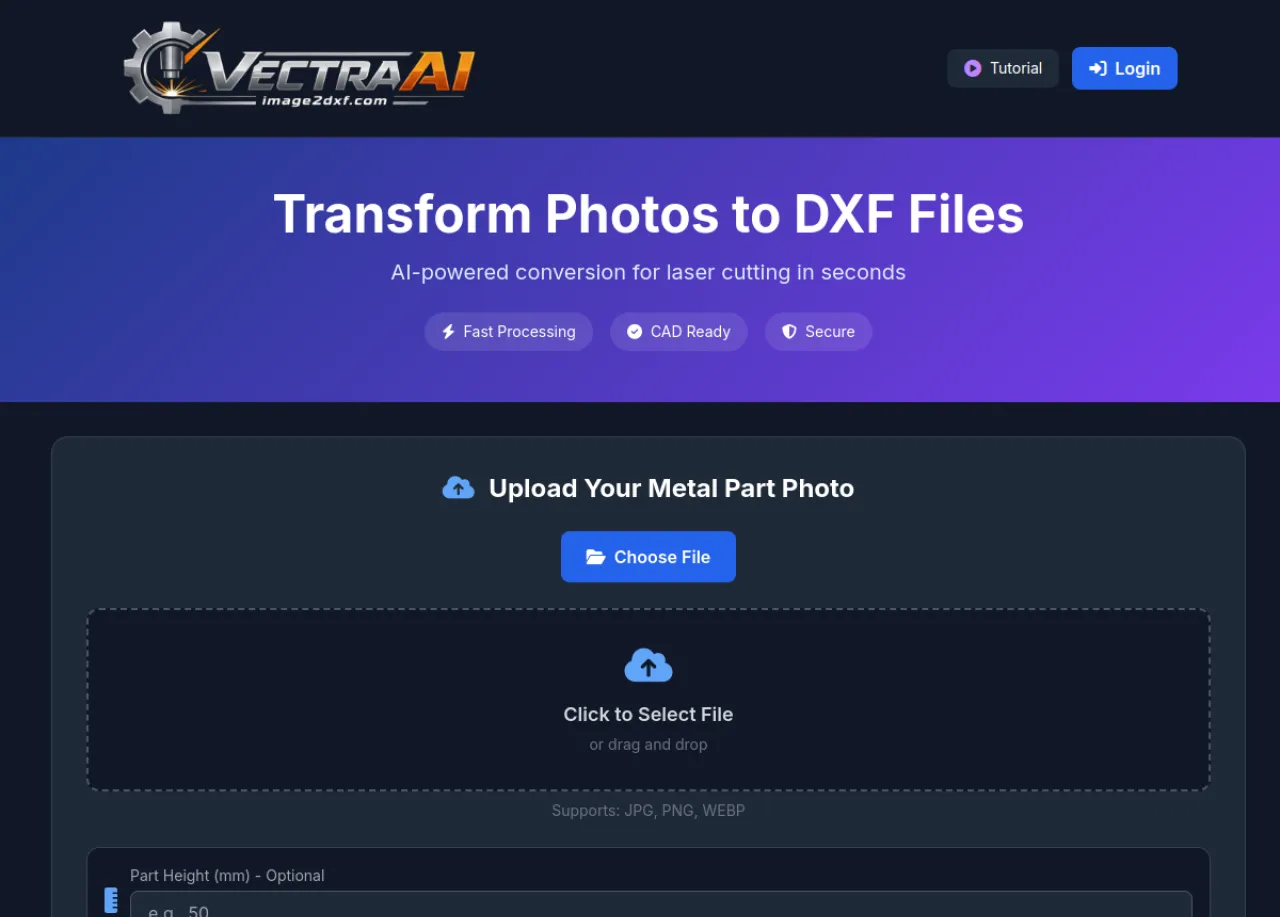
An AI image-to-DXF tool whose standout feature is automatic background removal and auto-alignment, which helps when you photograph a shape against a busy backdrop. Best for silhouettes and single shapes you want to cut.
- Pros: Background removal; auto-align; quick for silhouettes.
- Cons: Outline only; struggles with internal detail and overlapping features.
6. Vector Magic — dependable edge handling
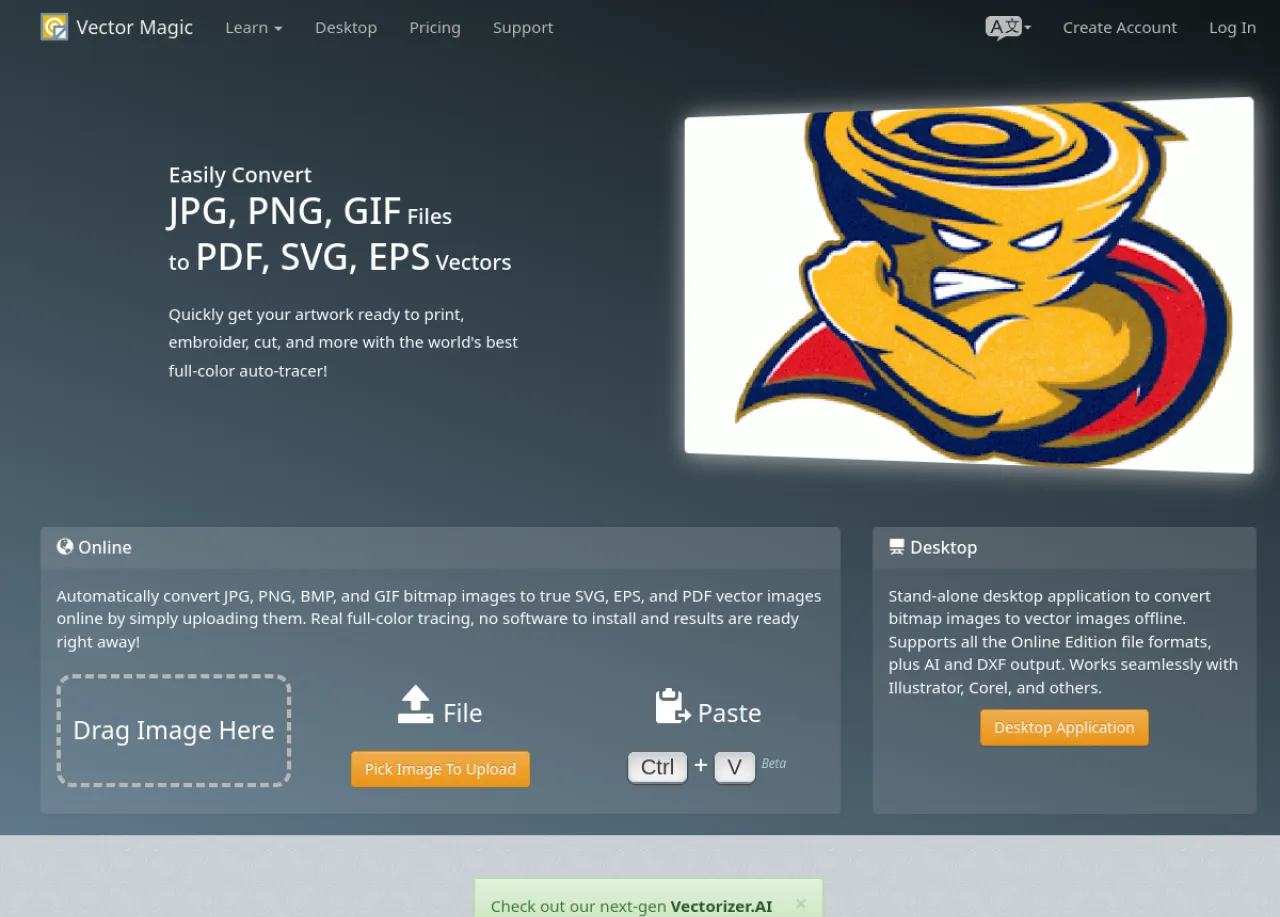
A veteran auto-tracer available online and as a desktop app, well regarded for clean edges on awkward images. A safe pick when other tracers give you ragged curves.
- Pros: Strong edge detection; online and desktop; DXF, SVG and EPS output.
- Cons: Paid; aimed at graphics, not manufacturing; no dimensions.
7. Convertio — the all-format generalist
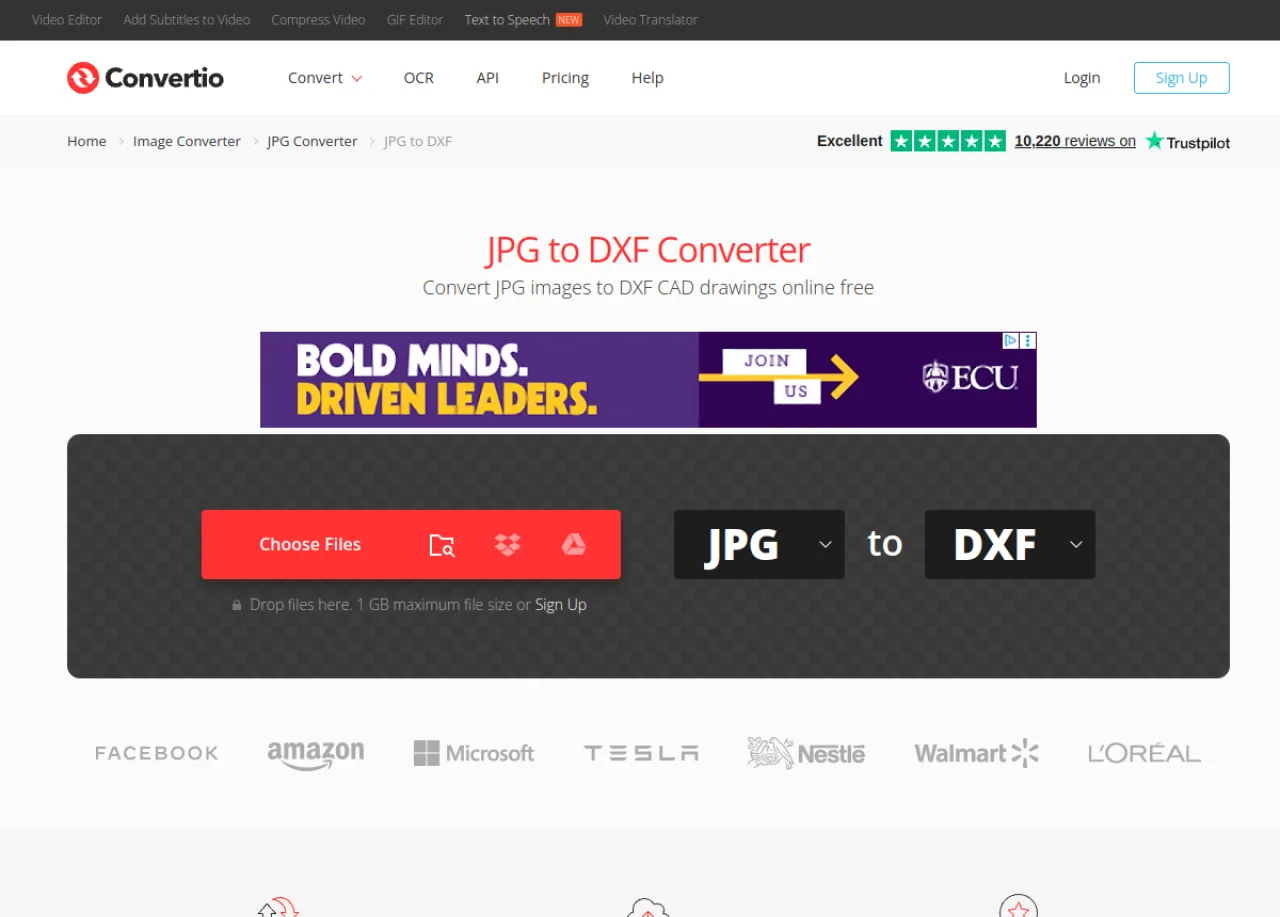
Convertio converts between hundreds of formats, JPG to DXF being one of them. Convenient if you are already using it for other files and need a quick conversion, with a free tier limited by file size and daily count.
- Pros: No install; handles many formats; free tier.
- Cons: Generic trace quality; limits on the free tier; outline only.
8. AnyConv — quick and free, no signup
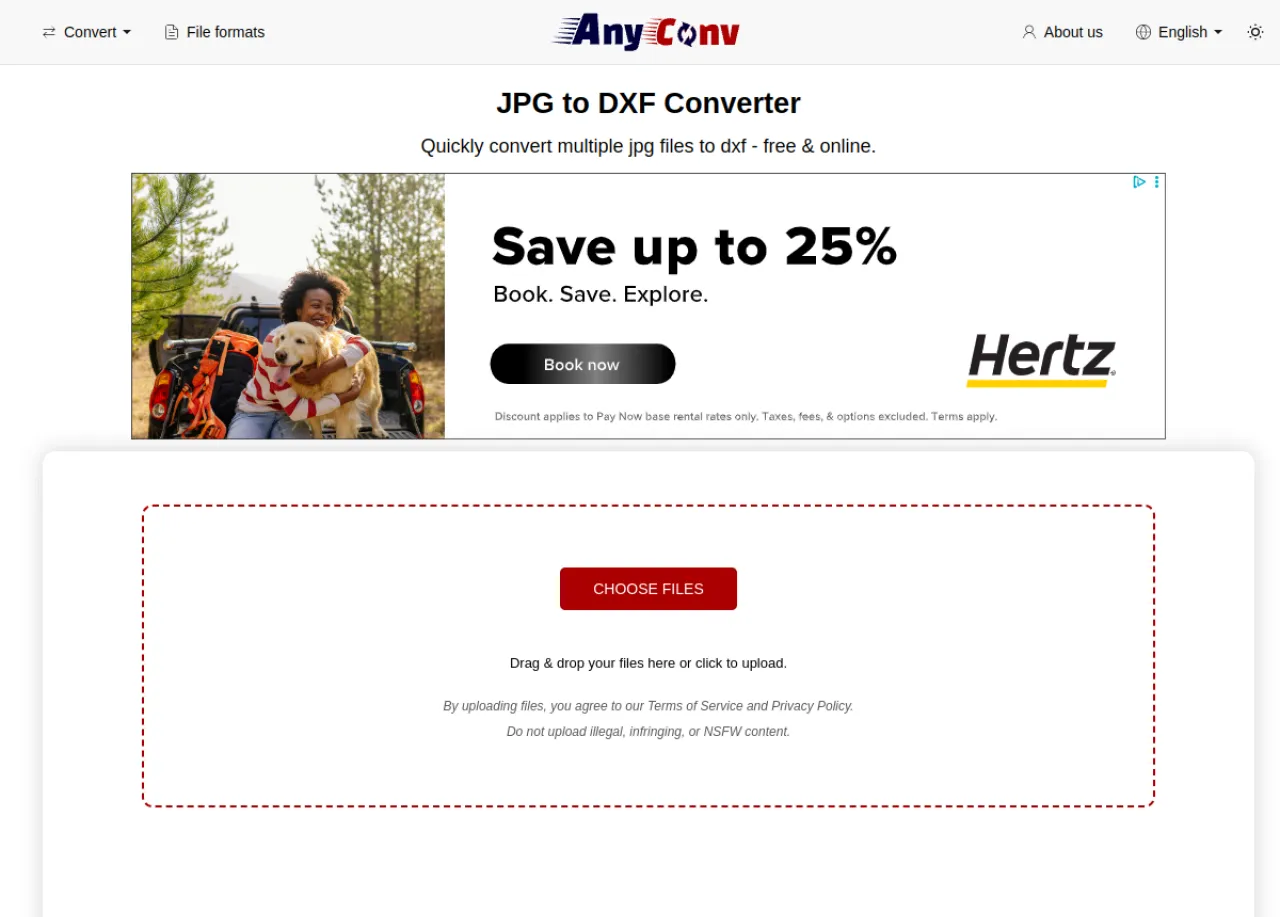
A no-friction online converter for a one-off job. Upload, convert, download, no account. Good for a single simple file when quality is not critical.
- Pros: Free; fast; no signup; large file size limit.
- Cons: Basic trace; not for detailed or production work.
9. VectoSolve — cheap pay-as-you-go
An AI tracer with small credit packs that do not expire, which suits anyone who needs a handful of laser or CNC files now and then without a subscription.
- Pros: Cheap credit packs; credits do not expire; AI trace; quick.
- Cons: Outline only; smaller, newer tool.
10. Inkscape — free, open source, manual
Not a one-click converter but worth knowing: the free, open-source Inkscape can trace a bitmap with its Trace Bitmap tool and save the result as DXF. It costs nothing and gives you total control, at the price of doing the work yourself.
- Pros: Completely free; full manual control; no limits.
- Cons: Manual and fiddly; DXF export is basic; steep if you are new to vector editing.
Two jobs hide behind “jpg to dxf”
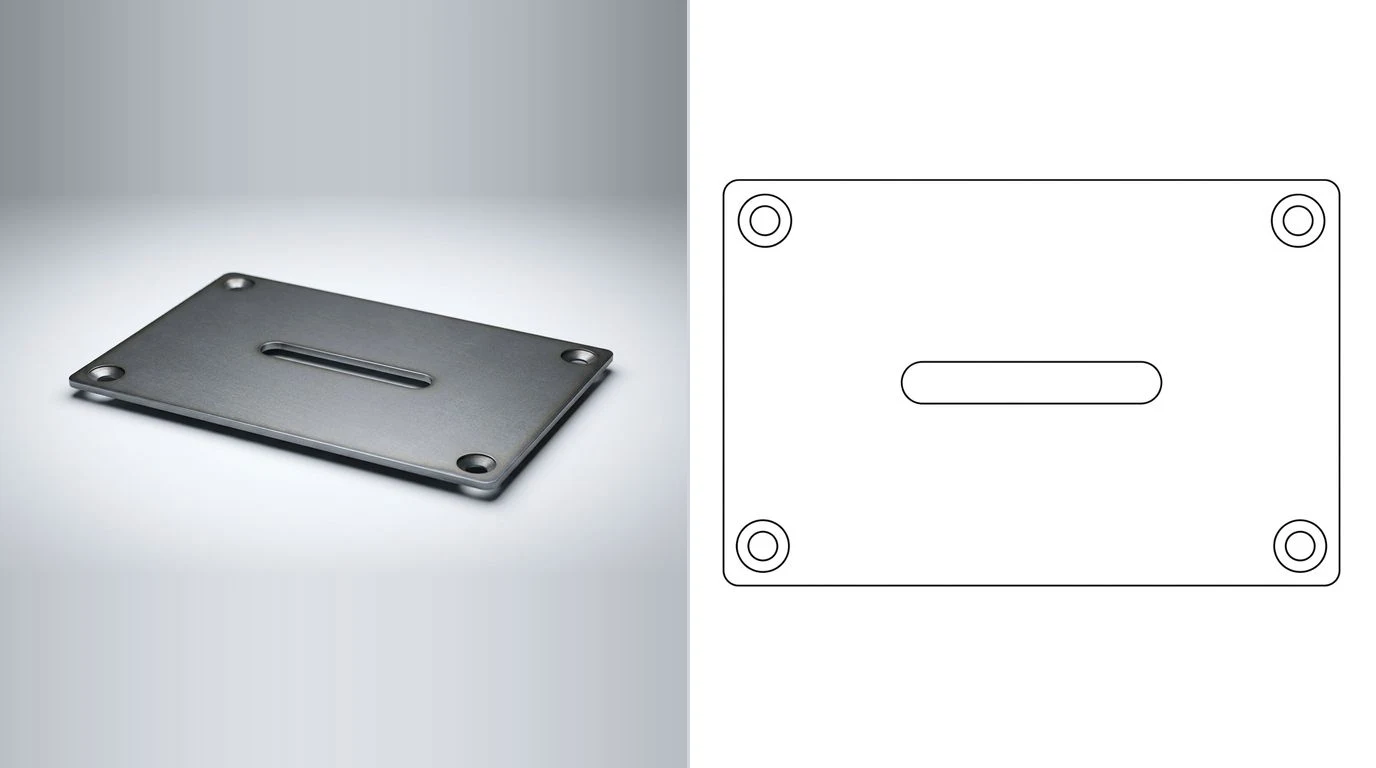
Here is the distinction that explains the whole list above. A DXF file is just a container for 2D vector geometry. The question is what you put in it, and there are two completely different answers.
- Vectorizing (tracing). The tool finds the edges in your JPG and converts them to curves and lines. The output is an accurate outline of whatever was in the picture, at whatever proportions the picture happened to have. No real-world sizes, no scale, no views, no tolerances. Ideal for logos, stencils, signage and flat profiles for a laser or plasma cutter.
- Generating a drawing. The tool reads the part in your image and produces an actual technical drawing: orthographic views, dimension lines anchored to a real measurement, a title block, the works. That is what a machine shop needs to cut a 3D part, and it is a fundamentally different output from a traced outline.
How to choose in one minute
- Flat logo, icon or stencil for a laser cutter? Use a vectorizer. Try our own free JPG to DXF converter, or Vectorizer.AI for quality and AnyConv or Convertio for a quick one off.
- Lots of scans to convert, professionally? Scan2CAD or Vector Magic.
- Photo or sketch of a real 3D part you need to manufacture? A tracer cannot help you. Generate a dimensioned drawing with TechDraw AI and export the DXF.
- Zero budget and time to tinker? Inkscape.
The verdict
For the literal task of tracing a clean image into vector lines, Vectorizer.AIis the best pure JPG-to-DXF converter on this list. But most people searching for “jpg to dxf” are holding a photo of something real and assuming a converter will give them a drawing they can manufacture from. It will not; it gives an outline with no sizes. For that job, TechDraw AI is the better tool, because it generates an actual dimensioned drawing and still hands you a clean DXF at the end. Pick by the job, not by the file extension, and you will not be disappointed by an empty-looking DXF again.
If you want to understand the file itself before you commit, our guide to CAD file formats for manufacturing explains where DXF fits next to DWG, STEP and PDF, and how to prepare a DXF for laser cutting covers getting that file ready to cut.
Two converter-specific problems have their own fixes: if your trace comes out rough, see why your traced image looks jagged, and if you are converting a logo to engrave or cut, follow converting a logo to a vector for laser engraving.
Frequently asked questions
What is the best JPG to DXF converter?
It depends on the job. If you have flat line art or a logo and want a clean vector outline for a laser cutter, Vectorizer.AI gives the best AI trace. If you have a photo or sketch of a real part and need a dimensioned, manufacturing-ready drawing, TechDraw AI is the better choice because it generates an actual technical drawing with views and a title block and exports it to DXF, rather than just tracing the pixels.
Can you convert a JPG to DXF for free?
Yes. AnyConv, Convertio and OnlineConvertFree all offer free JPG to DXF conversion with daily or file-size limits, and Inkscape does it completely free if you do not mind tracing manually. Most AI tools give a free preview and charge to download the final file. Free converters are fine for simple line art; they will not produce a dimensioned drawing.
Why does my converted DXF have no dimensions?
Because almost every JPG to DXF tool vectorizes, meaning it traces the outlines in the image into curves. A photo contains no dimension data, so the output is geometry with no sizes, no scale and no tolerances. To get a dimensioned DXF you need a tool that generates a technical drawing and lets you anchor it to a real measurement, not one that only traces pixels.
Is a DXF from a JPG good enough for CNC or laser cutting?
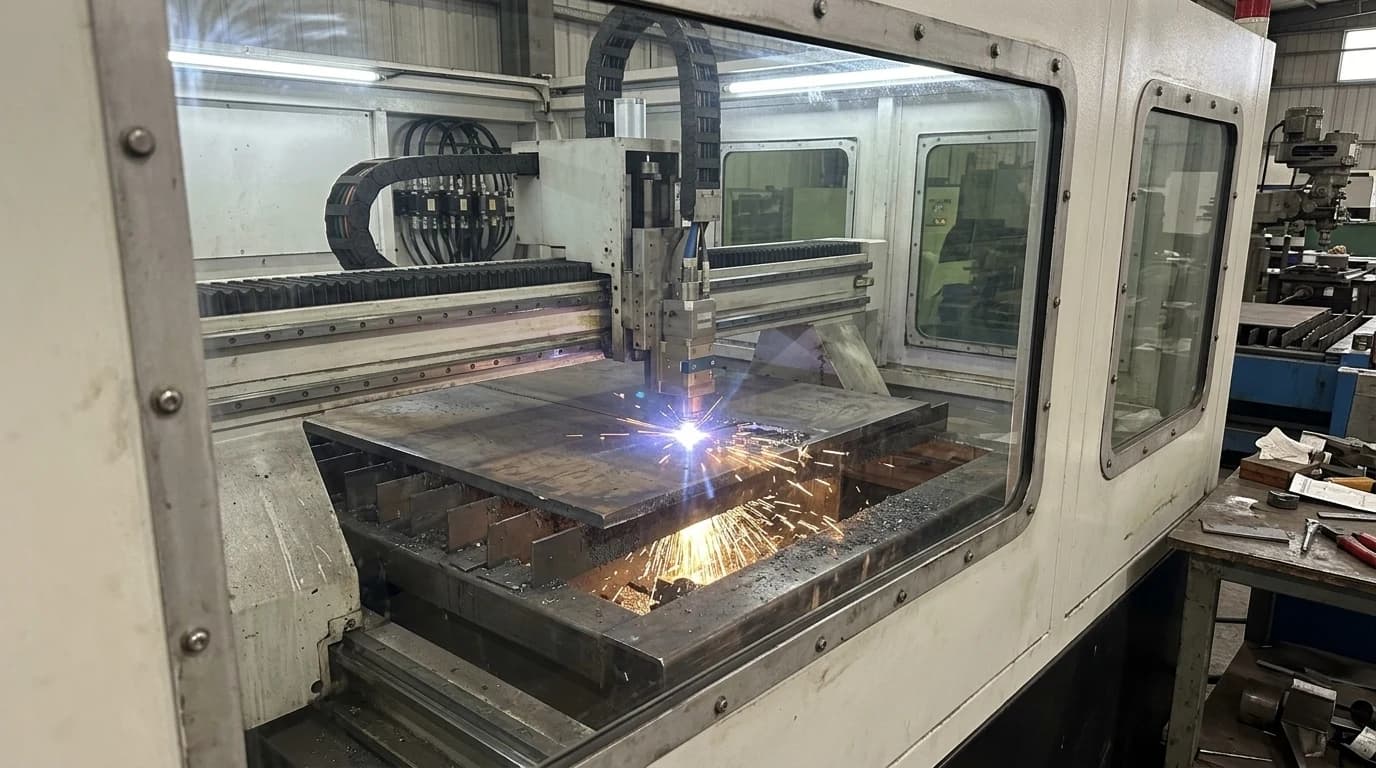
For 2D laser and plasma cutting of a flat profile, a clean vectorized DXF is often good enough, because the machine just needs the outline path. For CNC machining of a 3D part, a traced outline is not enough; the shop needs a dimensioned drawing with tolerances. Match the tool to the machine and the part.
What file formats can these tools export besides DXF?
Most vectorizers also export SVG, EPS and PDF, which suit logos and signage. Tools aimed at manufacturing, such as TechDraw AI, additionally export DWG and a dimensioned PDF so the drawing drops straight into AutoCAD, Fusion or a CAM workflow.