A 3D CAD ModelFrom Your 2D Drawing




1,200+ reviews
A 3D CAD Model in three steps
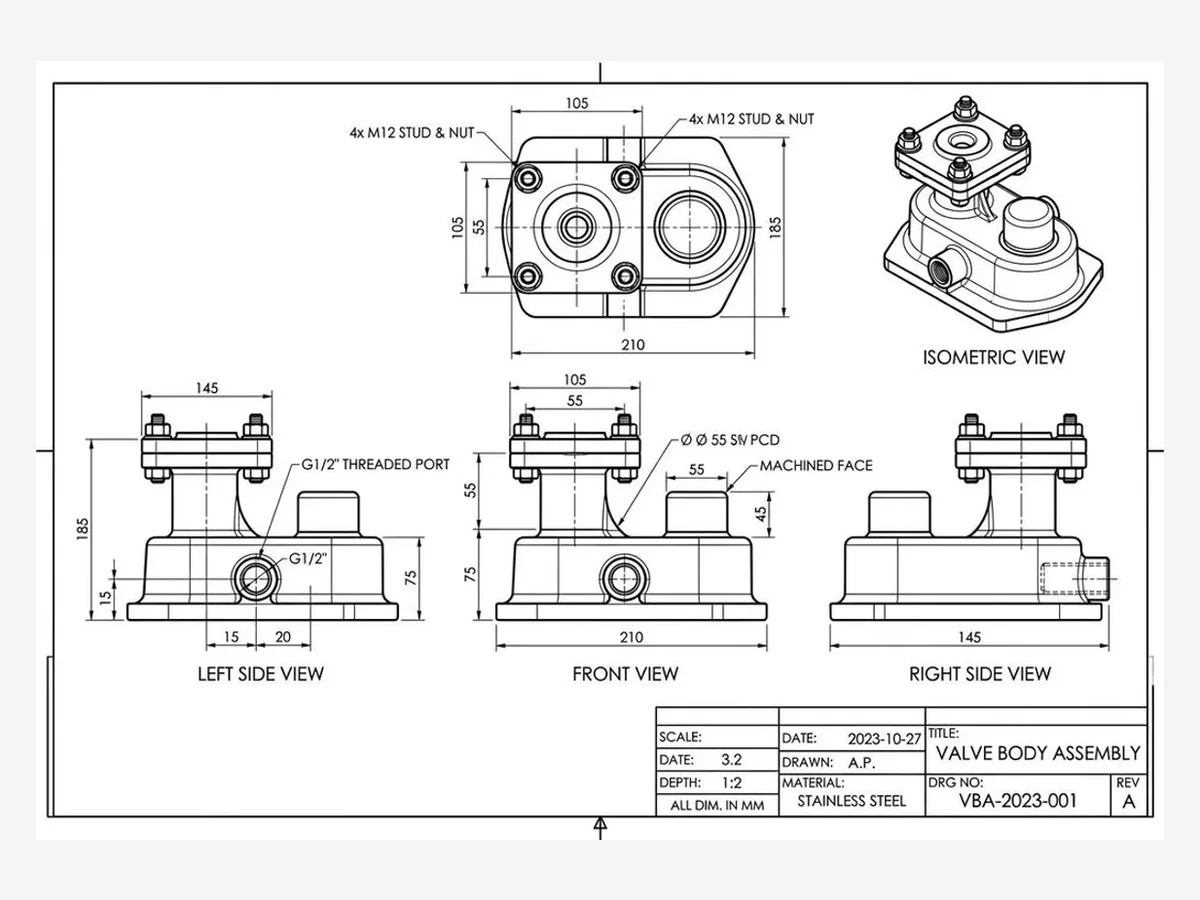
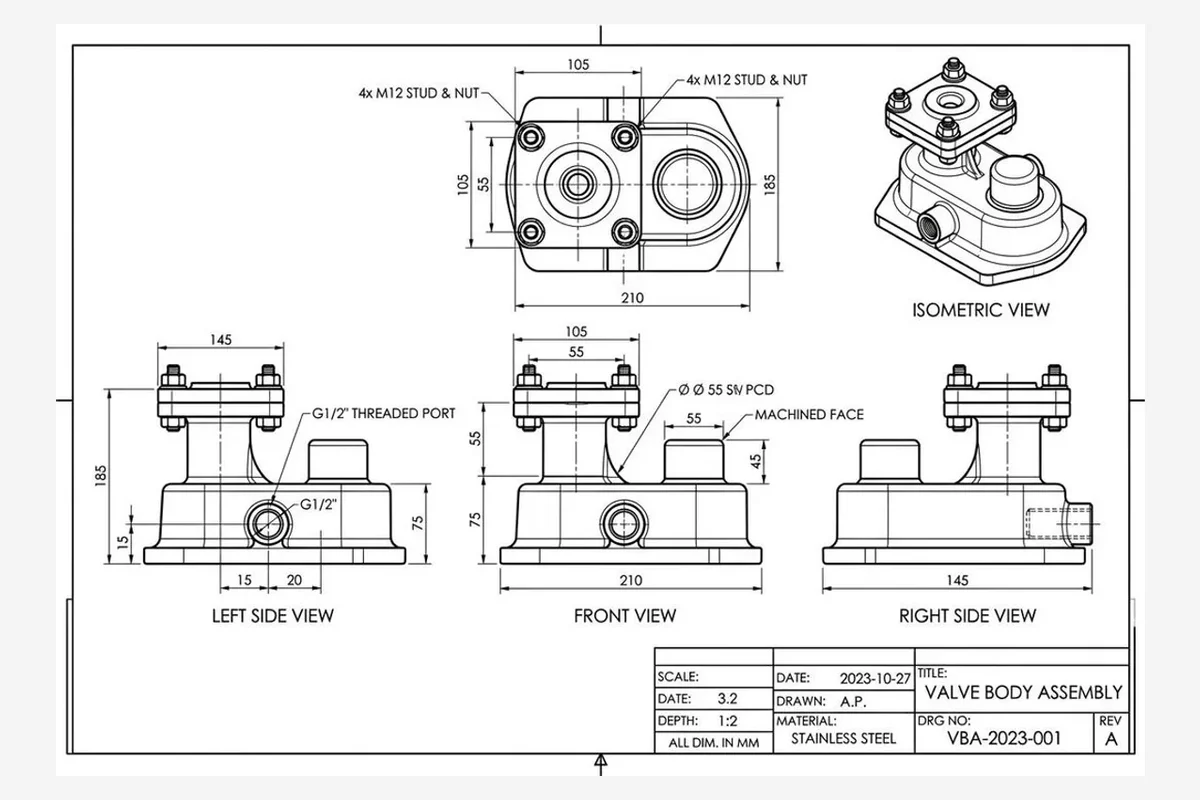
Upload the 2D drawing
A DWG or DXF straight from CAD, or a PNG, JPG or screenshot of the sheet — a drawing that arrived as a picture is still a drawing. One part per sheet works best; a page with three parts on it gives the model three things to be, and it will pick one.
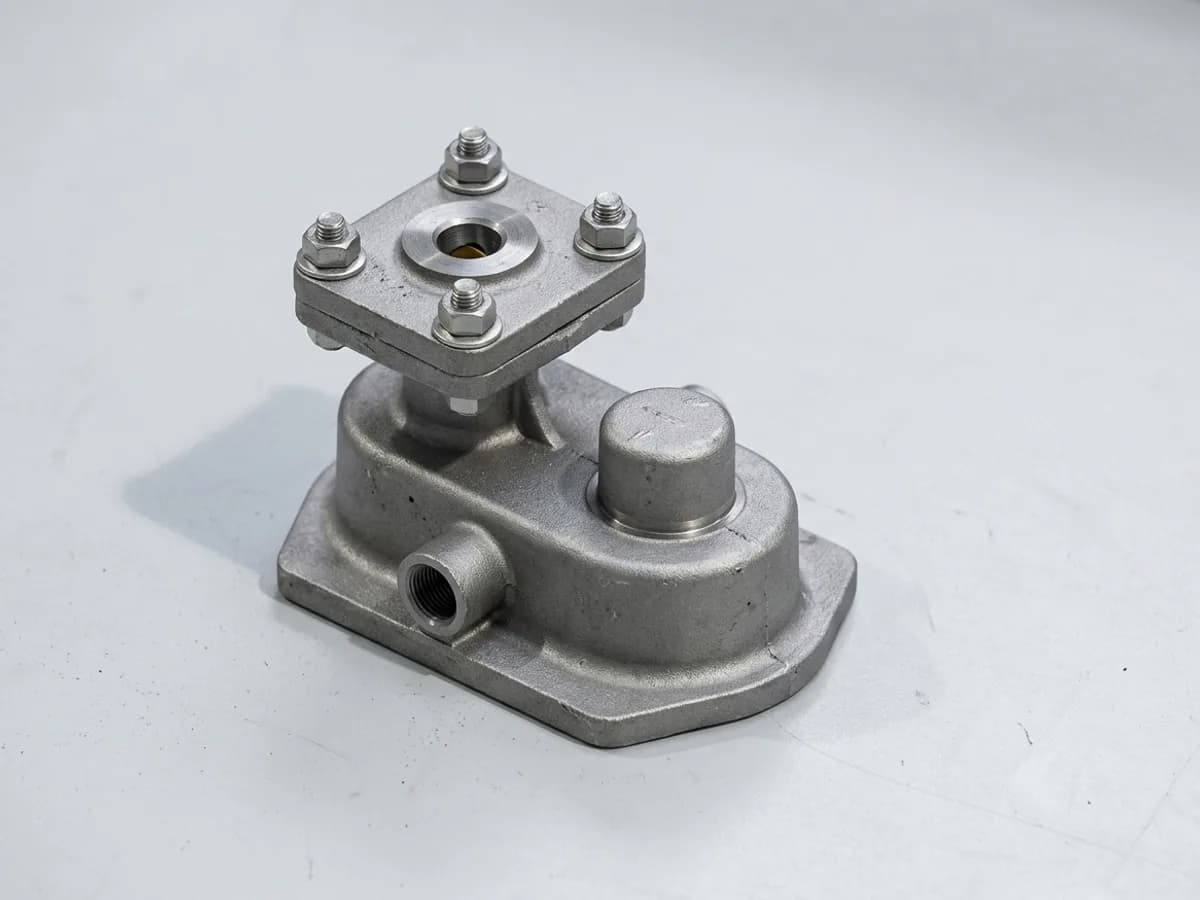
It is pictured, then modelled
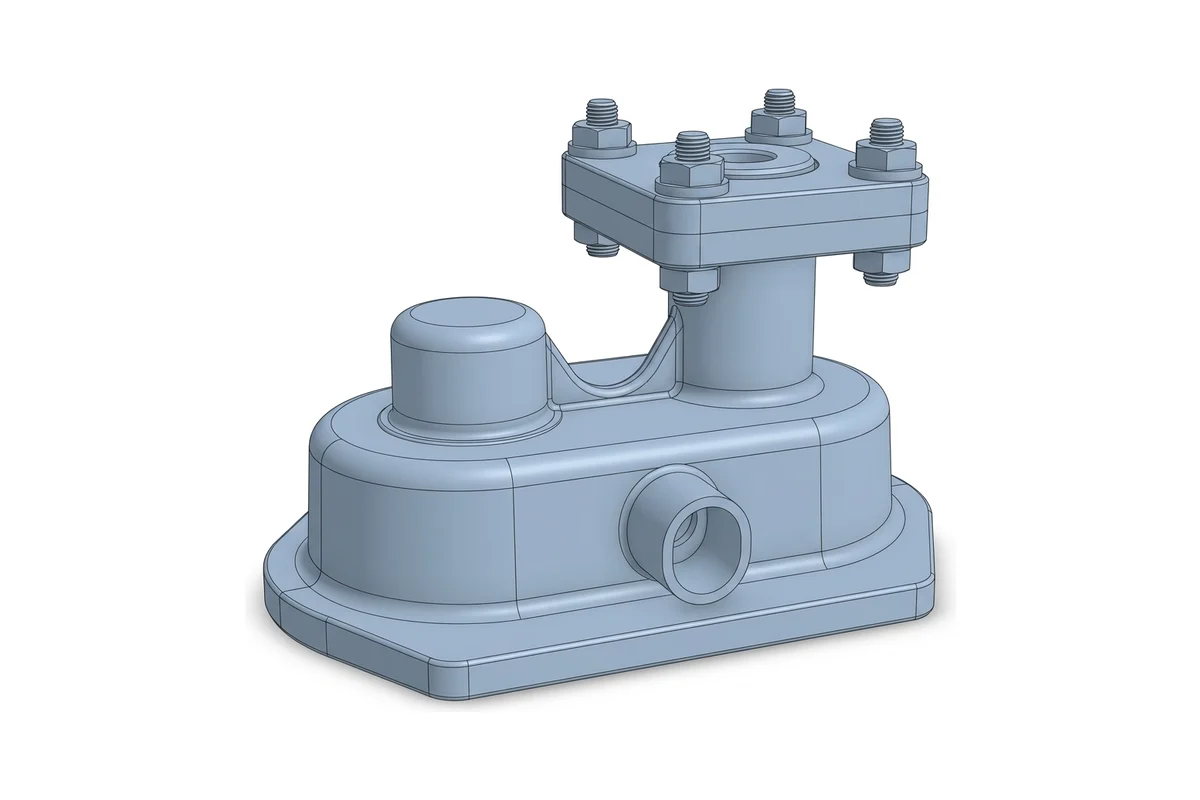
Line art is not something depth can be read from, so the views are first turned into a photograph of the finished part, and that photograph is built into the 3D model. You watch both halves happen. Pick matte grey when the shape is what matters — a glossy surface gives the model nothing to hold on to — or keep the colour when you want the material too.
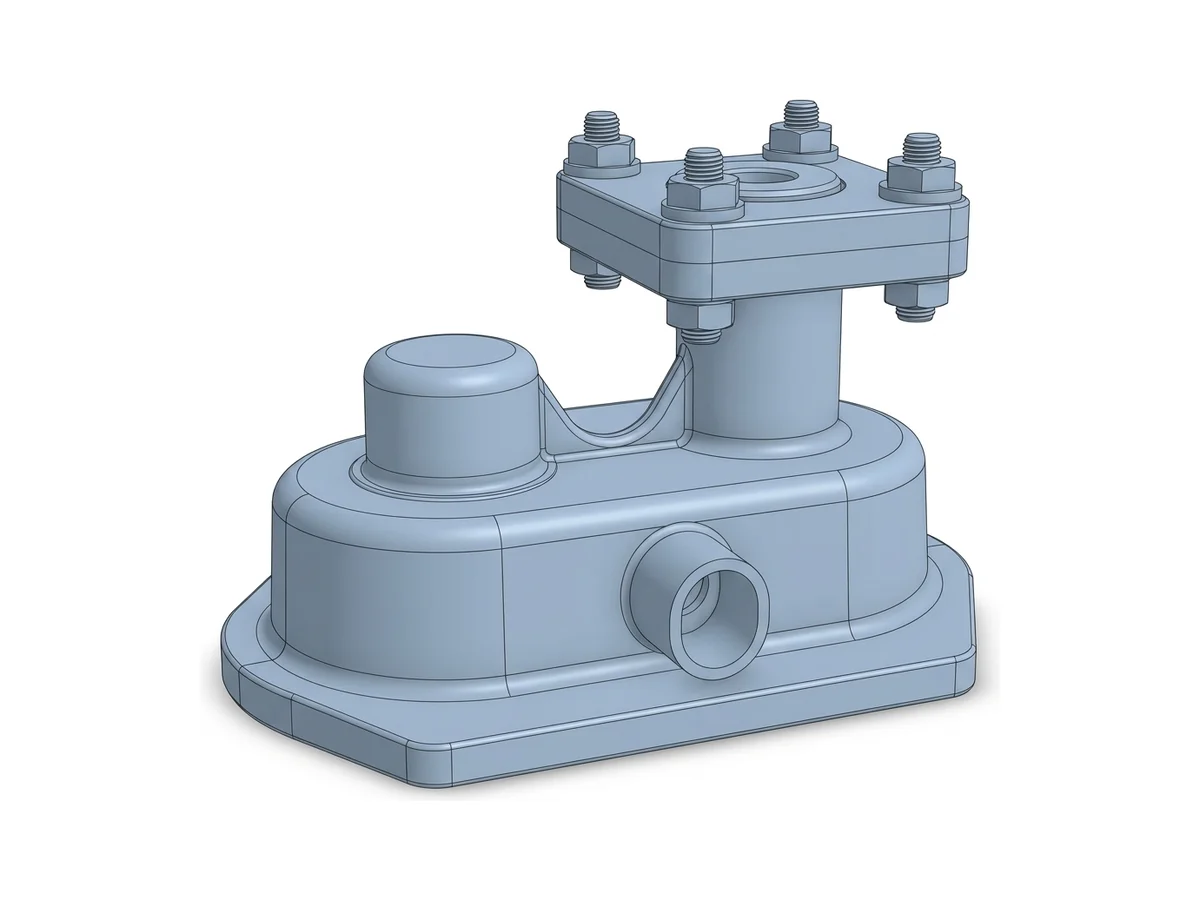
Orbit it, then export the CAD file
The model arrives in about two minutes and you can spin it before deciding anything. STL for a slicer, STEP for SolidWorks, Fusion or Onshape, OBJ or FBX for Blender, Unity and Unreal, GLB and USDZ for the web and AR. The drawing you started from is kept beside it, so the model and the sheet it came from stay together.
Proportions, not dimensions
This reads the shape your views describe, not the numbers written beside them. Nothing in the chain parses a dimension line, so a drawing marked 2400 mm and the same drawing marked 240 mm produce the same model at the same arbitrary size. Scale it against one figure off your own sheet and it is useful immediately — and if that sounds like a compromise, it is the same one every AI drawing-to-CAD tool makes, stated out loud rather than left for you to discover.
The model is a body, not a feature tree: a closed surface that imports into SolidWorks, Fusion or Onshape as STEP or STL and goes straight to a slicer or a renderer, with no sketches or history inside to edit. A feature that appears nowhere in the views — a blind pocket, a counterbore, anything a section drawing carries and an outline does not — will not be in the model either, because nothing saw it. Use it to look at the part, to print it, to model against, to show a client what the sheet means. When the geometry has to be exact, the drawing is still the document.
The kind of sheet this takes
Every sheet below was drafted on TechDraw AI from the photograph beside it — open a tile and drag the two against each other. Any one of those sheets is what this page wants back: orthographic views of one object, as a DWG, a DXF or a picture of the page.
Drawings turned into CAD models in 40+ countries.

“My shop foreman asked which drafter made these sheets. It was just me and TechDraw AI lol. Did 3 parts in one afternoon.”

“found a tolerance error my old drawings missed for years. The AI flagged it and fixed the callout automatically.”
“I use this for client handovers now. Upload a part, get fully dimensioned views in 10 minutes. They think I have a whole drafting team.”

“Just started at a furniture workshop and had no idea how to do a cutting list. This generated the whole BOM from one photo. Way faster than I expected.”
“Tested every projection angle in 5 min. love it.”

“pretty impressed honestly. Full orthographic set in under a minute and the dimensioning was spot on.”

“I used to redraw everything by hand. Now I sketch on paper, photograph it, and get clean editable geometry back. Saved me hundredss of hours already.”
“found the GD&T symbols it placed were textbook correct. Nice.”

“Drew up my whole assembly in one evening. Showed my boss and he tought I outsourced it. Nope, just AI.”
“I'm not a draftsman at all but this made me feel like one. Tried an exploded view for a bracket and actualy sent it to the machine shop.”

“Only tool where the title block and standards come out ISO-correct every time. Huge diffrence compared to others.”
“used it to document my dad's workshop jigs. He saw the sheets and was like okay do all of them lol.”

“Been using it for 3 months on a product line. The AI keeps every view and the BOM in sync when I change a dimension. Saved me probably 2000+ hours of rework.”

“genuinely fun to use. The auto-dimensioning is addicting.”
“This replaced my drafting board, my templates, and half my CAD busywork. Not even exagerating.”

“section views that used to take an hour now take seconds. Worth every penny.”
“Changed one hole diameter and it updated across all four views and the parts list instantly. Mind blown.”

“Does in seconds what took me hours in CAD. Clean lines, correct scale. No lerning curve at all.”
“On the free plan and its been enough for my prototyping. Already exported 3 drawings to DXF. Will upgrade when the project scales.”

“Boss approved the drawing on the first pass wich never happens lol. Sent it to production same day.”

“Was redrawing a frame for weeks. Fed the photo into TechDraw and had the full set inmediately. Should have done this first.”

“used it for a tender submission and won the job. Big time saver.”

“upload a render, pick the views, export the sheet. 20 minutes total.”
“Tried 4 or 5 CAD tools before this. The line quality here is noticably better and it actually places dimensions correctly wich none of the others did. Game changer.”

“quick, easy, accurate. Using it for all my fabrication drawings now.”
“My colleagues kept asking who drafted my sheets. Told them it was AI and half the team signed up the same week haha.”
“As a mechanical engineer I was skeptical but this speeds up my workflow so much. Clients get drawings AND a parts list right away.”

“Where was this when I documented my first machine?? Now I run everything through the AI first and export production-ready sheets.”
Frequently asked questions
Can AI turn a 2D drawing into a 3D CAD model?+−
Yes, and that is what this page does: upload a DWG, a DXF or a picture of the sheet and a 3D CAD model comes back in about two minutes, as STL, OBJ, GLB, FBX or USDZ, and as STEP through the free STL to STEP converter. It works out the part the views describe and builds it. What it reconstructs is the shape — the silhouette, the proportions, the way the form turns. What it does not do is read your dimension lines, so treat the size as arbitrary until you scale it against a figure from your own sheet.
What file can I upload — DWG, DXF, or a picture?+−
All three. A DWG or DXF is read and drawn onto a clean sheet before anything else happens, so the line weights and the layers stop mattering. A PNG, JPG or a screenshot works just as well, which matters more than it sounds: most drawings arrive as a picture of a drawing, in an email or a photograph of a printout.
Is the CAD model dimensionally accurate?+−
No, and it is worth being exact about why. Nothing in the chain reads a dimension line — the model follows the proportions of the views, not the numbers written on them, so it comes back at an arbitrary size. Scale it against one dimension off your own drawing and everything else follows. If a part has to fit another part, model it to size in CAD with this as the reference.
Can I open it in SolidWorks, Fusion or Onshape?+−
Yes. Download STL, or convert it to STEP with the free converter on this site, and import it like any other body. It arrives as a mesh body — the right shape, no feature tree — so you measure, section and model against it rather than editing its sketches, because a drawing sent as views carries none to rebuild.
How is this different from photo to 3D CAD?+−
The input, and one extra step. Photo to 3D CAD builds the model directly from a photograph of a real part. This starts from line art, which nothing can read depth from, so it first pictures the part your views describe and models that. Same engine, one step further back — and the reason the drawing route exists at all is that most parts on a desk exist as a sheet long before anybody has one in their hand to photograph.
Does it work from a 2D drawing with front, top and side views?+−
That is the case it is built for. Three views describe a part far better than one, and the render step uses all of them. A single view still produces something, but the further the part gets from what one view can show, the more of it is inference rather than your design.
Will a blind pocket or a counterbore come out?+−
Only if it is visible in the views. A feature that a section drawing carries and the outlines do not is a feature nothing in the chain ever saw, and it will come back solid. The same is true of anything hidden behind the part in every view. This is the honest limit of working from the outside of a shape rather than from the model.
Do I need an account, and what does it cost?+−
Drawing to 3D CAD is part of the Studio plan and each model spends credits from it, the same as photo to 3D CAD. The free file converters on this site — DWG to STL, DXF to STL, STL to STEP and the rest — need neither. If you have one drawing and one model to make, say so on the contact page rather than guessing at a plan.
More AI tools
Describe the part in words and get the sheet or a 3D model without a photo, or get the object back as a 3D model from a photograph of it or from the drawing you already have.
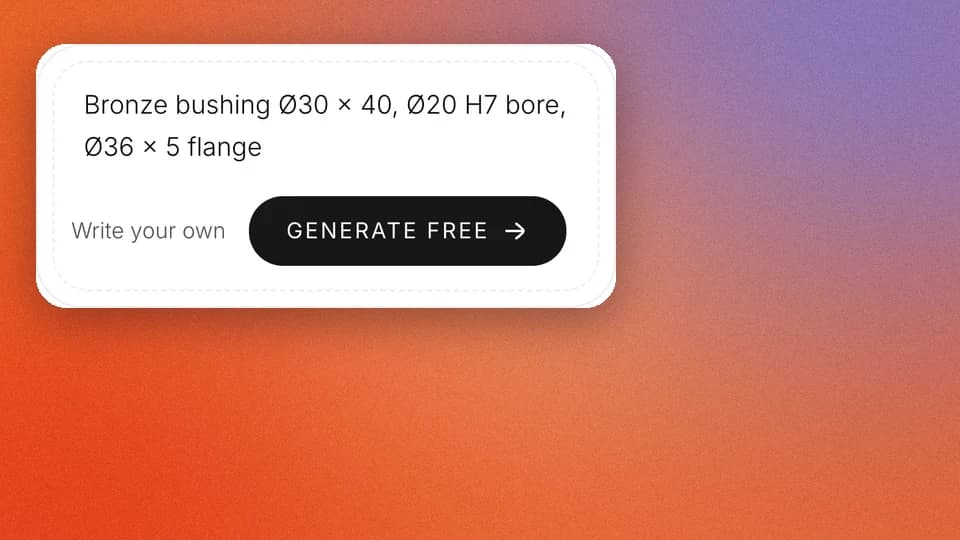
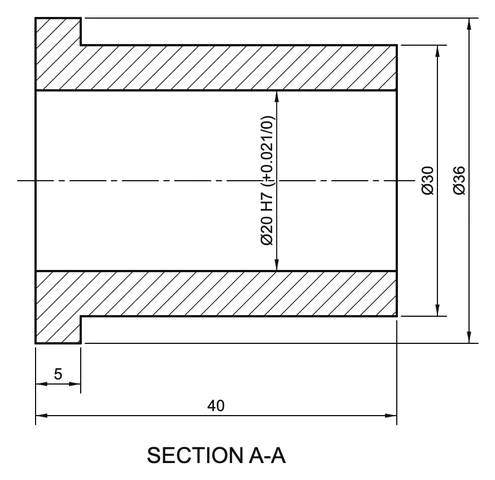
Text to drawing
Describe the part in a sentence. The sheet is computed from your numbers.
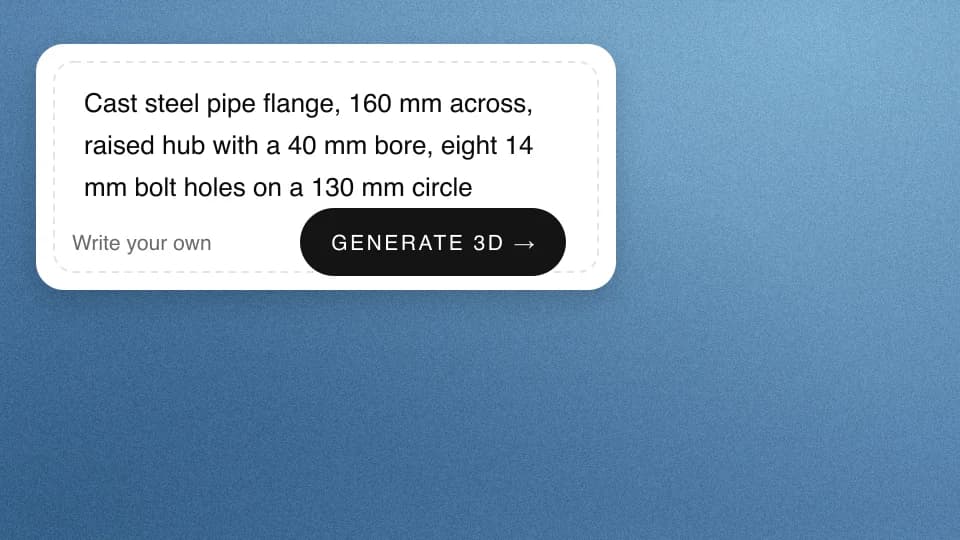
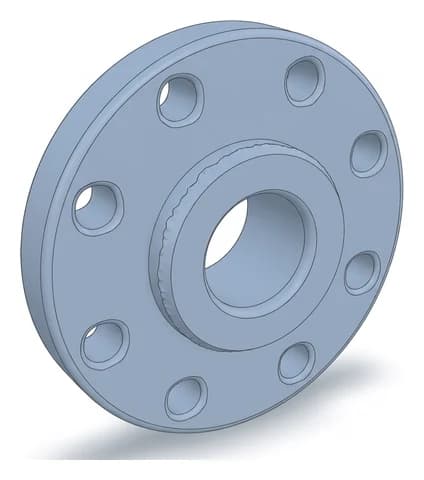
Text to 3D CAD model
Describe the part in a sentence and get it back as a 3D model.
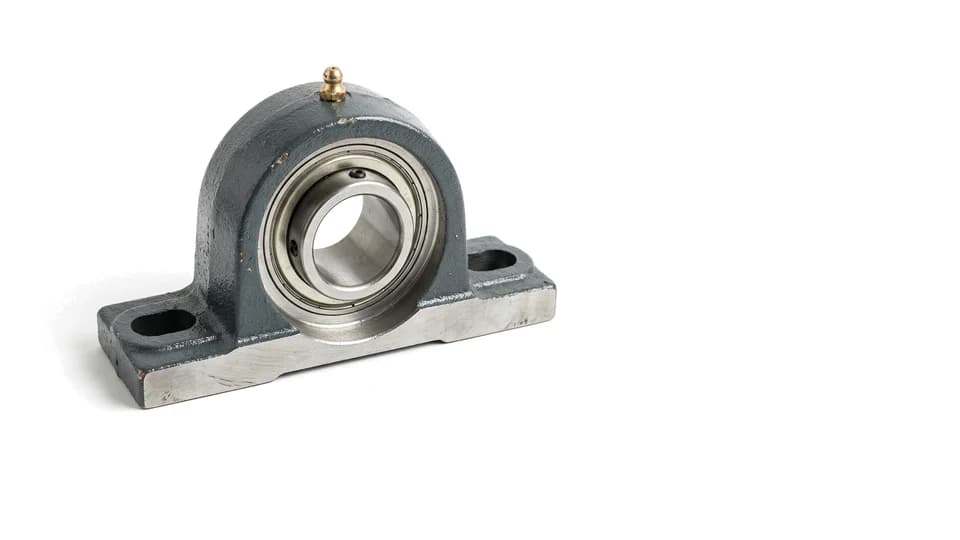
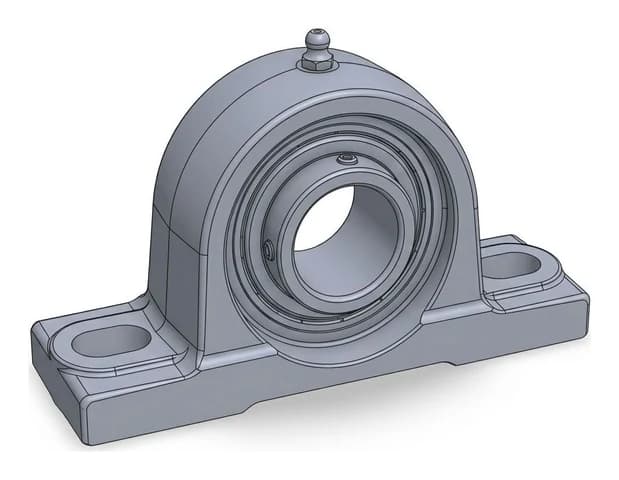
Photo to 3D CAD model
A photograph of the real thing, reconstructed as a mesh you can print.
The drawing you are starting from
Most people arrive here with a sheet somebody else drew. If you are the one drawing it, these pages show what the drafting side hands back in each trade — and every one of those sheets can come straight back to this page as a model.
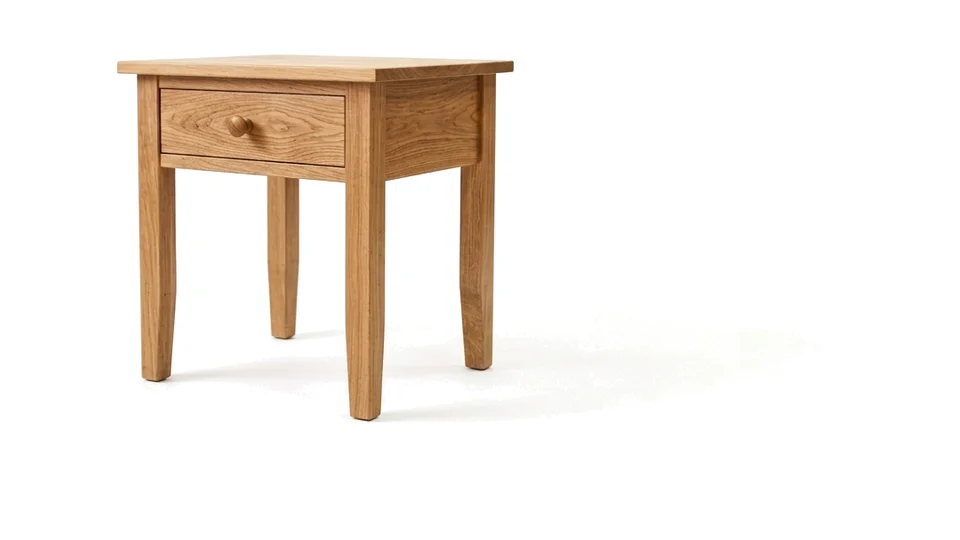
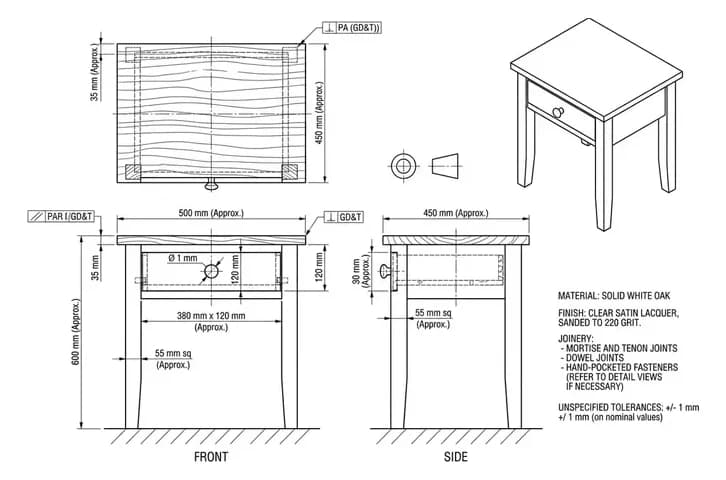
Furniture
Shop drawings with joinery detail, real sizes and a cut list.
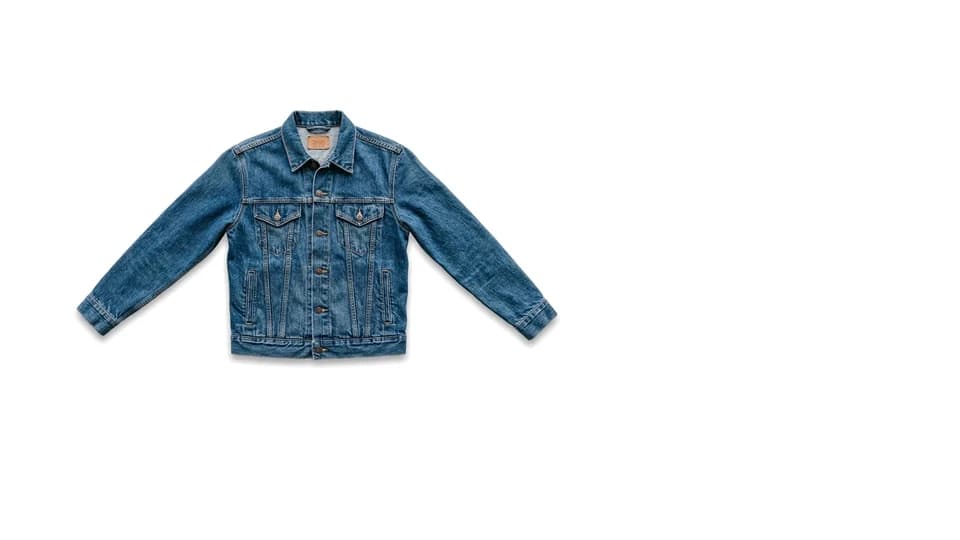
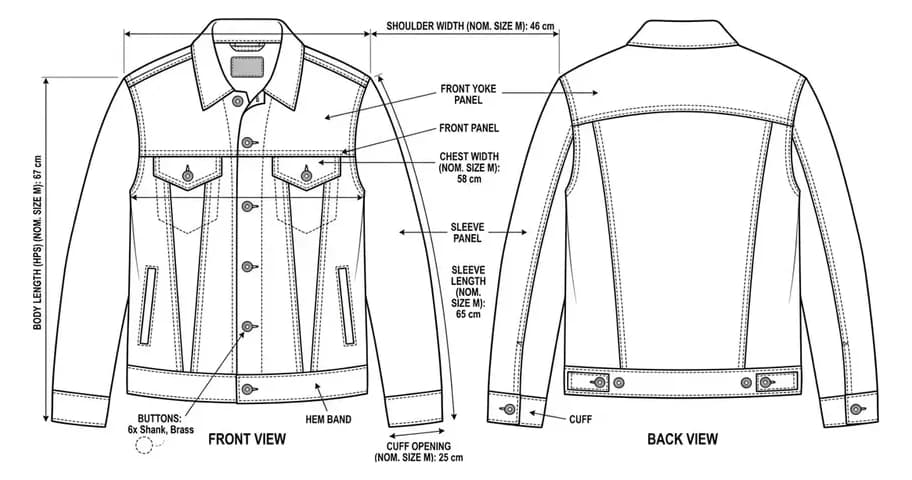
Clothes & Fashion
Front and back flats with the callouts a tech pack needs.
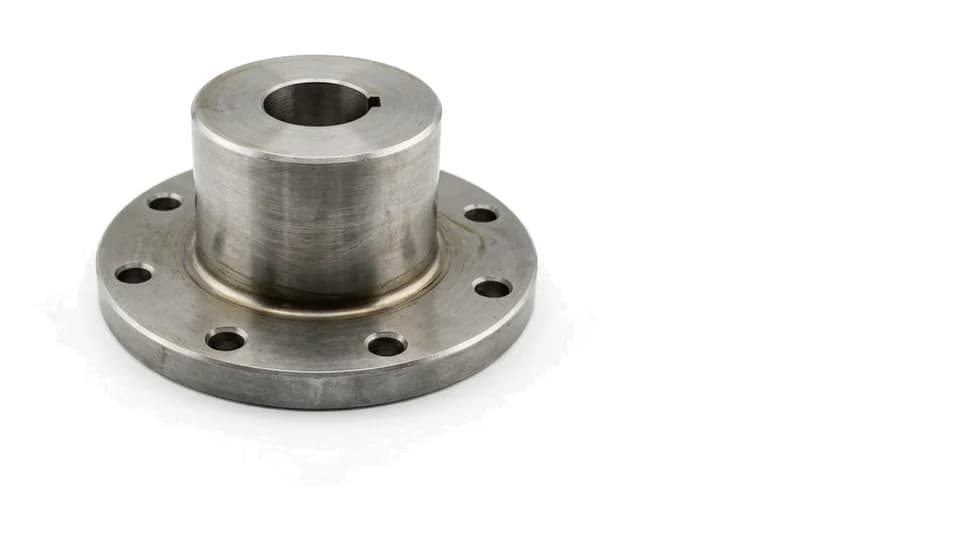
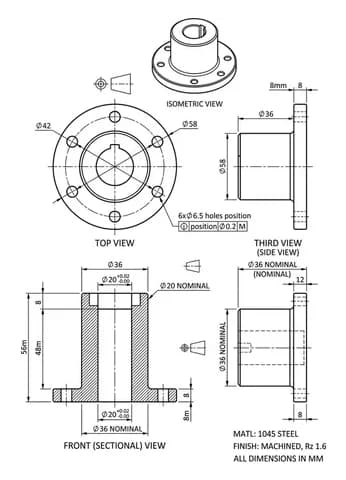
Machine Parts
Views, tolerances and a DXF your machine shop can quote from.
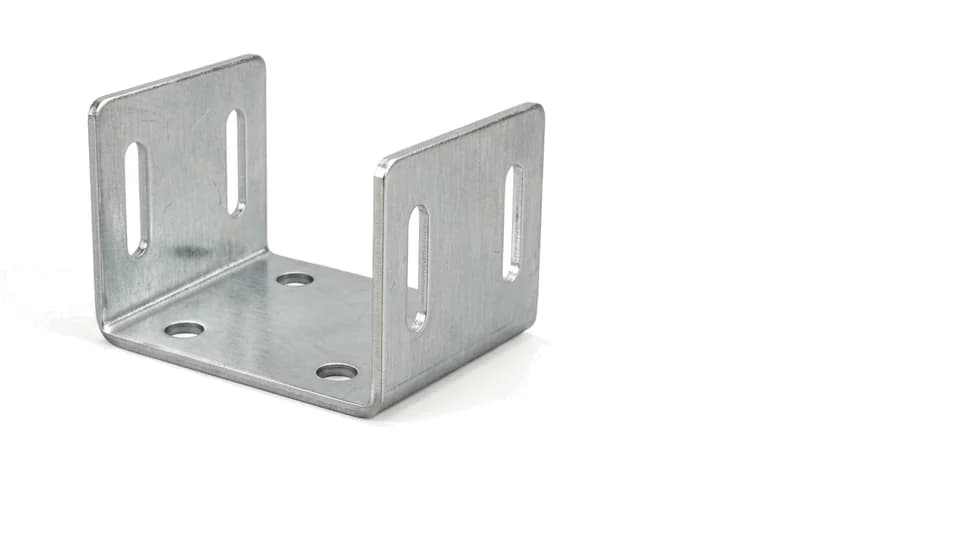
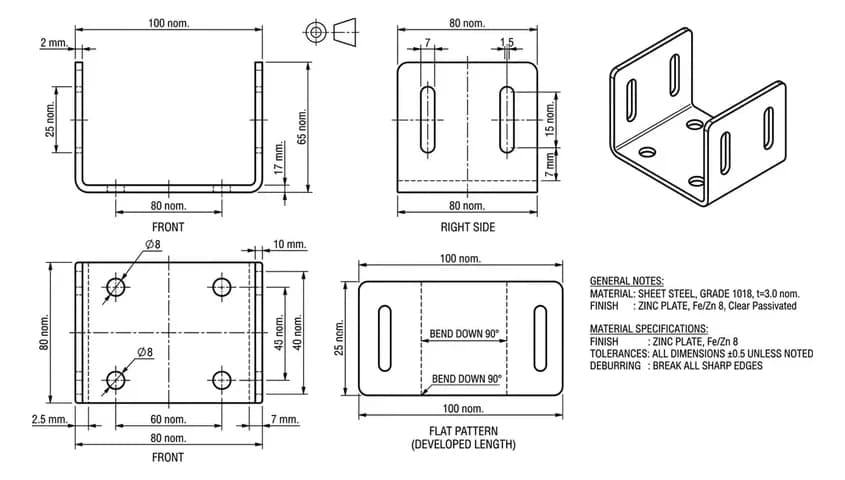
Sheet Metal
Bend lines, a flat pattern and a DXF for the laser table.
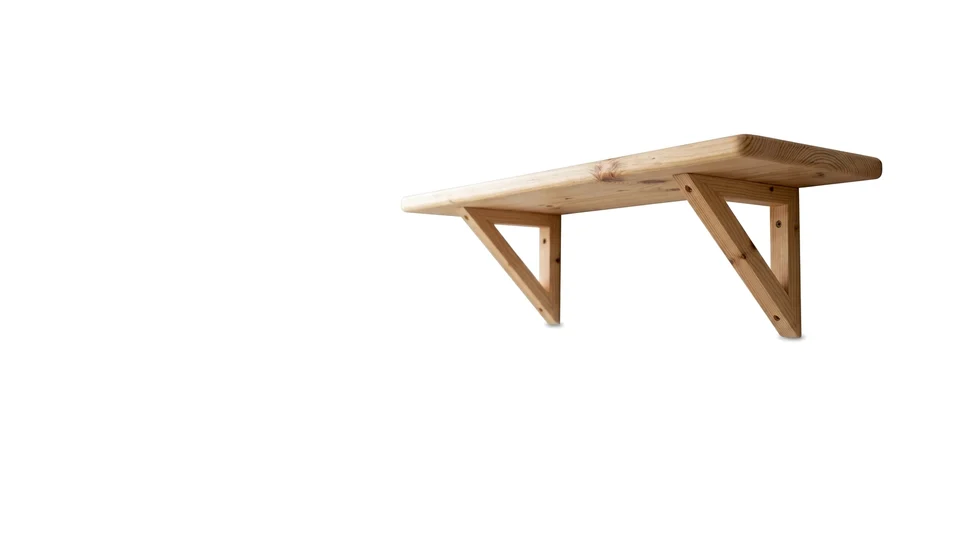
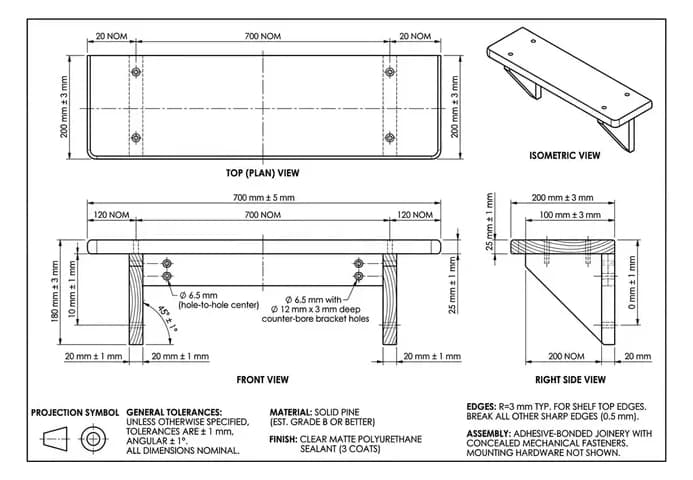
Woodworking
Plans you can build from, or a 1:1 template to print.
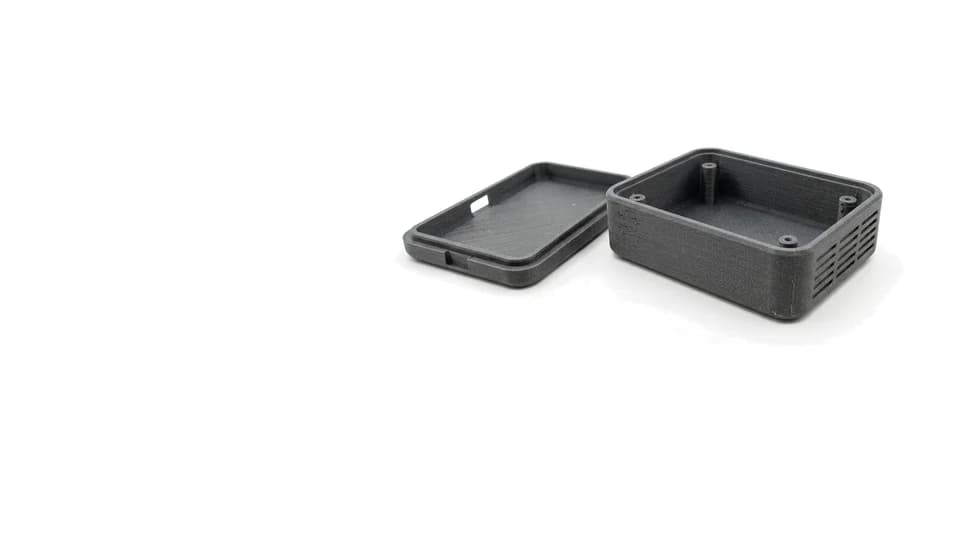
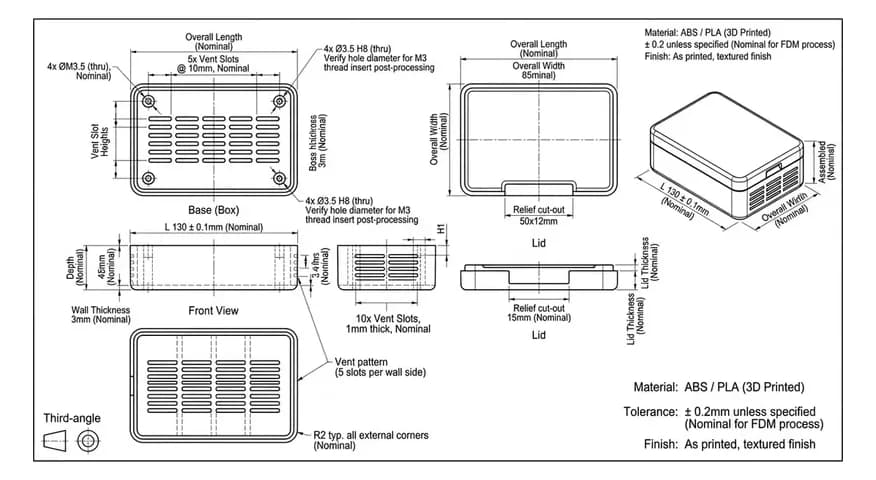
3D Printing
Wall thickness, clearances and fits, checked before you print.