

The best Chrome extension for CAD and technical drawings in 2026 is TechDraw AI, because it is the only one in the Chrome Web Store that makes a drawing instead of opening one: point it at a product page or a photo, mark a real length, and it returns a dimensioned drawing with front, top and side views that exports to DXF, DWG and PDF. For opening files, the best are DXF Viewer for DXF, CAD Viewer for DWG in Google Drive and 3D Viewer for STL and 3MF. We ranked seven, and we did it the way nobody else does: we downloaded every package from the store and read its code, to see what it really opens and where your drawing goes. TechDraw AI is ours, and we say exactly where it falls short.
Our articles are still written by humans!
Get human written articles in your Google feed.
 #1 TechDraw AI
 #2 DXF Viewer
 #3 CAD Viewer
 #4 3D Viewer
 #5 DXF Viewer (dxfviewer.app)
 #6 Text to CAD
 #7 Adobe Acrobat


The short answer
- To make a technical drawing of anything you can see in a browser, a product page, a photo, a picture from a supplier: TechDraw AI.
- To open a DXF privately: DXF Viewer, the 200,000 user one.
- To open a DWG from Google Drive or Gmail: CAD Viewer by cadviewer.co.
- To check an STL or 3MF before printing: 3D Viewer for Google Chrome.
Most people need one maker and one viewer, not seven extensions. Every extension you add can read something, so install the two you will use and leave the rest.
The seven, at a glance
Chrome Web Store figures, 16 October 2026
How we ranked them
The question we ranked on is the one a reader of this site has: does this extension get a CAD job done, start to finish, inside Chrome? Then four checks, in the order they matter:
- Does it do a CAD job at all? Page rulers that measure pixels on a website, colour pickers and font finders fill most “extensions for engineers” lists. They measure web pages, not parts, so they are out.
- Does the code match the listing? We pulled each package from Google’s update server, unzipped it and read
manifest.json, the background worker and the viewer page. That is where we found the Google Drive viewer with no Drive in it. - Where does the file go? Rendered on your machine, or handed to a website. Both are legitimate. You should know which.
- Is it alive? Last update, version number, and how many people use it. A viewer last touched in 2023 will meet a 2026 DWG and lose.
Making beats viewing in this ranking because a viewer replaces a download, and a maker replaces hours of drafting. That is the honest reason ours is first, and also why a free viewer with 200,000 users is second and not last.
1. TechDraw AI: photo to technical drawing
Verdict: the best Chrome extension for anyone who needs a drawing of an object and only has a picture of it, and the only extension on the list that produces CAD output rather than consuming it.

This is ours, so read this section with that in mind. Without it, a drawing of a product you found online means a screenshot, a save, a trip to a drawing tool, an upload, and typing the size from the listing by hand. The extension removes every one of those steps.
How it works
Open a product page and it finds the product by itself. If the page lists a size, a small “Technical drawing” card appears on the right edge with the width, depth and height already read off the page. On any other site you hover a photo and click Drawing, right click it, or drop in a JPG or PNG.
Then you mark real lengths on the photo: click the two ends of an edge and type how long it is. The listed width, depth and height are one click each. This step is why the drawing comes back at the right size. A photo has perspective and no scale, and a model that guesses a size from pixels is how you get a 600 mm chair drawn 900 mm wide. We explain why reference lengths matter in a separate guide.

Last, the setup: ISO or ANSI, sheet size from A4 to A0 or ANSI A to E, a working, assembly, as-fitted or patent drawing, mm, cm, m or inches, first or third angle projection, and which views. The drawing comes back with orthographic views and dimension lines, usually in under a minute, and is saved to your projects. Open in editor takes it to the web app to change numbers, text and the title block.

Pros and cons
- Pro: The only extension in the store that makes a dimensioned technical drawing; everything else on this page opens one.
- Pro: Works on any website: product pages are detected with their listed size, any other image is one click.
- Pro: Real standards, not a sketch: ISO or ANSI, A4 to A0 or ANSI A to E sheets, first or third angle, a title block.
- Pro: Gets you into CAD: DXF and DWG for AutoCAD, Fusion and SolidWorks, plus PDF and PNG.
- Pro: Updated on 16 October 2026, the most recent of the seven.
- Con: The numbers you type are exact; the rest are scaled from them, so check before you cut. It is a starting drawing for a part you cannot measure in person, not a manufacturer's drawing.
- Con: Needs a free account, unlike the local viewers.
- Con: DXF, DWG and PDF export are on the Studio plan; PNG is on every plan.
- Con: Reads the pages you visit so it can spot products, which the viewers that only open your files do not need to do.
Price: 5 credits per drawing, a failed drawing is not charged, and new accounts get free credits to try it. Privacy: it reads the page in your browser and sends nothing until you start a drawing; then it sends that photo, your measurements and settings, the page address and the product’s name and size. You can hide it on one site or everywhere from the panel menu. If you would rather not install anything, the same pipeline runs in a normal tab at techdrawai.com/create.
TechDraw AI 1.1.2, rated 5.0. Make your first technical drawing from a product page in under a minute, with free credits.
Add to Chrome2. DXF Viewer: the private one
Verdict: the best way to open a DXF someone emailed you without installing CAD software and without the file leaving your computer.
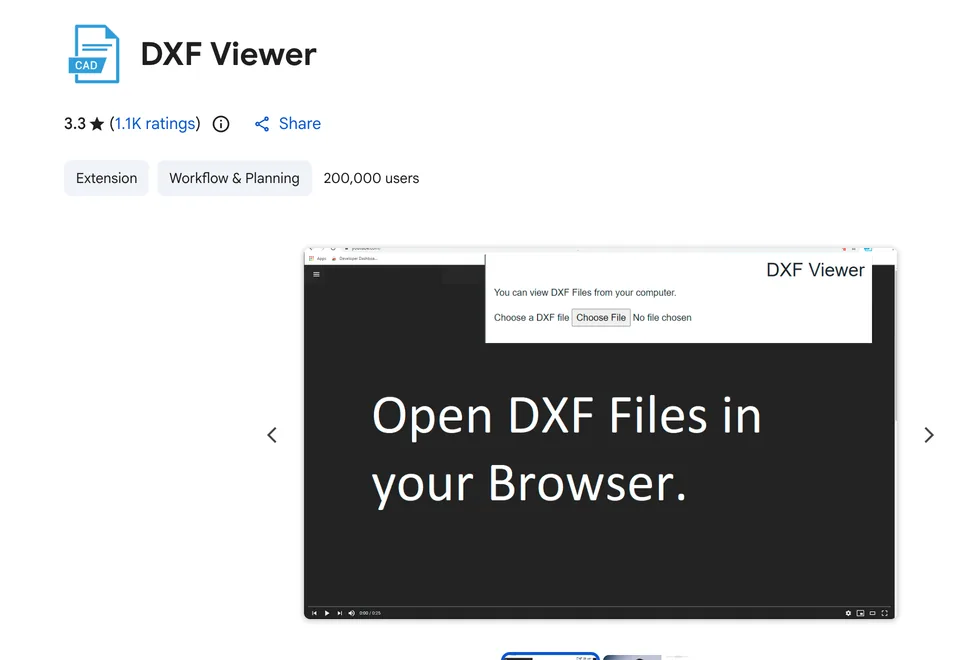
Version 3.1.0, updated 22 July 2026. Its manifest requests no permissions and no host access. Clicking the icon opens a page inside the extension; you pick a .dxf or drag it on, and it renders on a WebGL canvas locally. It works offline. For a confidential drawing that is the right architecture.
- Pro: Zero permissions: it cannot see a single website you visit.
- Pro: Renders on your machine and works offline.
- Pro: Now reports which entities it skipped instead of showing a half-blank drawing.
- Con: DXF only, no DWG.
- Con: Splines and hatches are still not drawn, per its own listing, so architectural plans look thin.
- Con: 3.3 from 1,100 ratings, much of it probably from older versions the listing admits skipped entities.
3. CAD Viewer: DWG inside Google Drive
Verdict: the best option for teams whose drawings live in Google Drive or arrive as Gmail attachments, especially DWG.
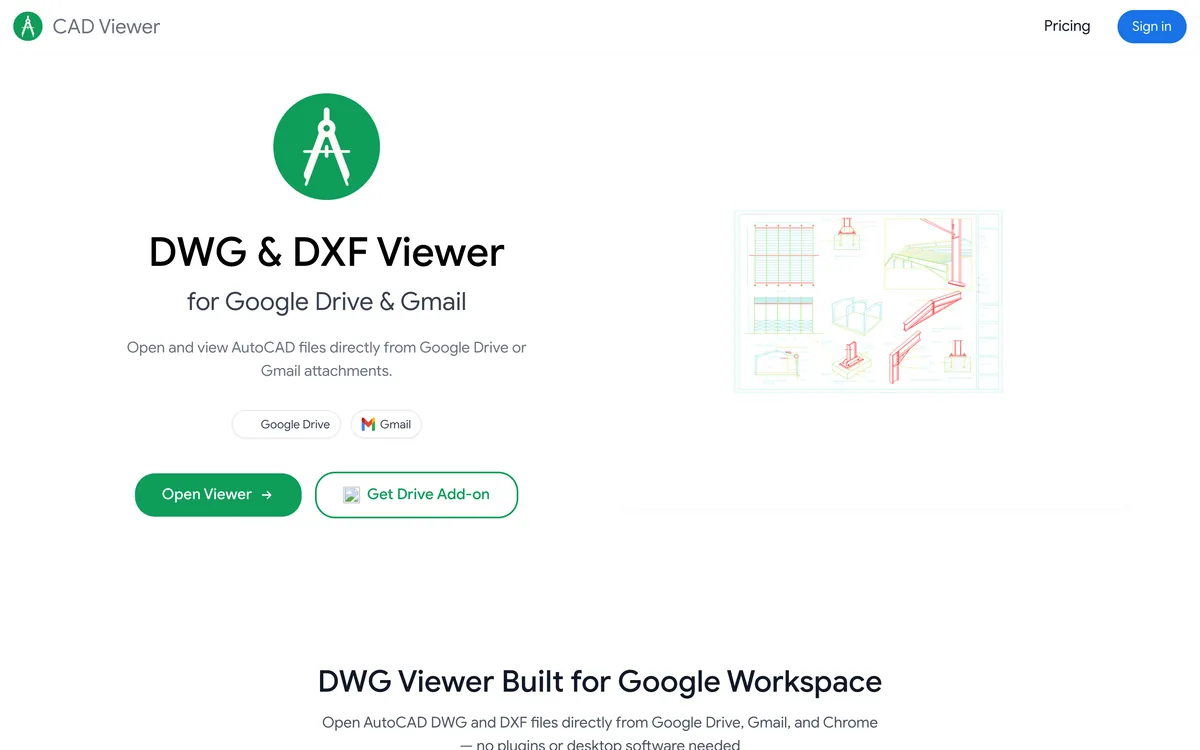
Version 0.0.1, updated 26 January 2026, about 1,000 users. Unlike the better known extension with Google Drive in its name (see below), this one really is wired in: its manifest asks for drive.google.com and mail.google.com, and it adds a side panel there. The listing claims DWG and DXF from R14 through 2025, layer toggling, model and paper space layouts, and “Red Dot” comments.
- Pro: Opens DWG, which most browser viewers cannot.
- Pro: Real Drive and Gmail integration, confirmed in the manifest.
- Pro: Layers, layouts and markup, per the listing.
- Con: The code opens files at cadviewer.co/viewer, so the drawing is processed by their service.
- Con: Version 0.0.1 and five ratings: you are an early user.
4. 3D Viewer: STL, OBJ and 3MF
Verdict: the best way to check a 3D model before you print it or send it to a shop.
Version 3.4.0, updated 24 June 2026. It opens STL (binary and ASCII), OBJ, 3DS, PLY, GLB and glTF, and 3MF, with colours and materials where the format carries them. It requests no permissions and renders locally, and its viewer code contains a measuring tool and a bounding box readout, which is the part you want for “will this fit the bed”.
- Pro: Six mesh formats, including 3MF with colours.
- Pro: No permissions, local rendering.
- Pro: Measure tool and bounding box in the viewer.
- Con: No STEP, so it is no help with a CAD part from a supplier.
- Con: A viewer will not fix a broken mesh; that is a repair job.
If the mesh has holes, use an STL repair tool first.
5. DXF Viewer (dxfviewer.app): DXF links
Verdict: good if you click a lot of .dxf links on supplier sites and forums, with a different privacy trade-off from the DXF Viewer at number two.
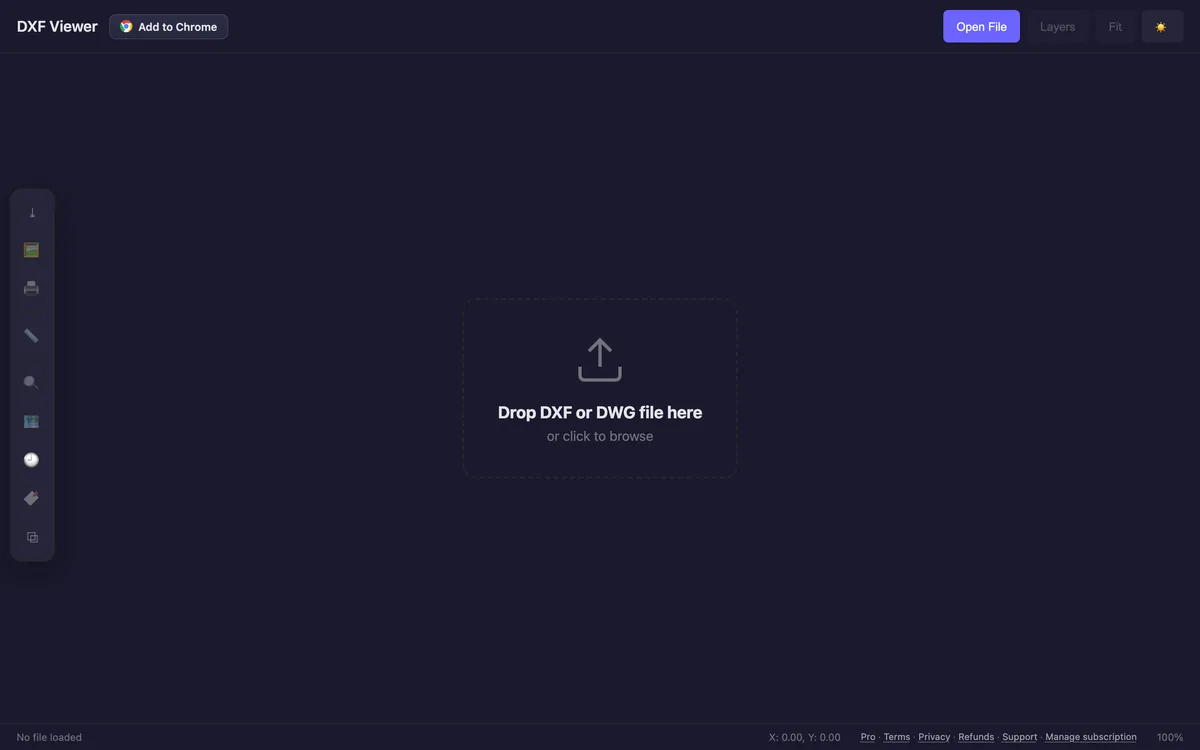
Same name, different extension: about 1,000 users, version 2.3.0, updated 9 July 2026. Its useful trick is a right-click Open DXF in Viewer on any link ending in .dxf, and the listing says it opens DWG by converting it to DXF in the browser. Reading the code changes the picture a little: the extension is a bridge to the dxfviewer.app website. It fetches the file and opens it in a tab on that site, and to catch those links it runs a content script on every page you visit.
- Pro: Right-click any DXF link to open it.
- Pro: Reads DWG as well as DXF, per the listing.
- Pro: Draws splines and ellipses.
- Con: The viewer is a website, not the extension.
- Con: A content script on every page, for a feature you may use once a week.
6. Text to CAD: a model from a sentence
Verdict: interesting for roughing out a simple parametric part from a description, but it answers a different question from TechDraw AI.

About 400 users, version 2.0.3, updated 11 June 2026. Its only host permission is its own API at api.text-to-cad.uk, which is where generation happens, and it runs on credits. It starts from words, not from an object you can see, and gives you a model rather than a dimensioned drawing. If you want words to a 2D drawing, we built text to technical drawing as a free web tool.
- Pro: Real CAD formats out: STEP, STL, IGES, BREP, per the listing.
- Pro: Narrow permissions: only its own API.
- Con: You have to describe the part well enough in words.
- Con: A 3D model, not a dimensioned drawing for a shop.
7. Adobe Acrobat: PDF drawing sets
Verdict: not a CAD tool, but PDF is the format drawings actually travel in, so it earns the last place.
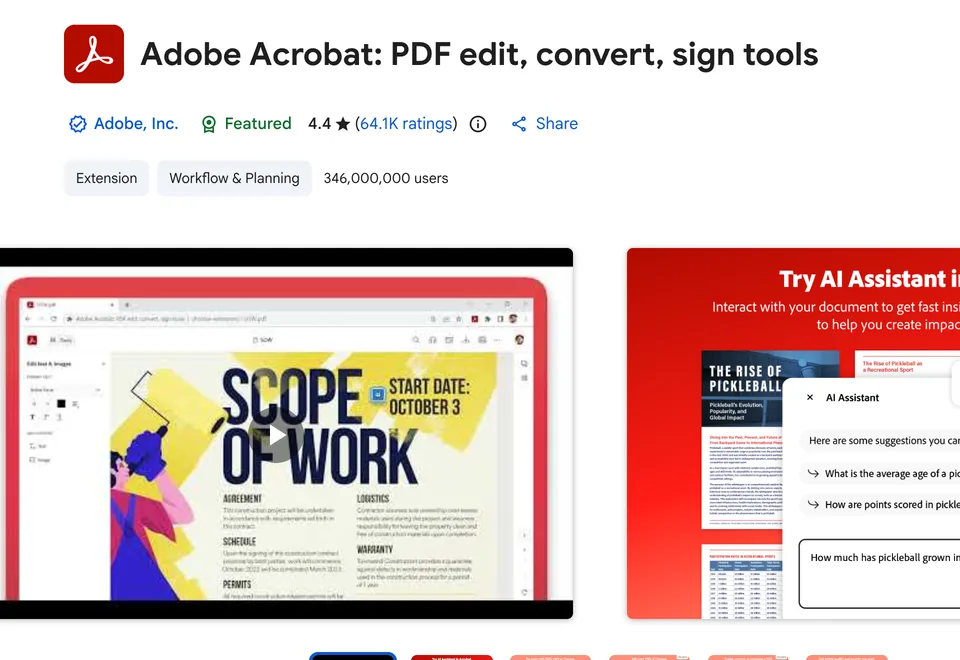
It opens PDFs in Chrome with comments, highlights, signing and conversion, which covers red-lining a drawing set and signing off a shop drawing. It also asks for by far the most: tabs, cookies, webRequest, nativeMessaging, downloads, file system access and every site. If all you need is to read a PDF drawing, Chrome’s built-in viewer already does it with nothing installed. And a PDF is not CAD: getting the geometry back is a PDF to DXF job.
How to make a technical drawing in Chrome
The question behind most searches for a CAD extension is not how to open a file, it is how to get a drawing of something. With TechDraw AI it takes four steps:
- Install it from the Chrome Web Store and pin it, then sign in. New accounts get free credits.
- Open the object. A product page on any store, or any photo: hover it and click
Drawing, or right click and chooseMake a technical drawing. - Mark at least one real length. Click both ends of an edge and type its length, or use the listed width, depth and height with one click each.
- Choose the setup and draw. ISO or ANSI, sheet size, units, projection and views. The drawing arrives in under a minute; export PNG, or DXF, DWG and PDF on Studio, and open it in AutoCAD, Fusion or SolidWorks.
Which ones to install, by job
What each one can read
Chrome extensions declare what they can touch in a file called manifest.json. Host permissions and content scripts are the ones to look at, because they decide which websites the extension can see. This is what each package asked for:
From each package's manifest, 16 October 2026
The pattern is simple. A viewer that only opens files you pick needs nothing, and the two best viewers prove it. An extension that reacts to the pages you browse, whether to catch a DXF link or to spot a product and its size, needs to see those pages. That includes ours. Neither is a red flag on its own; a viewer asking for every site when it only opens local files would be.
What we left off, and why

- CAD Viewer for Google Drive™ (30,000 users, 3.4, version 3.0.1, last updated 28 January 2026). The name and listing promise DXF files from Google Drive. The package has no Google permissions and no Drive code; its viewer page is a local file picker that accepts
.dxfonly. A working local DXF viewer with a misleading name, and DXF Viewer does the same job with more recent updates. - DWG FastView (10,000 users). Last updated December 2023. Too old to trust with a current DWG.
- CADDaddy (about 100 users). Last updated July 2025, and it hands the file to the company’s online viewer.
- STL Viewer (6,000 users, 4.7). Fine, but 3D Viewer opens more formats with no permissions, and one 3D viewer is enough.
- Page rulers such as Page Ruler and Better Ruler. They measure elements on a web page in pixels. Useful for web design, useless for a part.
- STEP viewers. The ones in the store had a few hundred users and no reviews. Nothing we could recommend yet.
When you do not need an extension
If you open a CAD file once a month, an extension is overkill. A web viewer in an ordinary tab does the same and cannot see anything else you browse. Ours are free and run in your browser: DXF viewer, DWG viewer, G-code viewer, and a DXF checker that tells you whether a file will cut. The full list is on free tools. Autodesk’s own free web viewer is the other well known option:
Where an extension earns its place is when the drawing starts on a web page. That is the case TechDraw AI was built for: the product is already in your browser, so the drawing should be one click away rather than a screenshot, a download and an upload. For the bigger picture, see our comparison of AI technical drawing tools and the guide to turning a photo into CAD.
FAQ
Frequently asked questions
What is the best Chrome extension for CAD?
TechDraw AI is the best Chrome extension for CAD work in 2026 if you need to produce a drawing: it is the only one in the Chrome Web Store that turns a photo or a product page into a dimensioned technical drawing with front, top and side views, exportable as DXF, DWG or PDF for CAD software. If you only need to open files, DXF Viewer (200,000 users) opens DXF locally with no permissions, CAD Viewer by cadviewer.co opens DWG from Google Drive and Gmail, and 3D Viewer for Google Chrome opens STL, OBJ and 3MF.
Is there a Chrome extension that makes technical drawings from photos?
Yes, TechDraw AI. Open a product page or any photo in Chrome, mark one or more real lengths on it, pick ISO or ANSI, the sheet size and the views, and it returns a drawing with orthographic views and dimension lines, usually in under a minute. Each drawing costs 5 credits, failed drawings are not charged, and new accounts get free credits. PNG export is on every plan; DXF, DWG and PDF are on the Studio plan.
Can I open a DWG file in Chrome?
Yes, two ways. CAD Viewer by cadviewer.co opens DWG and DXF files that are stored in Google Drive or attached in Gmail, in a viewer on its own website. DXF Viewer by dxfviewer.app also opens DWG by converting it to DXF in the browser. If you would rather not install anything, a free web DWG viewer in a normal tab does the same job.
Are CAD viewer extensions safe for confidential drawings?
Some keep the file on your computer and some send it to a website, and the listing does not always make that clear. We read the code. DXF Viewer (200,000 users) and 3D Viewer for Google Chrome request no permissions and render on your own machine. CAD Viewer by cadviewer.co and DXF Viewer by dxfviewer.app open the drawing on their own websites. For a drawing under NDA, use one of the local ones.
Does CAD Viewer for Google Drive actually open files from Google Drive?
Not directly, as far as its code shows. The package we unpacked (version 3.0.1) has no Google Drive code and no Google permissions. Its viewer is a local page with a file picker that accepts .dxf from your computer, so in practice you download the file from Drive first. It also does not read DWG. CAD Viewer by cadviewer.co is the one that actually opens files inside Drive.
What Chrome extensions do engineers and architects use?
Engineers and architects mostly install one tool that makes drawings and one viewer for the format they get sent. TechDraw AI makes dimensioned drawings from photos and product pages. DXF Viewer is the most installed CAD-specific viewer at 200,000 users. CAD Viewer covers DWG in Google Drive, 3D Viewer covers STL and 3MF, and Adobe Acrobat is used for marking up PDF drawing sets.
Do I need AutoCAD to open a DXF or DWG file?
No. A DXF opens in a free Chrome extension such as DXF Viewer or in a free web viewer, and a DWG opens in CAD Viewer by cadviewer.co, in Autodesk's free online viewer, or in a free web DWG viewer. You only need AutoCAD or another CAD program to edit the geometry and save it back.
Sources
- Chrome Web Store: TechDraw AI, Photo to CAD and Technical Drawing
- Chrome Web Store: DXF Viewer (200,000 users)
- Chrome Web Store: CAD Viewer by cadviewer.co
- Chrome Web Store: 3D Viewer for Google Chrome
- Chrome Web Store: DXF Viewer by dxfviewer.app
- Chrome Web Store: Text to CAD
- Chrome Web Store: Adobe Acrobat, PDF edit, convert, sign tools
- Chrome Web Store: CAD Viewer for Google Drive
- Chrome for Developers: declaring permissions and host permissions