
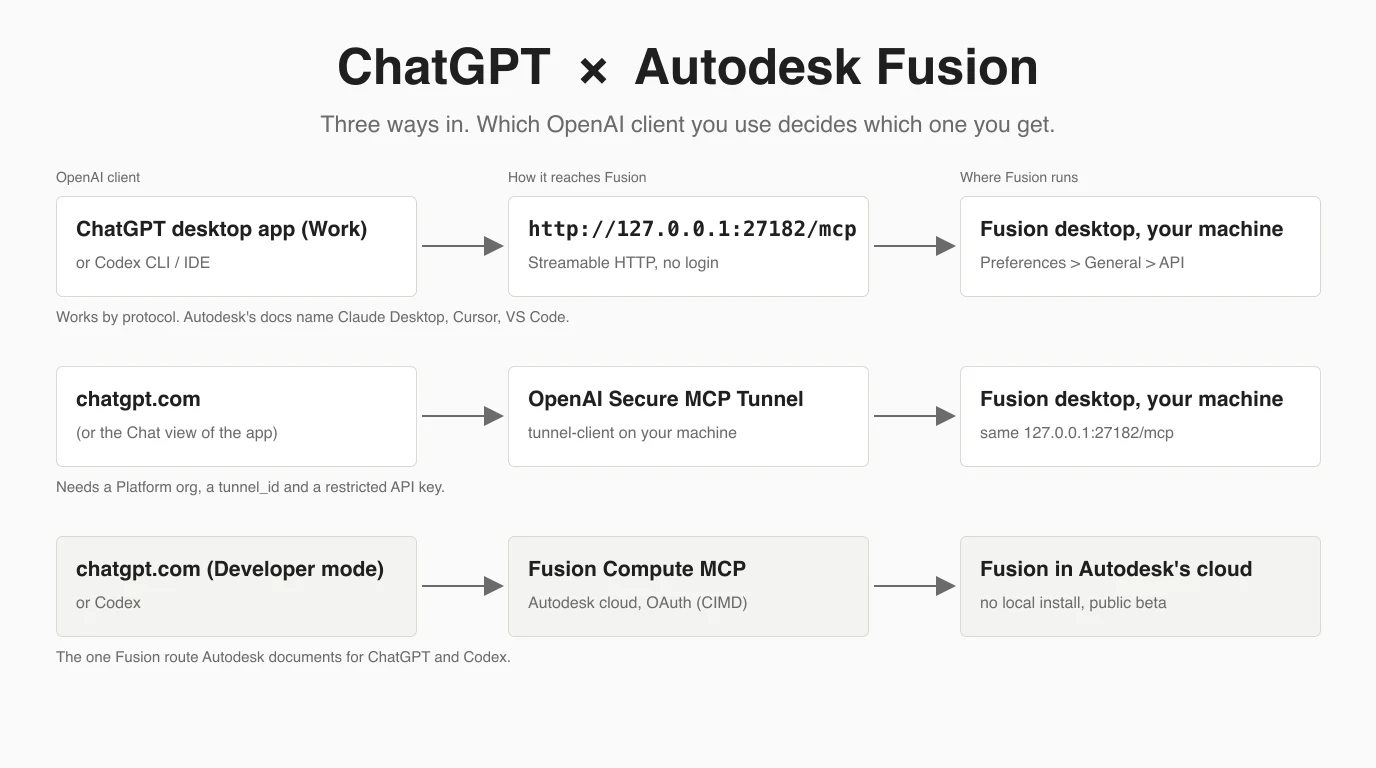
Fusion is the easiest CAD program in this series to connect to ChatGPT, because Autodesk already built the server: a checkbox in Fusion opens an MCP endpoint on your own machine, and any client that speaks Streamable HTTP can use it. The catch is which ChatGPT. Codex and the ChatGPT desktop app in Work mode reach it directly; the chatgpt.com website cannot, unless you add OpenAI's tunnel or switch to Autodesk's cloud server instead. We read every Autodesk and OpenAI page involved, registered both Autodesk servers with Codex CLI on this Mac and pointed OpenAI's tunnel client at Fusion's port. We do not have Fusion installed, so nothing was modelled, and the article says so wherever it matters.
Our articles are still written by humans!
Get human written articles in your Google feed.


Can ChatGPT connect to Fusion 360?
Yes. Autodesk Fusion has a built-in MCP server that you switch on in Preferences, and the ChatGPT desktop app (in Work mode) and Codex connect to it as a Streamable HTTP server at http://127.0.0.1:27182/mcp. The chatgpt.com website cannot reach that local address on its own.
That is the whole answer, and the rest of this guide is the detail that decides whether it works for you. MCP, the Model Context Protocol, is the same whichever model is on the other end, so the server Autodesk wrote with Claude in mind exposes the same tools to an OpenAI client. What differs is the client landscape on OpenAI's side, and on Autodesk's side which client each of its servers names. If you use Claude instead, the same server is covered in how to connect Claude to Fusion 360, where Autodesk ships a directory connector.
The routes, and which client each needs
Which OpenAI client you open decides which route you get. Local clients (Codex CLI, the Codex IDE extension and the ChatGPT desktop app) talk to Fusion on your machine directly; the website needs a tunnel or Autodesk's cloud server.
OpenAI's MCP documentation draws the line in two sentences: ChatGPT web can use remote MCP-backed tools supplied by plugins, and local Codex clients can also connect directly to MCP servers and share their configuration. The desktop app adds a second split. Its own docs say to use the toggle above the composer to select Chat or Work, and Autodesk draws the same line on its Fusion Compute page: Codex “inside the ChatGPT desktop app” is set up like Codex, the “chat view of the ChatGPT desktop app” like the website.
Every way to get an AI client into Fusion, as documented on 12 October 2026
What Autodesk says about ChatGPT, server by server
Autodesk's help pages name ChatGPT and Codex for two of its six MCP servers, Fusion Compute and Product Help, and not for the local Fusion server most people mean. Autodesk's Fusion YouTube channel fills that gap with a video of the ChatGPT app driving the local server.
This is the question the other guides skip, so we checked every page. The local server's connecting page has a three-row table, Claude Desktop, Cursor and VS Code, and then one sentence that is the reason any of this works: “Any other client that supports MCP over Streamable HTTP can connect to the same URL.” Codex and the desktop app are such clients. Autodesk does not say so; the protocol does.
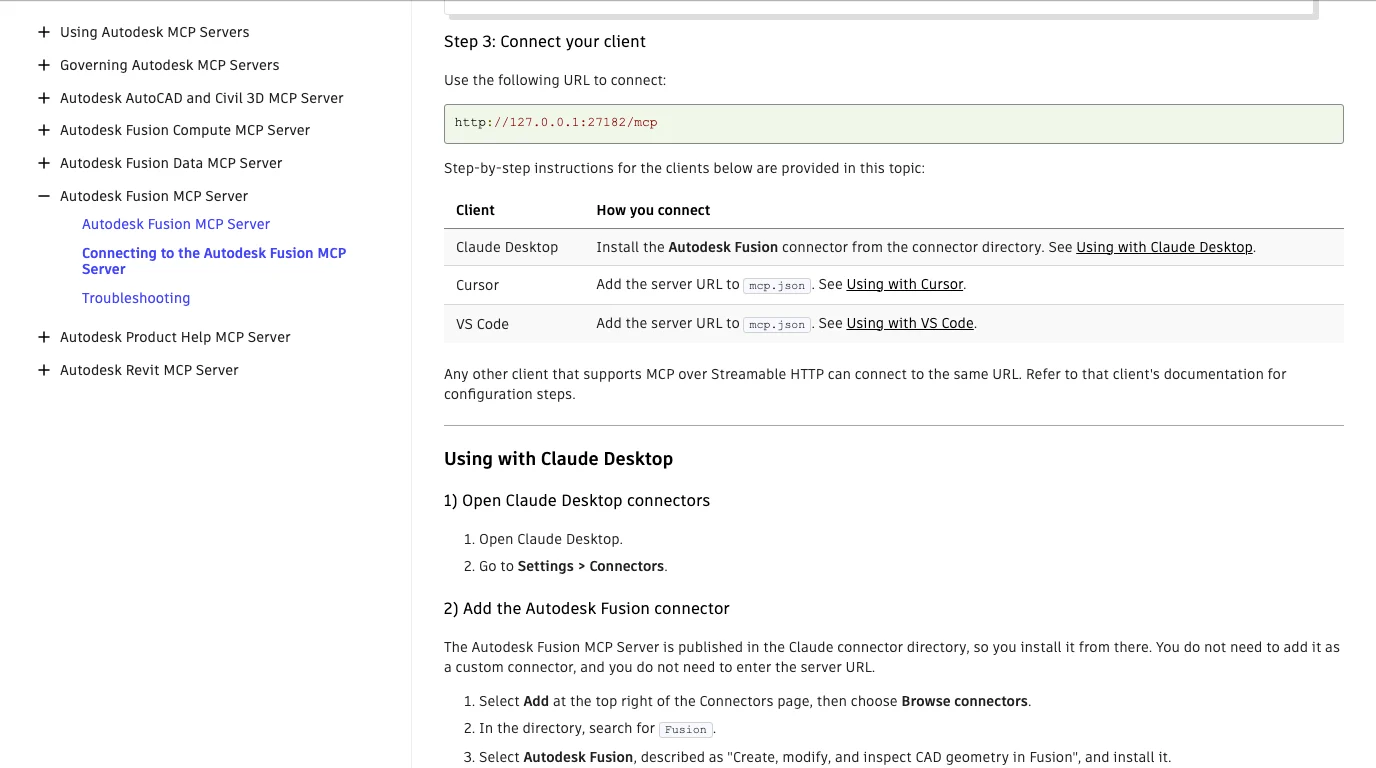
Autodesk's Fusion-related MCP servers and what each page says about OpenAI clients, checked 12 October 2026
The video is the strongest single piece of evidence, because it comes from Autodesk. On 28 September 2026 the Autodesk Fusion channel published a two-minute clip whose description is the setup in four sentences: turn on the Fusion MCP server in Preferences, General, API, copy the address, open the ChatGPT app, switch to Work mode, add Fusion as a connector and paste the address in. The model then builds a parametric Raspberry Pi 4 case in 6061-T6 with a base, a lid and a timeline you can edit. The description also carries the one practical warning worth repeating: it thinks for a long time before it does anything, so do not assume it is broken.
Two smaller pieces fill in the picture. Autodesk's reference server repository, written by the Fusion API team, has a tips document whose section on choosing a model says you should get good results with both GPT-5.1 and Claude 4.5, and advises against Cursor's automatic model. That is the only Autodesk text we found that names an OpenAI model. And Autodesk's governance page for individuals says to prefer a server that is listed as official or verified in your AI client's own directory. For ChatGPT, the local Fusion server is not, so that trust signal is missing; you are relying on the URL coming from Autodesk's help page, which is the other signal the same page names.
Before you start
You need Fusion desktop open with a design, a recent Fusion build that shows the MCP checkbox, and Codex or the ChatGPT desktop app on the same computer. The website alone is not enough for the local server.
What the local route requires
Whether the checkbox exists in the free personal-use edition of Fusion is something we could not confirm: Autodesk's April launch post says the connector is for Fusion subscribers, and no help page says either way. The Claude guide has the community add-ins that state plainly they work on a personal licence, and faust-machines' README lists Codex among its clients.
Step 1: switch the server on in Fusion
In Fusion open Preferences, go to General > API, tick Fusion MCP Server (runs locally on this device) and click Apply. Fusion then serves http://127.0.0.1:27182/mcp.
- Start Fusion and open or create a design.
- Open Preferences and go to General > API.
- Tick Fusion MCP Server (runs locally on this device). A port field appears underneath; the default is
27182. - Click Apply, then OK. Write the port down: Autodesk says that if you change it, you have to update the URL in your client to match, and nothing does that for you.
Autodesk's screenshot of that dialog, and the forum thread about a port that changed after a relaunch, are in the Claude guide. Nothing about this step depends on which AI you use.
Step 2: register it with Codex or the desktop app
Run codex mcp add fusion --url http://127.0.0.1:27182/mcp, or add the same URL as a Streamable HTTP server under Settings > MCP servers in the ChatGPT desktop app. Both write the same file, ~/.codex/config.toml.
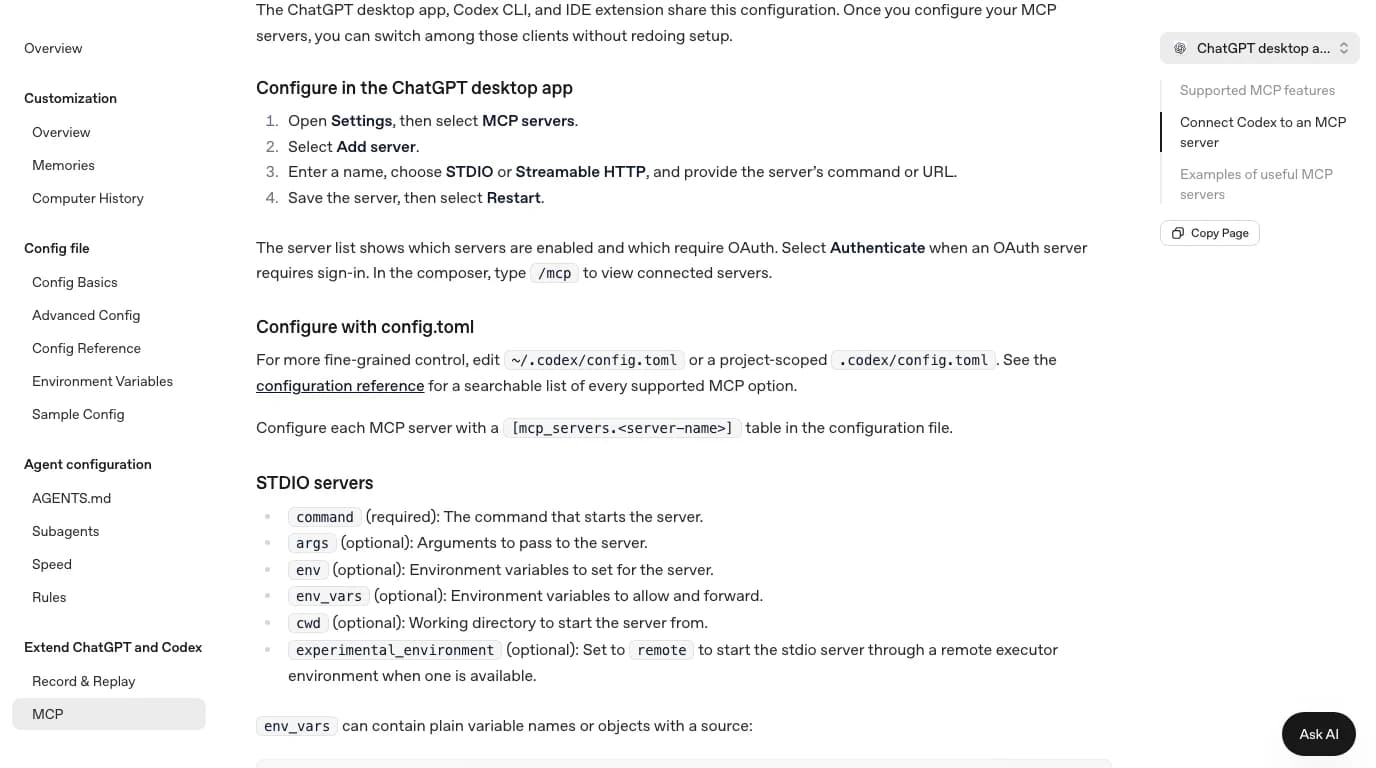
In the ChatGPT desktop app
- Open Settings, then MCP servers, then Add server.
- Name it
fusion, choose Streamable HTTP, and enterhttp://127.0.0.1:27182/mcp. - Save, then select Restart.
- Start a conversation in Work, not Chat, which is what Autodesk's video does.
In Codex CLI
codex mcp add fusion --url http://127.0.0.1:27182/mcpWe ran that on this Mac with Codex CLI 0.162.1, using a throwaway Codex home folder so the real one was not touched. We also registered Autodesk's cloud Fusion Compute server the same way, because the contrast between the two is the most useful thing in the output.
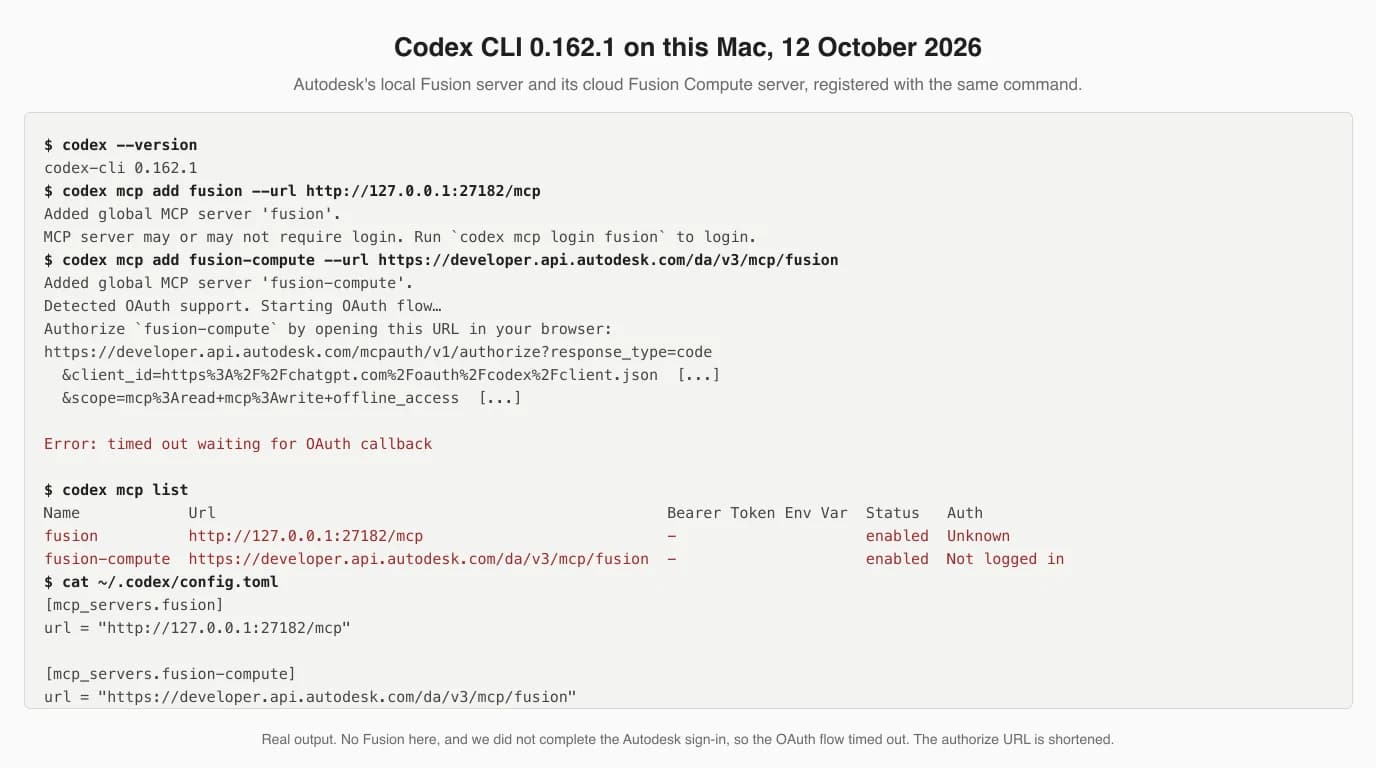
Four things in that output are worth knowing before you try it:
- The local entry says the server “may or may not require login”, and its Auth column reads Unknown. That is Codex not being able to reach port 27182, because Fusion is not installed here. Fusion's server needs no login; Autodesk says it is local-only with no authentication. Do not run
codex mcp login fusion. - The cloud server answered. Codex detected OAuth on Autodesk's endpoint and built a sign-in link with the client id
https://chatgpt.com/oauth/codex/client.json, which is the CIMD document OpenAI's docs describe, and the scopesmcp:read mcp:write offline_access, the same three Autodesk tells chatgpt.com users to type in by hand. So Codex and Autodesk agree on the sign-in without any manual registration, as Autodesk's Codex section says. - The timeout is ours. We did not sign in, so Codex gave up waiting for the browser. The server stays registered, shown as Not logged in;
codex mcp login fusion-computestarts the sign-in again. - The config is two lines per server.
codex mcp get fusionconfirms the transport asstreamable_http. If you change the port in Fusion, this URL is what you edit.
[mcp_servers.fusion]
url = "http://127.0.0.1:27182/mcp"
default_tools_approval_mode = "prompt" # our addition, see the safety sectionindex.js with Codex, port 27182, and reports building a 40 mm by 20 mm cylinder. It works, but it is a detour he names himself: his same article says Codex supports Streamable HTTP, so you can connect directly without the connector, and that the copied files do not update when Claude's do. Use the URL.Step 3: check it is there, then build something small
Type /mcp in Codex or in the desktop app's composer to see the Fusion tools, then ask for Create a 10 mm cube, Autodesk's own verification prompt. A cube in your open document proves the whole chain.
- Fusion first. Open Fusion and a design before you start Codex or restart the app: OpenAI's docs describe Codex building its tool catalog from the servers at startup.
- Look for tools, not just the entry. An entry in
codex mcp listonly means the URL is stored; ours is listed and has nothing behind it./mcplisting Fusion tools means it is connected. Autodesk publishes no fixed tool list: its page calls the tools dynamic, discovered at connection time. - Then the cube. After that, the two prompts we would run next are a read-only one, “describe the open document: components, bodies, sketches, parameters, units”, and a checkable edit, “make it 40 by 25 by 10 mm with a 6 mm through hole in the top face, as a parametric feature, then tell me the bounding box”. The bounding box is a number you can check.
- Expect waiting. Autodesk's own video says the model thinks for a long time before it acts, and suggests asking for work in smaller chunks if you want to see progress.
If nothing connects, Autodesk's troubleshooting table covers it, and none of its rows is specific to Claude except the wording: Fusion not running, the server not enabled, or a URL that does not match the port. A connection that worked and stopped means Fusion was closed or restarted.
For what a Codex session against the built-in server looks like over more than one prompt, Shane Hooper's review is the one we found. By his description he pulls the port and address from the API preferences, connects Codex, then checks dimensions against a reference drawing and corrects them, with a section on getting a revolve and a bore right.
Step 4 (optional): reach it from chatgpt.com through a tunnel
OpenAI's Secure MCP Tunnel lets the chatgpt.com website use the Fusion server on your machine: tunnel-client runs next to Fusion, connects out to OpenAI and forwards requests to port 27182. It needs a Platform organization, a tunnel id and a restricted API key.
Skip this if Codex or the desktop app is enough. The tunnel exists for the case where you want the website, for instance a ChatGPT workspace that colleagues share, and will not expose a public endpoint. The client, openai/tunnel-client, is Apache-2.0 with builds for Windows, macOS and Linux; v0.0.16 is from 6 October 2026. OpenAI's docs use a stdio example; for Fusion, which is an HTTP server, they say to pass --mcp-server-url instead, and the client's built-in sample for an HTTP server without OAuth is sample_mcp_remote_no_auth.
tunnel-client init --sample sample_mcp_remote_no_auth --profile fusion \
  --tunnel-id tunnel_<your id> --mcp-server-url http://127.0.0.1:27182/mcp
export CONTROL_PLANE_API_KEY=<runtime key with Tunnels Read + Use>
tunnel-client doctor --profile fusion --explain
tunnel-client run --profile fusion
We downloaded the v0.0.16 macOS build from GitHub, checked it against the release checksum, and ran the first three lines with OpenAI's placeholder tunnel id. Without a key, doctor stops at the key. With a dummy key set only to get past that check, it goes on to test the MCP target, and that is the useful part:
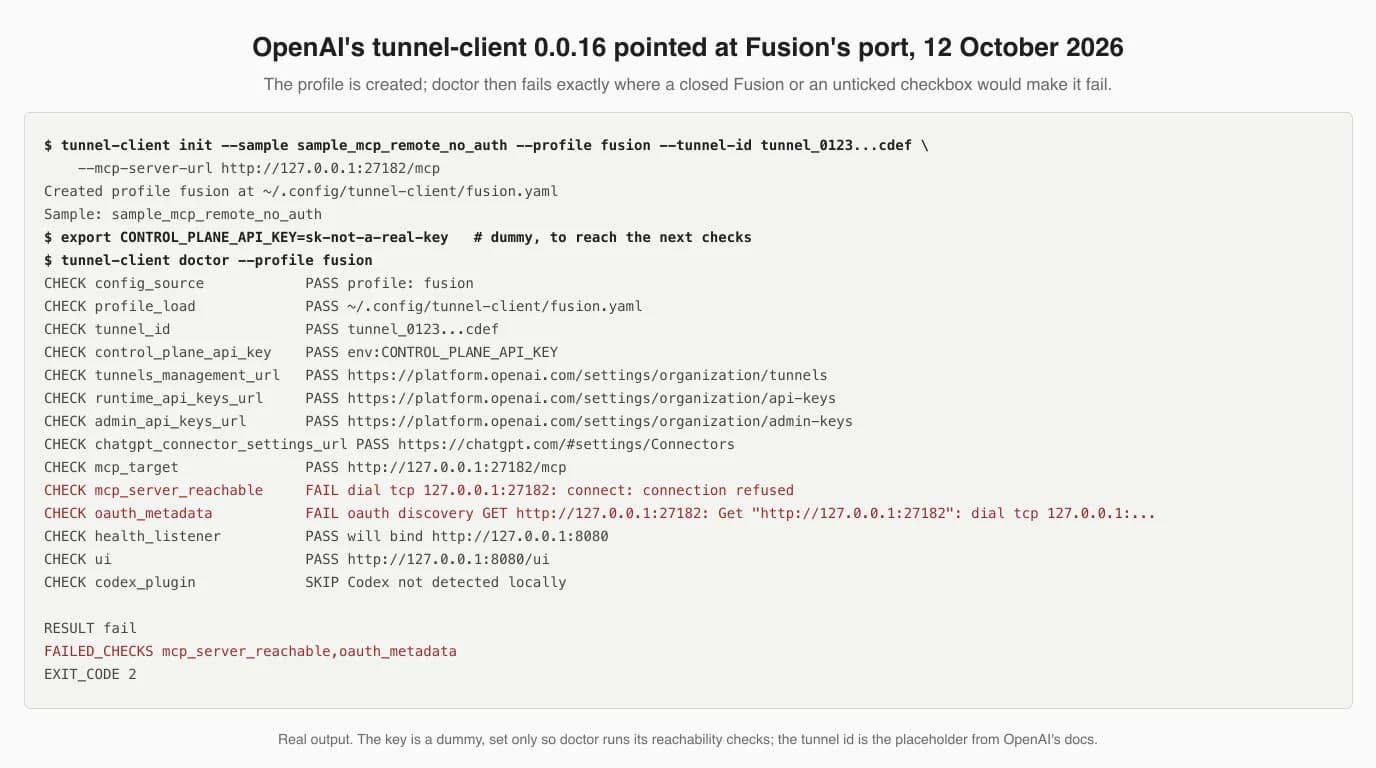
Two practical notes from that run. First, doctor checks that the MCP server answers before you ever reach ChatGPT, so run it with Fusion open; a refused connection means Step 1, not OpenAI. Second, doctor passed our dummy key without contacting OpenAI, so a pass on that line does not prove your key works; we never ran tunnel-client run, which is where it would be used. Note also that the client's health page binds 127.0.0.1:8080 by default, so pick another address with --health-listen-addr if something already uses it.
On the ChatGPT side, OpenAI documents the steps: keep tunnel-client run going, open Plugins, select the plus button, then Add custom MCP server, choose Tunnel under Connection, pick the tunnel or paste its id, accept the risk warning and Create as a plugin. If the tunnel does not appear, OpenAI's troubleshooting says it must be associated with the ChatGPT workspace, not only a Platform organization. The full walk through, with OpenAI's screenshots, is in the ChatGPT and SolidWorks guide. We did not complete a tunnel.
The cloud route: Fusion Compute from ChatGPT or Codex
Autodesk's Fusion Compute MCP server runs Fusion headless in Autodesk's cloud, and it is the one Fusion server whose documentation gives step-by-step setup for both Codex and chatgpt.com. It needs an Autodesk sign-in, an active Fusion licence and a Fusion Team hub, and it is in public beta.
This is a different product from the checkbox in Steps 1 to 3. Nothing runs on your desktop: the model asks Autodesk to start a Fusion session in the cloud, works in it, and the session is temporary, so anything not saved to Fusion Team is lost. Autodesk's tools page lists eight top-level tools on 12 October 2026, among them start_fusion, invoke_fusion, which carries out the modelling, CAM, document and export work, and fusion_view_3d, which exports STL or STEP. In its default mode the work is done by running TypeScript against the Fusion API, not Python as on the desktop. The endpoint is https://developer.api.autodesk.com/da/v3/mcp/fusion.
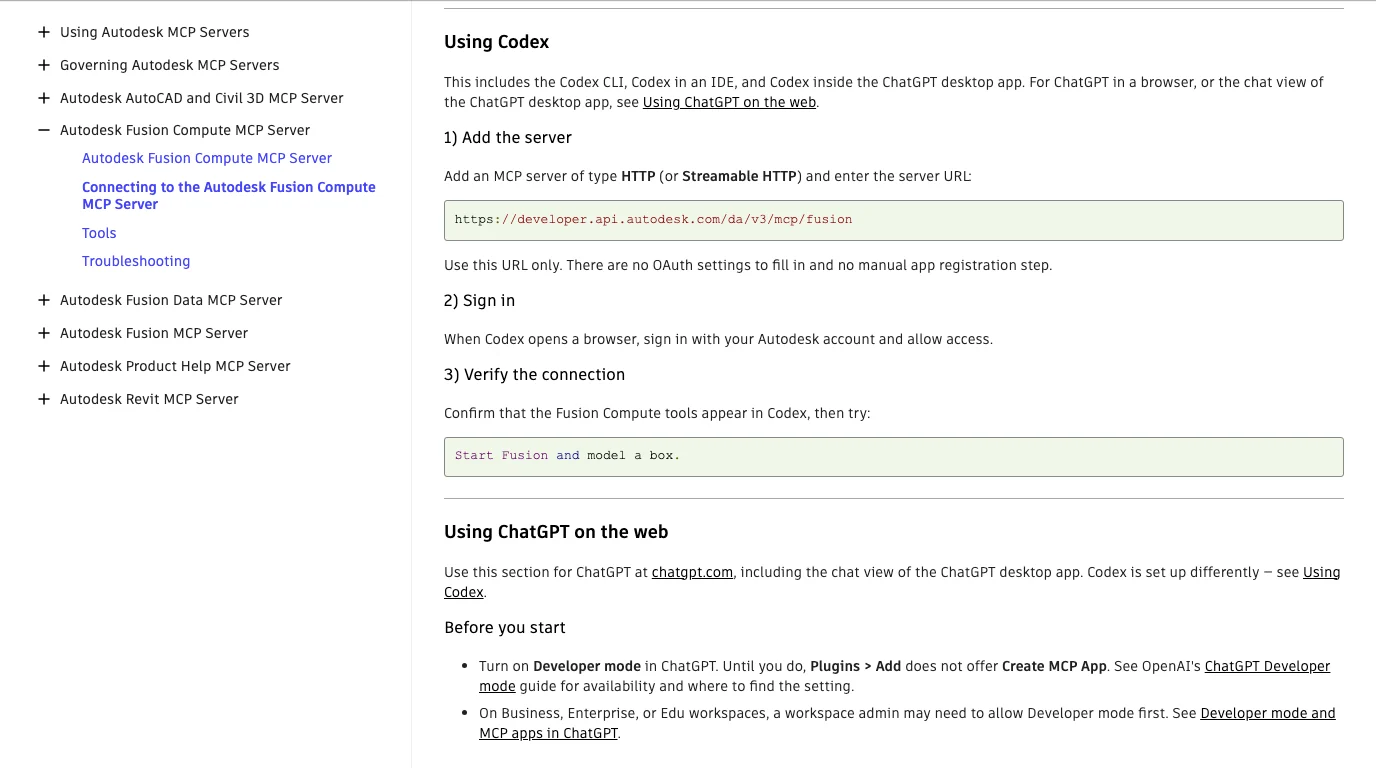
From Codex it is the command in our transcript above plus the browser sign-in we left unfinished. From chatgpt.com there is more to it, and Autodesk documents every field:
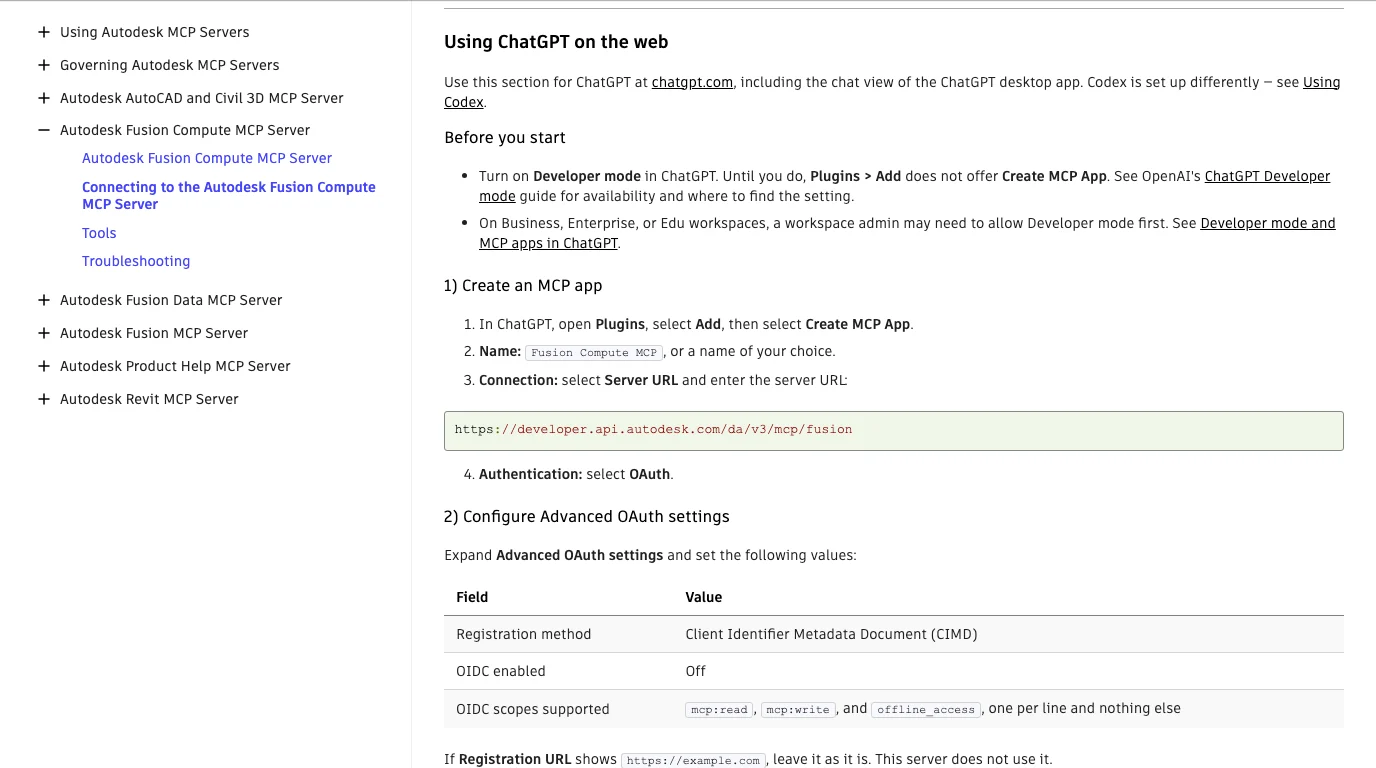
- Turn on Developer mode in ChatGPT. Autodesk says that until you do, Plugins > Add does not offer Create MCP App, and that on Business, Enterprise or Edu a workspace admin may need to allow it first.
- Open Plugins, select Add, then Create MCP App. Name it, choose Server URL, paste the endpoint, and choose OAuth.
- Under Advanced OAuth settings: registration method Client Identifier Metadata Document (CIMD), OIDC off, scopes
mcp:read,mcp:writeandoffline_access, one per line. - Accept the warning, Create, sign in with your Autodesk account, then try List my Fusion sessions and the available Fusion versions, which Autodesk says checks the connection without starting Fusion or using capacity.
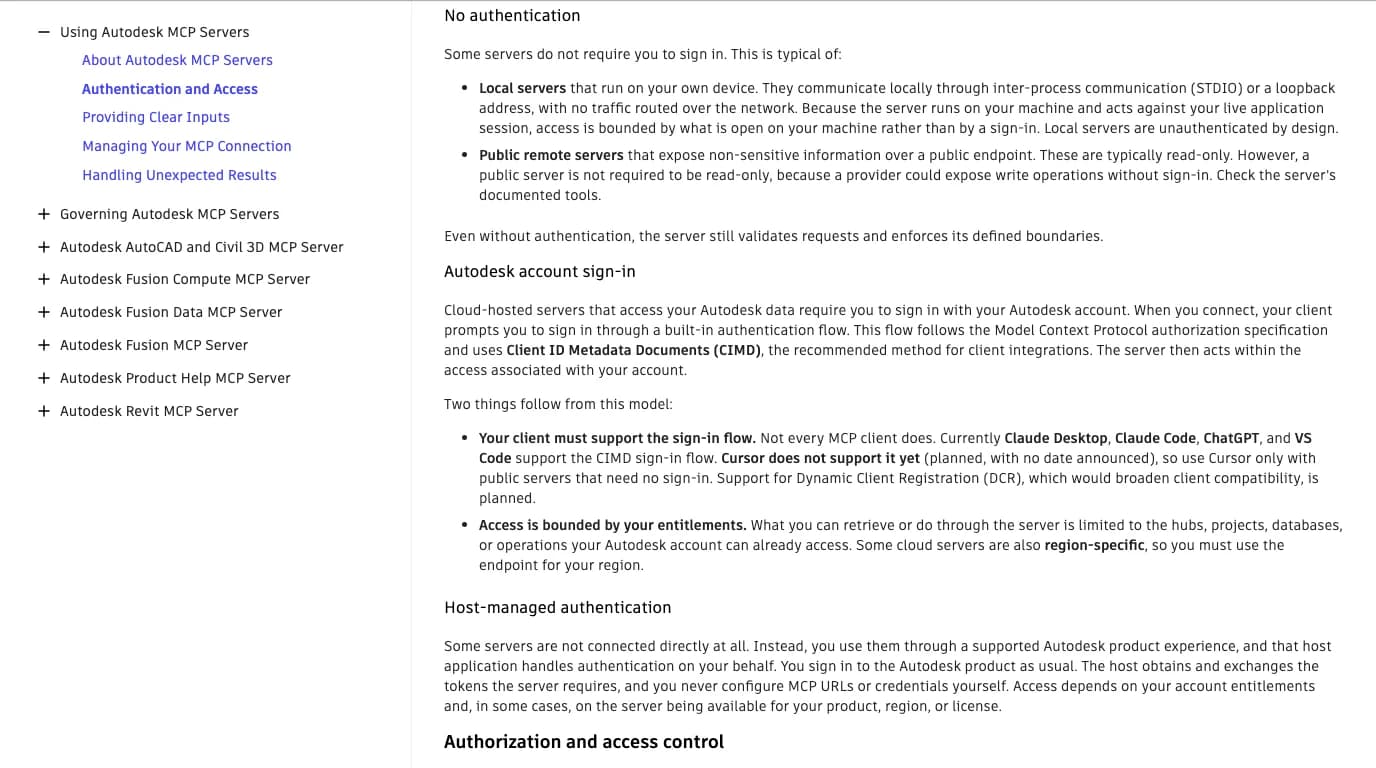
The fourth Autodesk server, Fusion Data, manages hubs, projects, folders and bills of materials with Fusion closed, and cannot see geometry on your screen. Its page documents Claude Desktop and VS Code only. Autodesk's authentication page, though, says Claude Desktop, Claude Code, ChatGPT and VS Code support the CIMD sign-in all its cloud servers use, so it should connect from ChatGPT the same way as Fusion Compute, at https://developer.api.autodesk.com/fusion/mcp. We have not tried it and Autodesk does not document it.
Which ChatGPT plan you need
No primary source ties the local Fusion server to a ChatGPT plan. OpenAI lists Codex and ChatGPT Work on every plan from Free to Enterprise, the website routes depend on Developer mode or custom MCP servers being allowed for your account, and Fusion Compute needs a Fusion licence regardless.
Here is exactly what the sources say, and nothing more. OpenAI's pricing page for ChatGPT Work and Codex lists Free, Go, Plus, Pro, Business, Edu and Enterprise, and marks the Free and Go desktop app access as subject to rollout. Its page for adding a custom MCP server to the website says only that account and workspace policies apply. Autodesk sends readers to OpenAI's Developer mode guide for availability rather than stating it. Autodesk's Product Help server, a published directory app, is the only one with plans in writing: Plus, Pro, Business, Enterprise and Education. The ChatGPT account we test with is on the Free plan and we did not install the desktop app, which is why nothing in this article was run inside ChatGPT itself.
The model is a separate question. The title names GPT-6 Astra, the model in OpenAI's own tunnel example (gpt-6-astra). OpenAI's Codex pricing page lists GPT-6.1 Sol and GPT-6 Luna for Codex plans. Which model you pick changes how well it plans a part. It changes nothing in Steps 1 to 4.
The route that needs no connection: a Fusion script
Before MCP, ChatGPT and Fusion met through scripts: you ask ChatGPT for a Fusion API script in Python, paste it into Fusion's scripts and add-ins dialog and run it. That still works on any plan and needs no server.
Google's suggestions for “chatgpt fusion 360” still include add-in, GitHub and plugin, which is this older route. A July 2025 tutorial from Shop Therapy, Automate Autodesk Fusion with ChatGPT, walks through adding a script that ChatGPT wrote. The difference from the MCP route is feedback: a pasted script runs blind, and when it fails you paste the error back by hand, while a connected model reads the error and, with Autodesk's reference server design, can take a screenshot of the viewport to see what it did. The weak point is the same in both: Fusion's API is large and a model writing from memory invents names. Autodesk's reference server has a documentation search tool for exactly that reason; without it, paste the relevant API page into the chat.
What we tested, and what we could not
We ran the client side on this Mac and read every document; we did not have Fusion, Windows or a paid OpenAI plan, so nothing was modelled.
What this article rests on, 12 October 2026
What to set before you let it edit
The local Fusion server has no login and acts directly on your open design, so put the approval on the ChatGPT side: in Codex set default_tools_approval_mode = "prompt" for the fusion entry, work on a copy, and untick the server when you finish.
- Loopback, no login. Autodesk says the server is local-only with no remote connections or authentication. Nothing on your network reaches it; any process on your computer can, while the box is ticked.
- Approval in Codex is per server. OpenAI documents
default_tools_approval_modewith the values auto, prompt, writes and approve, plus a per-tool override, and defines writes as prompting for tools that are not marked read-only. Whether that protects you depends on how Autodesk annotates its tools, which we could not see without Fusion, so we would start with prompt. Autodesk's governance page gives the same advice in general terms: keep per-action confirmation on for anything that modifies data. - The tunnel widens the door. With tunnel-client running, requests from your ChatGPT workspace reach Fusion. OpenAI says to give the daemon a runtime key restricted to Tunnels Read and Use; the client's own help says the admin key is only for its admin commands. Its local admin page stays on loopback by default. Stop the client when you are done.
- The cloud servers act as you. Fusion Compute and Fusion Data can do whatever your Autodesk account can. Autodesk notes that disconnecting a client does not end access you granted; sign out or revoke it.
Where a 2D drawing fits
None of these routes starts from a physical part: ChatGPT can only model in Fusion what you can describe in numbers. If what you have is the part itself or a photo of it, the dimensioned drawing comes first, and that is the step TechDraw AI does.
The realistic loop is: photograph the part, get a dimensioned drawing and a DXF, import the DXF into a Fusion sketch, then let ChatGPT or Codex extrude, revolve and edit from geometry that is already the right size, instead of from a sentence. Going the other way, Fusion's Drawing workspace is not exposed by any Fusion MCP server we have read, so ask the model to export STEP and make the views elsewhere. We have not run the photo to DXF to ChatGPT chain end to end; treat it as a route to try, not a result.
Turn a photo of a part into a dimensioned DXF, import it into Fusion 360 and build the 3D model from real dimensions.
See the photo to Fusion 360 workflowRelated reading: Claude with Fusion 360 (the same server, with Autodesk's troubleshooting table and reference server in full), ChatGPT with SolidWorks, ChatGPT with Revit, GPT-6 Astra with AutoCAD and the full CAD MCP server landscape.
FAQ
Frequently asked questions
How do I connect ChatGPT to Fusion 360?
In Fusion, open Preferences > General > API, tick Fusion MCP Server (runs locally on this device) and click Apply; it serves http://127.0.0.1:27182/mcp. Then add that URL as a Streamable HTTP server in the ChatGPT desktop app (Settings > MCP servers > Add server) and use Work mode, or run codex mcp add fusion --url http://127.0.0.1:27182/mcp. Ask for a 10 mm cube to check it works.
Is there a ChatGPT plugin or add-in for Fusion 360?
Not a plugin you install from a store. The connection is Autodesk's MCP server, which is built into Fusion desktop and switched on in Preferences > General > API. OpenAI's clients reach it as an ordinary MCP server. Community add-ins such as faust-machines/fusion360-mcp-server also list Codex as a client. Autodesk's only ChatGPT directory listing we found is the Product Help server, which searches documentation and cannot touch a model.
Can ChatGPT make Fusion 360 models?
Yes, once connected. Autodesk's own Fusion channel published a video on 28 September 2026 in which the ChatGPT app builds a parametric Raspberry Pi case through the Fusion MCP server, and a Fusion Expert Elite reports building a 40 mm cylinder from Codex. Expect simple prismatic parts to work and complex sketches to need several tries; Autodesk's own sample notes say sketch-driven part building is often out of scope.
Does the Fusion MCP server work with Codex?
Yes, by protocol. The built-in server speaks Streamable HTTP on 127.0.0.1:27182/mcp and Codex accepts that with codex mcp add fusion --url http://127.0.0.1:27182/mcp. We ran that command with Codex CLI 0.162.1. Autodesk's page for the local server names Claude Desktop, Cursor and VS Code, then says any Streamable HTTP client can use the same URL. Its cloud Fusion Compute server documents Codex by name.
Can I use chatgpt.com instead of the desktop app?
Not directly for the local server. A web page cannot reach 127.0.0.1 on your computer. You have two options: OpenAI's Secure MCP Tunnel, where tunnel-client runs on your machine and needs a Platform organization, a tunnel id and an API key; or Autodesk's cloud Fusion Compute MCP server, which Autodesk documents for chatgpt.com with Developer mode and OAuth, and which runs Fusion in Autodesk's cloud instead of on your desktop.
Which ChatGPT plan do I need to use Fusion MCP?
No primary source we found ties the local Fusion server to a plan. OpenAI's pricing page lists Codex and ChatGPT Work on Free, Go, Plus, Pro, Business, Edu and Enterprise, with Free and Go subject to rollout. The website routes need Developer mode or custom MCP servers, which OpenAI leaves to account and workspace policy. Autodesk's cloud server needs an active Fusion licence and a Fusion Team hub. We tested no paid plan.
Can ChatGPT create Fusion 360 files?
Not on its own. Through the MCP server ChatGPT drives Fusion, and Fusion saves the design or exports STEP and STL. Without a connection, ChatGPT can write a Fusion Python script that you run from Fusion's scripts and add-ins dialog, which is how people used it before MCP. We found no evidence that any ChatGPT model writes a native .f3d file directly, and we would not trust one that claimed to.
Is it safe to connect ChatGPT to Fusion?
The local server listens only on 127.0.0.1 and has no login, so nothing on your network can reach it, but any program on your computer can while the box is ticked. Autodesk's reference server and the community servers we read all run scripts inside Fusion. In Codex, set default_tools_approval_mode to prompt for the fusion entry so each tool call asks first, work on a saved copy, and untick the server when you finish.
Sources
- Autodesk MCP Server Documentation: Autodesk Fusion MCP Server (local)
- Autodesk MCP Server Documentation: Connecting to the Autodesk Fusion MCP Server
- Autodesk MCP Server Documentation: Fusion MCP Troubleshooting
- Autodesk MCP Server Documentation: Autodesk Fusion Compute MCP Server (cloud, public beta)
- Autodesk MCP Server Documentation: Connecting to the Fusion Compute MCP Server (Codex, ChatGPT on the web)
- Autodesk MCP Server Documentation: Fusion Compute tools
- Autodesk MCP Server Documentation: Connecting to the Fusion Data MCP Server
- Autodesk MCP Server Documentation: Authentication and Access (CIMD client support)
- Autodesk MCP Server Documentation: Product Help MCP, supported clients (ChatGPT)
- Autodesk MCP Server Documentation: Governance for individuals and small teams
- Autodesk Fusion on YouTube: ChatGPT Can Now Model in Fusion. Here's How (28 September 2026)
- AutodeskFusion360/FusionMCPSample: tips.md (choice of AI model)
- Autodesk Platform Services blog: Bringing Fusion to Claude for Creative Work (28 April 2026, for Fusion subscribers)
- Shane Hooper on YouTube: Connecting Codex to Fusion 360 MCP server review (27 May 2026)
- OpenAI: Model Context Protocol, ChatGPT desktop app surface (Settings, MCP servers, shared config.toml)
- OpenAI: Model Context Protocol, Codex CLI surface (codex mcp add, approval modes)
- OpenAI: ChatGPT desktop app (Chat or Work toggle)
- OpenAI: ChatGPT Work and Codex pricing
- OpenAI: Secure MCP Tunnel
- OpenAI: Connect and test your plugin (Add custom MCP server, Tunnel option)
- openai/tunnel-client on GitHub (Apache-2.0, v0.0.16)
- Kanbara Tomonori (tomo1230): How to use the Autodesk Fusion Connector MCP with ChatGPT Codex (10 July 2026)
- faust-machines/fusion360-mcp-server (MIT, lists Codex as a client)
- Model Context Protocol: official specification and docs