
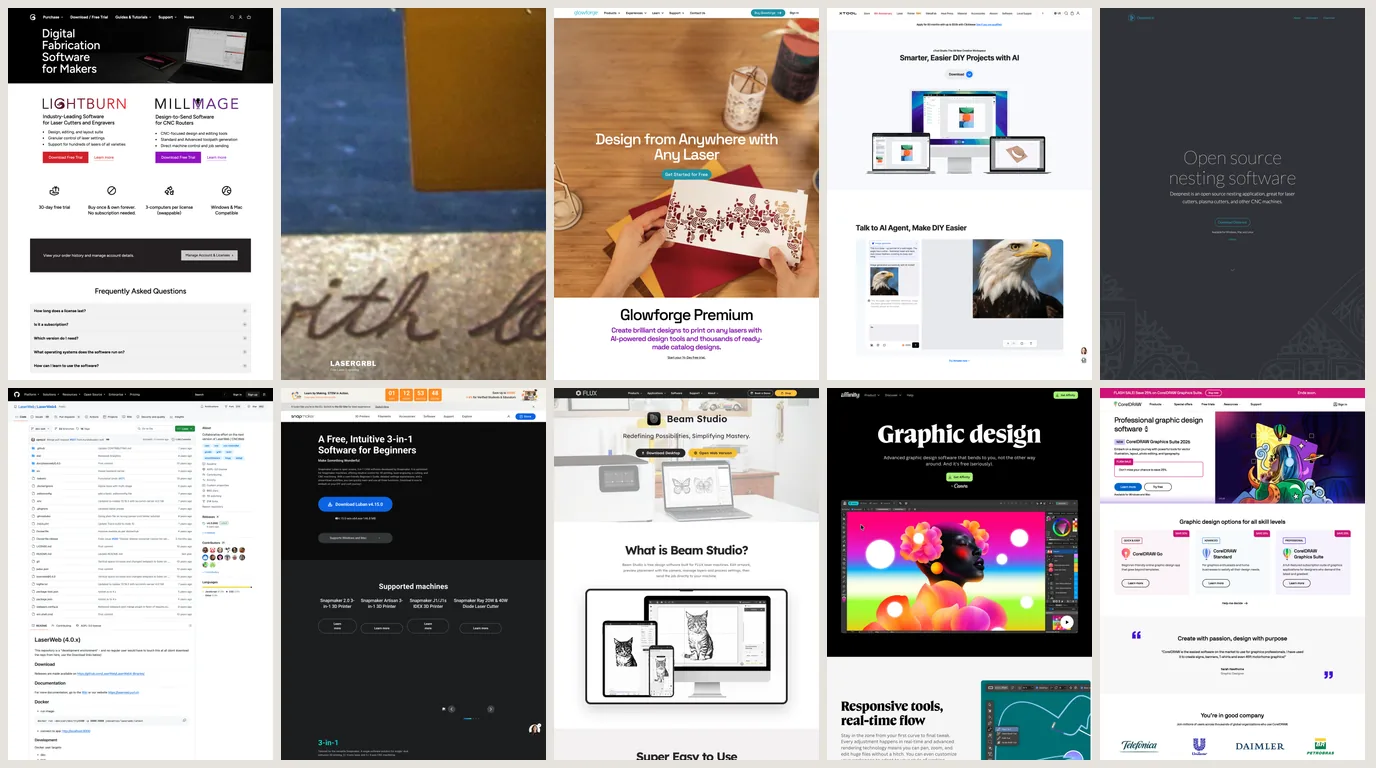
Almost every list of laser software ranks the programs. That is the wrong axis. Once you own a machine your choice is already narrowed to two or three by the controller inside it, and what then decides whether a job cuts is not the feature list, it is what the program does to your file on the way in. So this page judges fourteen programs on that: which formats they read, what happens to units and curves and text when they read them, and which machines they can actually drive. Prices were read from the vendors’ own pages in September 2026.
Our articles are still written by humans!
Get human written articles in your Google feed.
The short answer
If your laser came with software, try that first, because it is free and it already knows where your camera and your bed are. If it did not, or if you have outgrown it, buy LightBurn, and buy the tier that matches your controller rather than the one that sounds better. If you will not spend money and your machine runs GRBL, run LaserGRBL for the machine and Inkscape for the drawing, and accept that you are doing the arranging by hand.
That covers nearly everyone. The rest of this page is the part that actually costs people material: what each of these does to a file, and the specific places each one is documented to fail.
Laser software is two jobs, not one
Every argument about laser software gets confused because the phrase covers two different things that happen to sit next to each other.
- Design produces the geometry: the outline, the holes, the text converted to outlines, at the size it will really be cut. Inkscape, Illustrator, CorelDRAW and Affinity Designer do this and nothing else.
- Control turns that geometry into machine motion: layers, power and speed, cut order, framing, and the actual stream of commands down the cable. LaserGRBL, RDWorks and EZCAD do this and nothing else.
LightBurn and the machine-bundled apps do both, which is why they feel like the obvious answer and why the comparison gets muddled. The useful question is not which program is best. It is where the boundary sits in your workflow, because the boundary is a file, and a file is the thing that goes wrong.
How we judged them, and what we did not do
Four questions, in this order, because that is the order they bite:
- What does it read? AI, SVG, DXF, PDF, and raster. A program that will not open the file you have is not a candidate, however good it is.
- What does it do to what it read? Units, scale, curves, open contours, text, and duplicated paths. This is the part nobody publishes and the part that wastes the sheet.
- Can it place the job accurately? Camera overlay, framing, and whether you can move and resize what you imported.
- Does it drive your machine? GRBL, a DSP controller such as Ruida, a galvo, or a closed system that only speaks to its own software.
The ones that run any machine
LightBurn
The default, and deservedly. It imports .ai, .svg, .dxf and .pdf, has real vector editing including boolean and weld tools, arranges the job, and drives the machine, all in one window. There is a 30 day trial with no watermarks and no restrictions.
The licensing is the part people get wrong, so it is worth stating plainly. The tier is decided by the controller in your laser, not by the feature list. LightBurn Core supports GCode devices, which covers most diode machines. LightBurn Pro adds DSP controllers, meaning Ruida and its relatives, and galvo devices, meaning fiber markers. If you buy Core for a Ruida machine you have bought the wrong thing, and you can add the device type to the key later rather than starting again.
It is not a subscription. A licence is perpetual, includes one year of updates from first activation, and carries three seats. Renewing early adds two months to the year. If you stop renewing you keep the last version your update period covered. You may also sell the licence with the laser. Prices localise: the store showed €106.95 for Core and €213.95 for Pro from Slovakia in September 2026, with a Core to Pro upgrade at €107.95, so check what it says in your own currency before you budget.
Two things to know before you commit. Text in an imported vector file needs the font installed or the text converted to outlines first, because LightBurn does not import embedded fonts, and if it can read nothing at all the status bar simply says Nothing Imported. And the Linux build lags badly: in September 2026 Windows and macOS were on 2.1.04 while every Linux download was still 1.7.08. If your shop machine runs Linux, that is a real consideration and no list we found mentions it.
Glowforge Premium
Worth a second look even if you do not own a Glowforge, because this one changed. Glowforge Premium is now sold as a design tool for any laser. Their own FAQ answers “do I need a Glowforge laser to use Glowforge Premium” with no, and points you at exporting SVG for LightBurn or RDWorks. It imports JPG, PNG, PDF, SVG and DXF, exports SVG and LightBurn and xTool formats, runs in a browser on any device, and includes auto-arranging, one click bitmap tracing and generators for boxes and puzzles. It is from $20 a month with a 14 day free trial.
The reverse is not true. You still cannot drive a Glowforge machine from LightBurn or anything else; the machine talks to Glowforge’s own application and that is the deal you accepted when you bought it.
Free, and what free costs you
Free means three different things on this page, and only one of them means nobody can take it away from you.
LaserGRBL
Free, open source, Windows only, and aimed squarely at hobby diode machines running GRBL 0.9 or 1.1. Its photo engraving is genuinely good: grayscale conversion, several dithering modes, and a material library contributed by users. It has job preview, jogging, overrides, and decodes GRBL alarm and error codes with descriptions, which is more practical help than the price suggests.
Then the file handling, which is the reason it cannot be your only program. Its vectorisation tool is Potrace running on a bitmap. It traces images; it does not read vectors. And on the format it does read, the FAQ is candid: SVG support is “in an early state of development”, files are handled as-is to preserve their contents, and as a direct consequence you cannot set the size or the offset of an SVG job inside LaserGRBL. If it is the wrong size you go back and change the file. Plan for a design program next to it.
Inkscape
The free half of nearly every laser workflow, and the program the other vendors send you to. SVG is its native format, it imports and exports DXF, it converts text to paths, and it traces bitmaps. It is not a laser program: it will not drive a machine and it has no concept of power or speed. It is where the geometry gets made honest before a controller sees it.
Note what it asks you on DXF import: a scale. That prompt is not Inkscape being awkward, it is DXF being ambiguous about units, and the same ambiguity is behind most files that arrive at the wrong size.
Deepnest
Free, open source and still actively maintained, with commits through mid 2026. It takes SVG and DXF, packs parts onto a sheet far better than arranging them by hand, and hands the result back. You want it when you are cutting many irregular parts from material you paid for, and you do not want it for a one-off. LightBurn arranges rather than nests, which is not the same thing. The one exception among the machine-bundled apps is xTool Studio, which advertises Smart Nesting, though only for xTool machines.
LaserWeb4
Browser-based, open source under AGPL, and it drives GRBL, Smoothieware and Marlin machines. It was updated in 2026 and it is not archived, so it is alive, but it is a community project with a fraction of LightBurn’s polish and a setup process that assumes you enjoy this. Reasonable if you are already running a home-built machine and allergic to paying for software. Not the recommendation for anyone who wants to cut something this weekend.
The one that came with your machine
This tier is free, tied to one brand, and better than the internet gives it credit for, because it is the only software that already knows where your camera is.
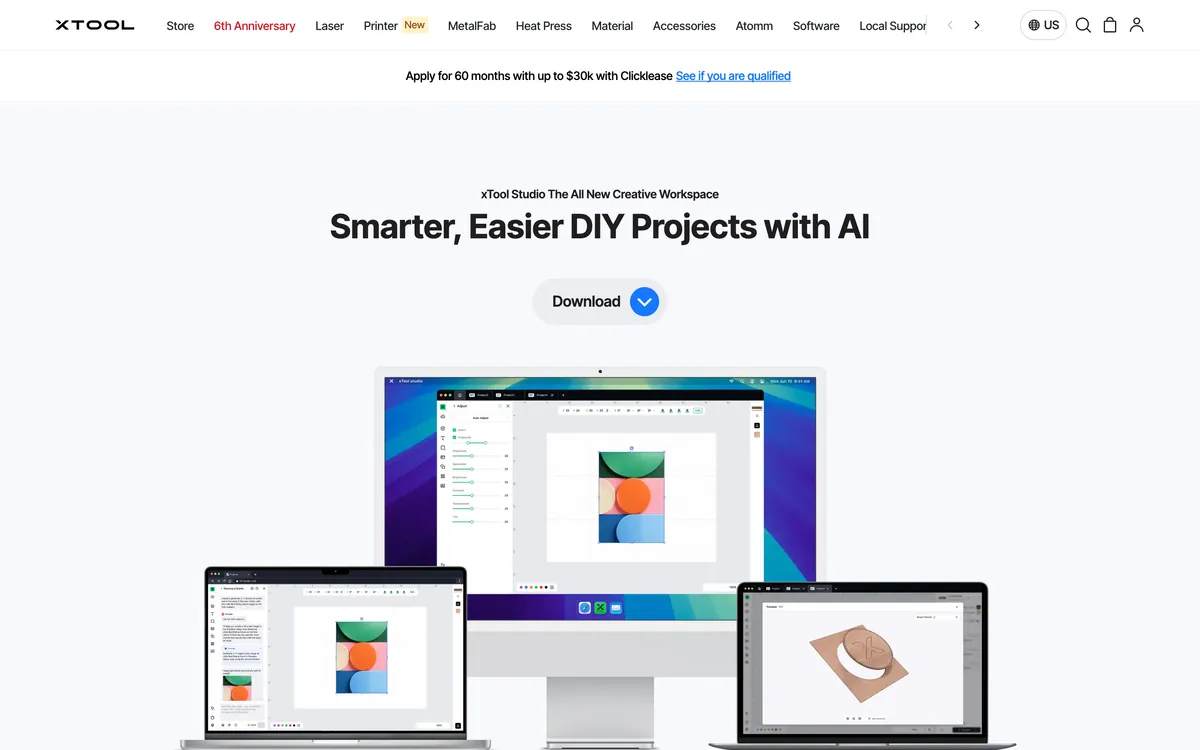
- xTool Studio, which is what the desktop app is called since the rename from Creative Space, imports vectors as SVG or DXF as well as raster images, and drives xTool machines with their cameras and autofocus. XCS survives as the mobile version. It is the only machine-bundled app here that advertises real nesting rather than arranging. Two documented limits matter: text inside an SVG is not supported and has to be converted to a path before export, and xTool’s own support site recommends converting DXF to SVG before importing, “due to some parsing problems”. They publish a walkthrough for doing it in Inkscape. That article is written against XCS and is still the advice they publish about their own DXF reader.
- Beam Studio for FLUX machines and Snapmaker Luban for Snapmaker are the same bargain: free, capable within the brand, and no help at all when you add a second machine from someone else.
- RDWorks ships with Ruida controllers and costs nothing. It is functional and widely disliked, and it is the single most common reason people buy LightBurn Pro.
- EZCAD2 is the software that arrives with almost every galvo fiber marker, usually on a dongle. It is the standard for marking, it is idiosyncratic, and it is the other reason LightBurn Pro exists.
Outgrow this tier when you add a second brand of machine, when you need control over cut order and power ramping, or when its importer starts fighting you. Not before.
Where the file actually comes from
If you are engraving a photo, your design program is a photo editor and this section does not apply. If you are cutting a part that has to fit something, it does.
- Inkscape, covered above, and the answer for most people.
- Adobe Illustrator is a subscription and is the format LightBurn imports natively, which is why so many marketplace cut files arrive as
.ai. - CorelDRAW turns up constantly in this world because it was bundled with Chinese CO2 machines for years. LightBurn even ships a macro to move artwork across from it.
- Affinity Designer is the one-off purchase in this group, and exports SVG and PDF cleanly.
- Any CAD program if the part is mechanical. A drawing with real dimensions on it beats a traced outline every time, and DXF is how it leaves.
If what you have is a photograph or a logo rather than a drawing, that is a different job with its own traps: our guides on turning a logo into a vector and getting a cut file out of a photo cover it, and the image to DXF converter does the tracing step in a browser.
All fourteen, side by side
Prices are what the vendor showed in September 2026 and localise by country. “Drives” is what the program can send a job to, not what it can open. Four rows say “see vendor” under Reads: those are the programs bundled with a machine, whose format lists we could not confirm from the vendor’s own current documentation, and we would rather leave a gap than print a list we have not read.
Fourteen laser programs in thirteen rows: what they read, what they drive, and what they cost
Fourteen programs in thirteen rows. LightBurn takes two of them because the Core and Pro split is a buying decision rather than a feature tier, and putting it on one row hides the only thing you have to get right. The three vector editors share the last row because for this purpose they behave the same way: they draw accurately, they export SVG and PDF, and none of them talks to a laser.
The handoff is what breaks, not the software
Every documented failure we found while researching this page is the same failure wearing different clothes: a file that was fine in the program that wrote it and is not fine in the program that reads it. Four of them, with the fix.
The size is wrong
DXF does not carry a mandatory unit. The file holds numbers and a header hint about what they mean, and when the writer and the reader disagree about that hint, a 100 mm part arrives as 100 inches. This is why Inkscape asks you to choose a scale on DXF import. Draw a rectangle of a known size in the file, measure that rectangle after import, and only then cut. The long version of this fix is its own page.
The fill does not fill
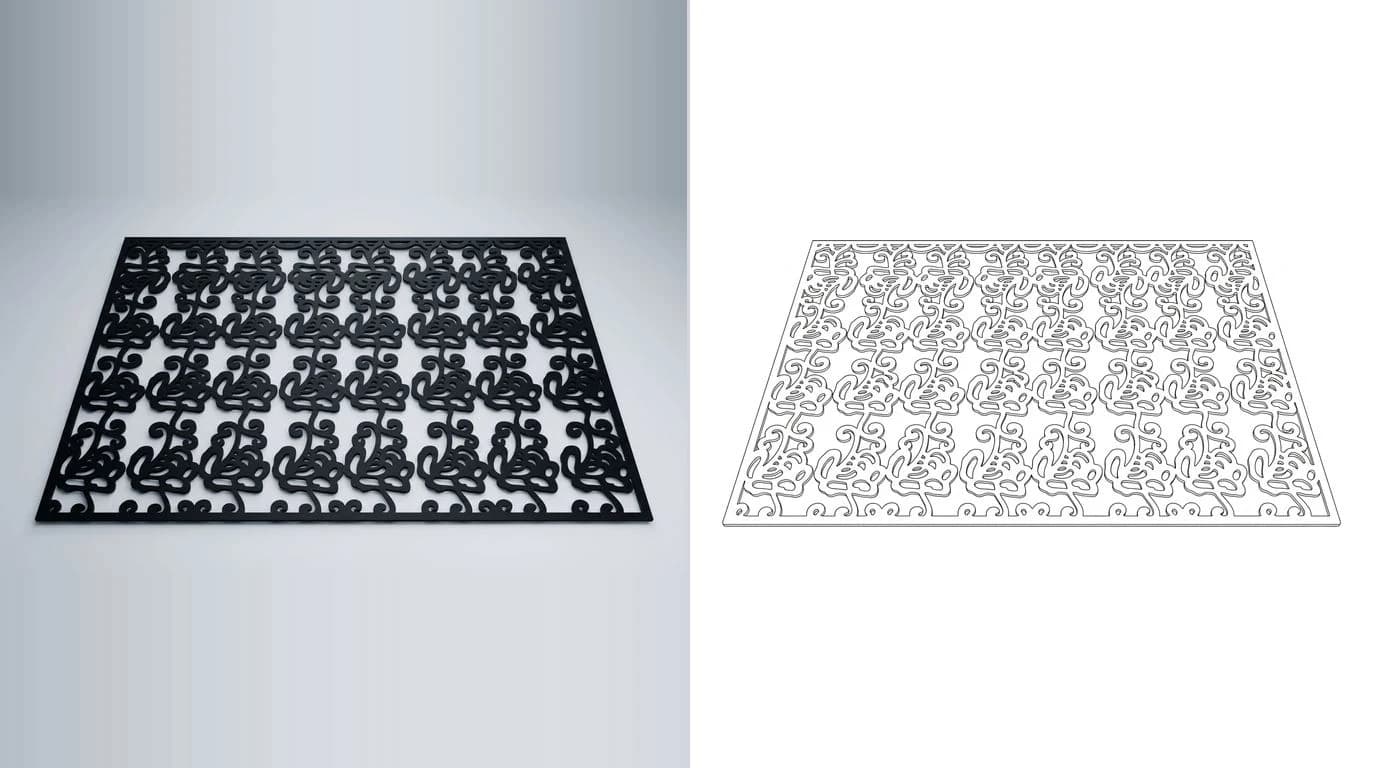
LightBurn’s own troubleshooting says it plainly: duplicated shapes negate each other, so a closed shape set to Fill can appear unfilled and simply not engrave, and overlapping shapes that are not exact duplicates produce a checkerboard where they cross. The cause is nearly always artwork built by stacking shapes and hiding parts of them behind masks, which looks right on screen because a mask hides a path without deleting it. Delete Duplicates first, then weld.
The text vanished, or came in as gibberish
LightBurn does not import embedded fonts, and xTool Studio does not support text inside an SVG at all. Convert text to outlines in the design program before you export. Every vector editor has this command and every one of them calls it something else: convert to path, convert to outline, or weld.
The DXF came apart
Different programs write DXF differently, and readers vary in how much of the specification they implement. When xTool’s own support site tells you to convert a DXF to SVG before importing it, that is a vendor publicly documenting the limits of their own reader, and it is good advice rather than an admission. You can do it in Inkscape the way they describe, or in a browser with our DXF to SVG converter, which is the same conversion without installing anything. Going the other way, SVG to DXF is what a CO2 machine on RDWorks usually wants.
What we left off, and why
- K40 Whisperer. It exists and people still run it on the old M2 Nano boards, but we could not verify its current status from a primary source in September 2026, so it is not in the table. Better a gap than a guess.
- Fusion, SOLIDWORKS and the CAD packages. They produce the DXF, they do not run the laser. They belong in a design software comparison, which is a different page.
- Vectric VCarve and Aspire. Excellent, and aimed at a router rather than a laser. Same reasoning.
- The AI art generators. They produce raster images. What comes out still has to be traced, which puts you back at the start of this page rather than past the end of it.
One last thing worth saying, because it is the reason this page exists on this site rather than a laser shop’s blog. If the thing you want to cut is a real object rather than an idea, the hard part is not the software at all: it is getting accurate geometry in the first place. That is what TechDraw AI does. A photograph plus one reference measurement in, a dimensioned drawing out, exported as DXF or SVG, which is where every program above starts.
Watch: Do you actually need LightBurn?
Justin of the Justin Laser channel, who says he is not paid by LightBurn, splits it into the same two jobs as this page: a stripped down vector editor, and the interface that turns artwork plus speed and power into code the machine runs. His advice matches the short answer above: if the software that came with your laser does what you need, keep it, and remember that Glowforge and Epilogue will not run third party software at all. It is from February 2023, so the xTool program he mentions is Creative Space, since renamed xTool Studio.
Frequently asked questions
What is the best laser engraving software?
LightBurn, for almost anyone who owns a laser and did not get usable software with it. It is the only program on this page that designs, arranges and drives the machine in one window, it imports AI, SVG, DXF and PDF, and it is a one-off purchase rather than a subscription: a licence is perpetual and comes with one year of updates and three seats. The catch is that the licence tier is decided by your controller, not by features. LightBurn Core covers GCode machines, which is most diode lasers, and LightBurn Pro is the one you need for a DSP controller like a Ruida or for a galvo fiber laser.
What is the best free laser engraving software?
LaserGRBL if your machine runs GRBL firmware and you are on Windows, and Inkscape alongside it for anything vector. LaserGRBL is genuinely free and open source and its photo engraving is better than its price suggests, but it is a machine controller rather than a design program: its own documentation says SVG support is early, and that you cannot set the size or position of an SVG job inside it. If your machine came with software, that is also free and is worth trying before you spend anything.
Do I need LightBurn if my laser came with software?
Not necessarily, and it is worth finding out before you pay. The software bundled with xTool, Glowforge, Snapmaker and FLUX machines is free, is built around that machine's camera and focus, and is often the faster route for a simple job. You outgrow it when you want a second brand of machine in the same workflow, when you need control over cut order and power ramping, or when its file import starts fighting you. That last one arrives sooner than people expect.
Can I use LightBurn with a Glowforge?
Not to drive the machine. Glowforge machines run from Glowforge's own web application and the company does not publish an interface for third-party software to control them. What has changed is the other direction: Glowforge Premium is now sold as a design tool for any laser, exports SVG and LightBurn and xTool formats, and its own FAQ says you do not need a Glowforge to subscribe.
What software opens a DXF file for laser cutting?
LightBurn, Inkscape, Adobe Illustrator, CorelDRAW, Affinity Designer and xTool Studio all import DXF. Whether they import it well is a different question. xTool's own support pages recommend converting a DXF to SVG before you import it, because of parsing problems in their DXF reader, and they publish a walkthrough for doing exactly that in Inkscape. If a DXF arrives at the wrong size or comes apart on import, that is the usual cause and converting it first is the usual fix.
Why does my file come into the laser software at the wrong size?
Because DXF has no mandatory unit. The file records numbers and a header hint about what those numbers mean, and if the writing program and the reading program disagree about that hint, a 100 mm part arrives as 100 inches or as 3.9 mm. Inkscape asks you to pick a scale on DXF import for this reason. Always draw a rectangle of a known size in the file, and check that rectangle after import before you cut anything.
Why do parts of my design not engrave when I set them to fill?
Almost always duplicated or overlapping shapes. LightBurn's own troubleshooting documentation says duplicated shapes negate each other, so a closed shape set to Fill can appear unfilled and fail to engrave, and overlapping shapes that are not exact duplicates produce a checkerboard where they cross. Artwork built by stacking shapes and masking parts of them is the usual source, because a mask hides a path on screen without removing it from the file. Delete Duplicates, then weld what is left.
Do I need separate design software as well?
If you are drawing anything with real dimensions on it, yes. LightBurn has proper drawing tools and many people never leave it. Everyone else ends up with a pair: something that produces accurate geometry and something that drives the machine. Inkscape is the free half of that pair and Illustrator, CorelDRAW and Affinity Designer are the paid ones. What matters is not which you pick but that the file leaving it has closed paths, real units and text already converted to outlines.
What is nesting software and do I need it?
Nesting arranges parts on a sheet so that less of the sheet becomes offcut. You need it when you are cutting many copies of irregular shapes out of expensive material, and you do not need it for one sign on a scrap of ply. Deepnest is the free option, it is open source, it takes SVG and DXF, and it is still maintained. LightBurn arranges rather than nests, which is not the same thing. Among the machine-bundled apps, xTool Studio is the one that advertises real nesting, and only for xTool machines.
Sources
- LightBurn: how the licence works, and the Core versus Pro device split
- LightBurn: creating and importing artwork, and the formats it reads
- LightBurn: why vector artwork imports with extra lines
- LaserGRBL: the FAQ that documents the SVG limitation
- LaserGRBL: the vectorisation tool, which is Potrace on a bitmap
- xTool support: converting a DXF to SVG before importing it
- Glowforge Premium: pricing, formats, and the any-laser FAQ
- xTool: the software page, now headed xTool Studio rather than XCS
- Deepnest: the open source nesting application