
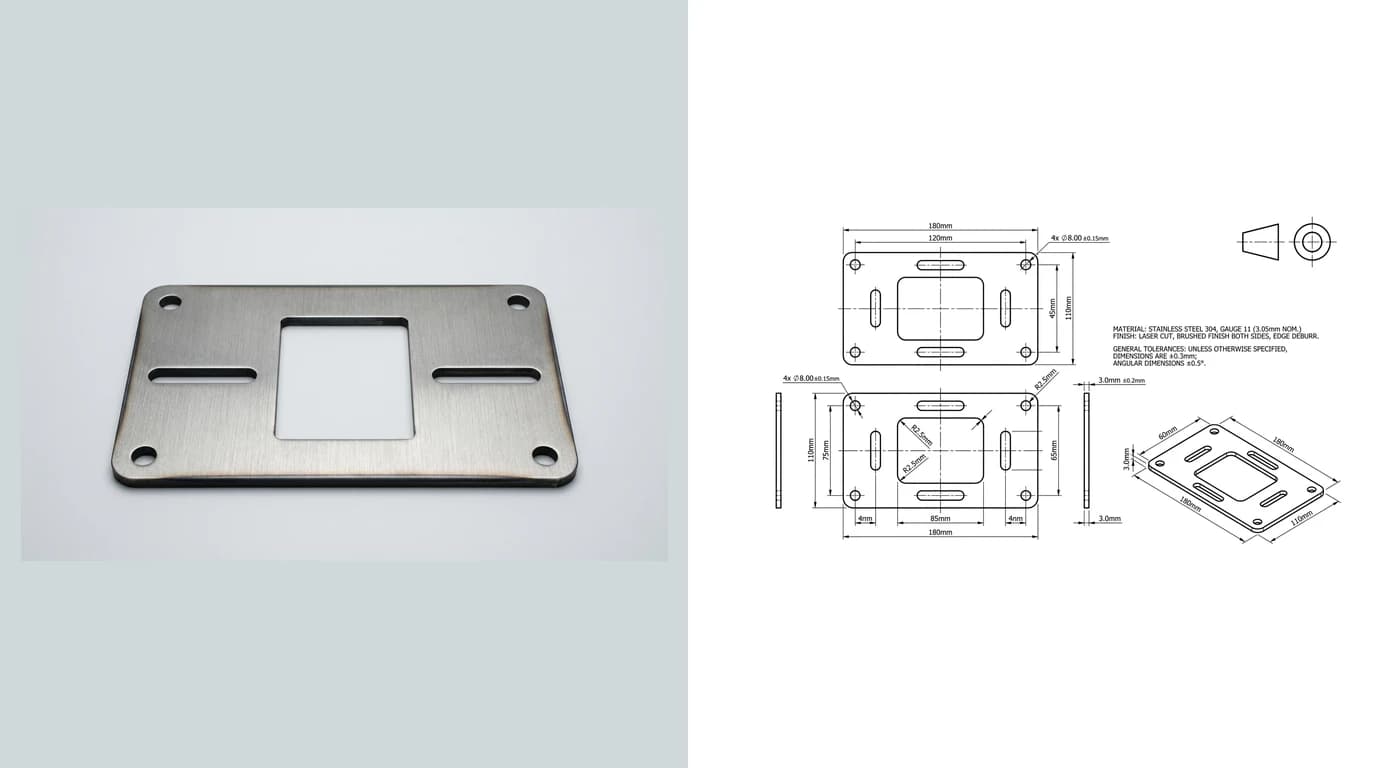
A DXF is cutting geometry; a PDF is something a human can open, read and approve without installing CAD. Sooner or later every DXF needs to make that trip, for a quote, a sign-off or a paper template, and the conversion is free, quick and easy to get subtly wrong. The line work always survives. The scale is what dies quietly in the export dialog, and scale is the only thing separating a drawing from a sketch. Here is the whole job done properly, without AutoCAD and without paying anyone.
Our articles are still written by humans!
Get human written articles in your Google feed.
Plot your DXF to PDF right here
Open the full tool pageDrop a file here. It never leaves your browser.
DXF (ASCII or binary), DWG (R14 to 2018+), SVG · any size · free · PDF first, DWG, SVG, STL one click away
Have a different file? DWG to PDF Converter
The short answer
Open the DXF in a free viewer, print to PDF at a stated scale, done. LibreCAD and QCAD treat DXF as their home format, FreeCAD and Inkscape import it happily, and Autodesk Viewer does the whole thing in a browser tab. Because DXF is open and text-based, the free tools read it with far fewer surprises than DWG, where the closed format keeps them guessing. The two decisions that matter are the unit interpretation and the print scale, both covered below.
When a DXF needs to be a PDF
The DXF itself is usually on its way to a machine. The PDF exists for everyone standing around that machine: the customer approving the shape before it is cut, the shop quoting the job from a sheet instead of a file, the colleague on a phone who just needs to see it, the binder of drawings that lives next to the saw. A PDF is also the polite format for anyone who would otherwise have to figure out how to open a DXF just to look at a bracket.
Free tools that do it
Free DXF to PDF routes compared
The scale trap
A DXF stores coordinates, not units. The number 100 in the file might mean millimetres or inches, and nothing forces the tool that opens it to guess right. Guess wrong and everything is off by a factor of 25.4, which sounds impossible to miss until the part has no obvious reference size. It is the same failure mode that produces DXF files that import at the wrong size, just surfacing at print time instead of import time.
- Open and measure first.Use the viewer's measure tool on a feature you know, a hole, an edge, the overall width. If it reads 25.4 times off, fix the unit interpretation before doing anything else.
- Print at a stated scale. 1:1 for templates and small parts, a standard reduction like 1:2 or 1:5 for big sheets, and say so on the page. Fit to paper is for posters, not drawings.
- Verify on paper. One ruler check on the printed sheet catches everything the dialogs hid.
Printing 1:1 paper templates
Half the people converting DXF to PDF are not making a document at all, they are making a template: a paper pattern to glue onto plywood, stick to sheet metal or check a part against. For that job the whole game is true 1:1 scale. Turn off every fit and shrink option, print, then measure a known dimension before you cut anything. For patterns wider than the printer, both QCAD and purpose-built poster tools tile the PDF across pages with alignment marks, and a reference square drawn into the DXF makes each tile self-checking.
PDF for approval, DXF for the machine
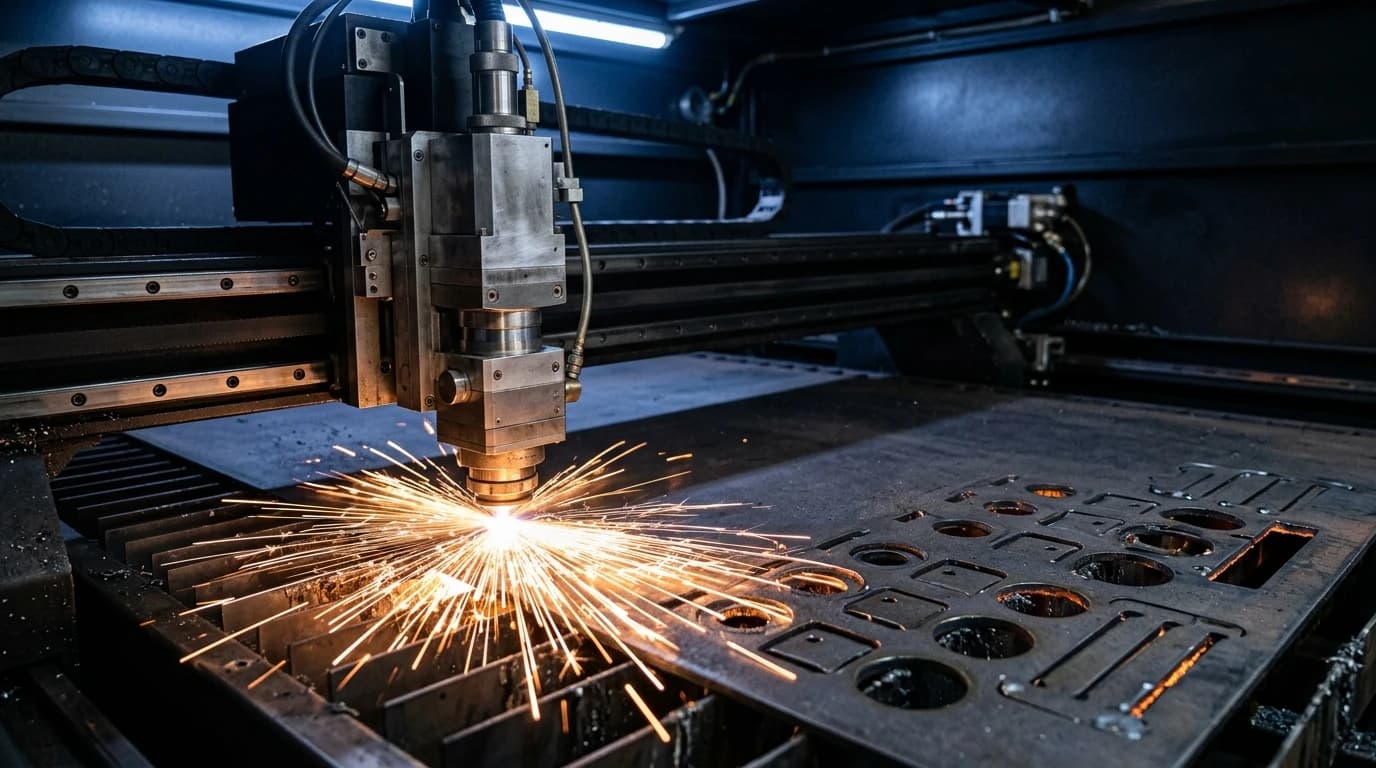
If the part is headed for a laser, plasma or router, keep the roles straight: the customer approves the PDF, the machine imports the DXF. The cutting software reads the DXF geometry directly, which is why plasma tables want DXF and why a PDF-only handover forces someone to redraw your part. Our laser prep checklist covers what the DXF itself needs before it earns that approval PDF, closed contours, sensible layers, real dimensions.
PDF back to DXF
The reverse trip is common and messier: a supplier sends only the PDF and you need geometry to cut. If the PDF was exported from CAD, its vectors can be recovered, and PDF to DXF walks through how and how well. If it is a scan, or a photo of the actual part is all you have, recovery becomes reconstruction: TechDraw AI rebuilds a dimensioned drawing from a picture and exports it as DXF, DWG, SVG or PDF, so the next person in the chain gets both files and this article's problem never reaches them. For a quick outline trace of a clean image, the free in-browser image to DXF converter does the flat version of the same favour.
Frequently asked questions
How do I convert a DXF to PDF for free?
Open the DXF in any free CAD viewer and print or export to PDF. LibreCAD, QCAD and FreeCAD all do it on the desktop, Inkscape imports DXF and exports PDF for simple flat drawings, and Autodesk's free online viewer handles it in the browser with no install. Because DXF is an open, text-based format, free tools read it far more reliably than they read DWG.
How do I convert DXF to PDF without AutoCAD?
You never need AutoCAD for this. LibreCAD and QCAD are small free programs built around exactly this kind of 2D work: open the DXF, check the units, print to PDF at a stated scale. For a browser-only route, Autodesk Viewer or an online converter works for quick jobs, with the usual caution about uploading confidential drawings to third-party servers.
How do I print a DXF to PDF at 1:1 scale?
Set the print scale to 1:1 explicitly and turn off every fit-to-page option, then verify with a ruler. DXF files carry no built-in unit, so first confirm the drawing is interpreted in the unit it was authored in, millimetres or inches. A 100 mm reference square drawn next to the part is the classic self-check: if it measures 100 mm on paper, the template is true.
Why does my DXF to PDF conversion look wrong or empty?
The usual culprits are units and extents. If the tool assumed inches for a millimetre file the geometry is 25.4 times off, and if the drawing sits far from the origin the export window may be looking at empty space. Open the DXF in a viewer first, zoom to extents, fix the unit interpretation, then export. If the linework itself is broken, the file has deeper problems than the PDF step.
Should I send a shop the DXF or the PDF?
Both, for different jobs. The PDF is for humans: quoting, checking, approving, printing. The DXF is for machines: the laser, plasma or router software imports it directly as cutting geometry. Sending only the PDF forces the shop to redraw your part, and sending only the DXF makes them open CAD just to see what it is. The pair costs you one extra attachment and saves a day of email.