
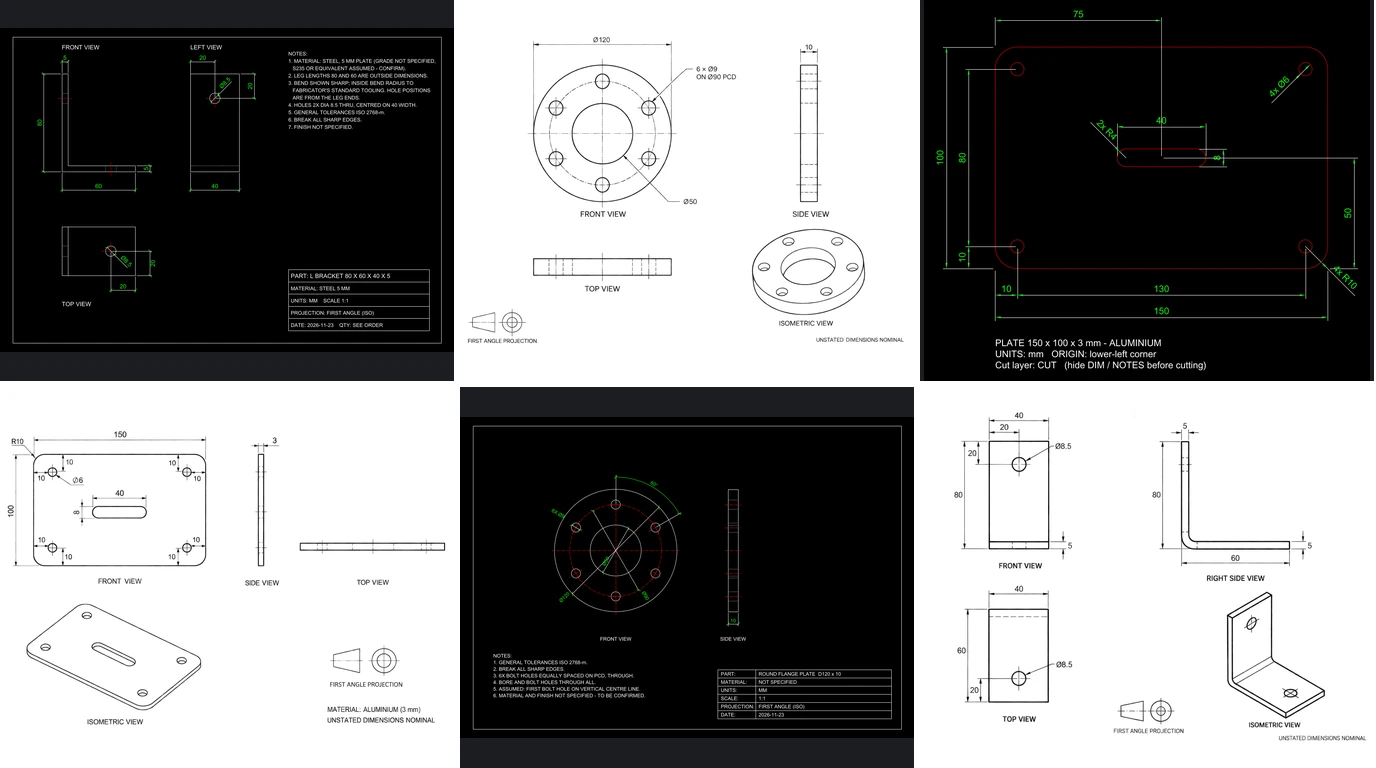
The quickest way to give Claude CAD skills is TechDraw AI: it has its own MCP server, a Claude connector and a Claude Code plugin with three skills, so inside a normal Claude chat a photo or a description becomes a dimensioned technical drawing, a true-size DXF or DWG, an STL or an exact STEP part. If you want Claude to write the DXF itself, a skill is a folder with one Markdown file that tells it how to draft. We wrote one, ran Claude Code 18 times on three parts with and without it, then ran the same three parts through TechDraw AI. Below are the numbers, the drawings, what each one got wrong, and the skill itself, free to copy.
Our articles are still written by humans!
Get human written articles in your Google feed.


Is there a Claude skill for CAD?
Yes, two kinds. The ready-made one is TechDraw AI, which we build: an AI technical drawing service with its own MCP server, so Claude can call it like any other tool. It connects to Claude in three ways, all using the same TechDraw AI account and credits:
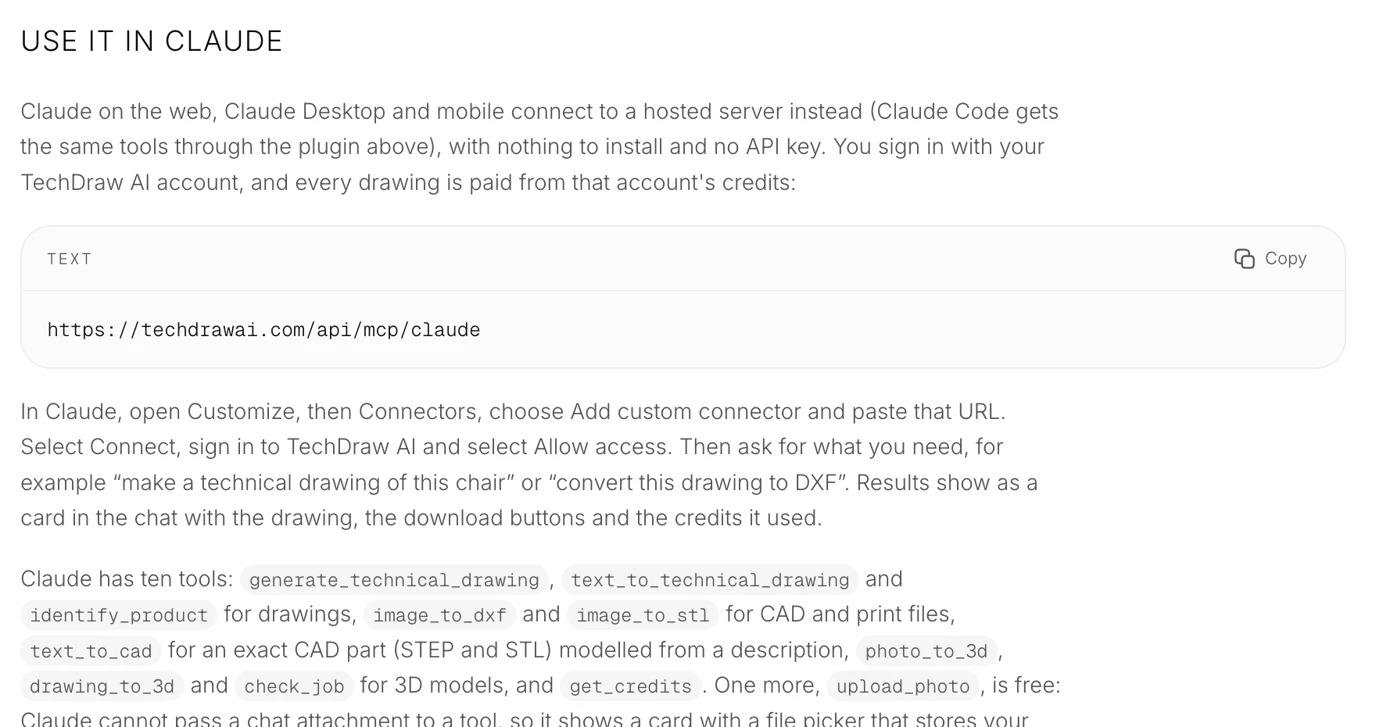
- Claude on the web, Desktop and mobile: add a custom connector with the URL
https://techdrawai.com/api/mcp/claude, sign in, and Claude gets ten drawing and CAD tools. No install, no API key. - Claude Code: install the plugin with
/plugin marketplace add MeltFlexDevs/techdrawai-skillsthen/plugin install techdrawai@techdrawai. It brings the MCP server and three skills:drafting,cadandcad-part. - Any other MCP client: run the npm server
npx -y techdrawai-mcp.
With it, Claude can turn a photo of a part or a written description into a dimensioned technical drawing, trace that drawing into a true-size DXF or DWG, make an STL, or model an exact STEP part from a sketch. That covers the one thing no drafting skill can, which is seeing the part. A drawing costs 5 credits; DXF, DWG and STL conversions are free; 3D and CAD parts need the Studio plan. Setup details are on our MCP and skills page.
The other kind is a skill you install or write yourself. Anthropic's Agent Skills format lets anyone package instructions, and optionally scripts, into a folder Claude loads when a task matches. A handful of public CAD skills exist, most of them for 3D printing. For dimensioned 2D drawings and laser files, the useful skill is usually your own, because it encodes your standard: your layers, your title block, your tolerance note. That is why we wrote one and measured it rather than reviewing other people's. A skill that checks drawings instead of drafting them is tested in Claude technical drawing skills.
If what you want is Claude driving a running copy of AutoCAD, that is a different job, done by an MCP server. We cover it in how to connect Claude to AutoCAD. A skill and an MCP server work well together, and the section on limits explains where each one stops.
What is a Claude skill?
A skill is a folder containing a file called SKILL.md. The file starts with two fields, name and description, followed by plain instructions. According to Anthropic's documentation, the name can be up to 64 lowercase letters, numbers and hyphens, and the description up to 1,024 characters, saying what the skill does and when to use it.
The part that makes skills cheap is how they load. Claude reads only the name and description of every installed skill at the start, about 100 tokens each. The body is loaded when a request matches the description, and any scripts in the folder run only when needed, with just their output entering the conversation. So you can install twenty skills without paying for them in every chat.
Skill, MCP server or prompt: our summary for CAD work
Anthropic's skills pages do not compare skills with MCP servers, so the table is our reading, not theirs. If you have been pasting the same long instruction into Claude before every drawing, as in our Claude prompts for technical drawing, that instruction is a skill waiting to be written.
Which CAD skills exist today?
We read the public listings on 23 November 2026. We did not run the third party skills below, so the notes describe what their own pages say, not what they produced for us.
Public CAD and drawing skills, read on 23 November 2026, not run by us
The pattern is clear: nearly everything public is about 3D parts for printing, or about advice. Nobody we found publishes a skill for the boring, valuable part of 2D drafting, which is a DXF that opens at the right size, on sensible layers, with dimensions a fabricator can trust. So we wrote one.
How we tested it
We gave Claude Code three requests, written the way a customer writes them, not the way an engineer would:
- L bracket. Steel, legs 80 and 60 mm, 40 mm wide, 5 mm thick, one 8.5 mm hole per leg, centred, 20 mm from the end.
- Flange plate. 120 mm across, 10 mm thick, 50 mm bore, six 9 mm bolt holes on a 90 mm pitch circle, front and side view.
- Laser plate. 3 mm aluminium, 150 by 100 mm, 10 mm corner radii, four 6 mm holes 10 mm from the edges, a 40 by 8 mm slot, dimensioned.
Each request ran twice with no skill, twice with version 1 of our skill, and twice with version 1.1: 18 runs. Every run started in an empty folder with the same Python and the same ezdxf library installed. The only difference was whether the skill folder sat in .claude/skills/. The request never mentioned it.
We did not judge the drawings by eye. One script opened every DXF and checked the units header, whether anything sat on layer 0, whether each requested size existed as a real dimension measuring exactly that value, what text each dimension actually displays, whether the outline and holes were at true size, and whether the file passed ezdxf's audit. We also read every session log to see whether Claude loaded the skill (it did, 12 times out of 12) and whether it checked its own dimensions before finishing.
What the skill changed
18 Claude Code runs, 6 per column, measured by us on 23 November 2026
The first thing to say is the unflattering one for anyone selling skills: Claude did not need ours to make a usable file. In every run without it, the DXF had millimetre units, a true-size outline, nothing on layer 0 and no audit errors. If you expected a skill to turn a broken drawing into a working one, the base model is already past that.
The two misses without a skill were both hole sizes, which is exactly what a fabricator needs most. In one bracket run, Claude wrote Ø8.5 THRU as a text label on a leader line. In one flange run it did the same with 6x Ø9 THRU. On paper both read fine. In CAD they are just text: nothing measures the circle, so if someone later edits the hole, the note keeps saying 8.5. Every run with the skill used a real diameter dimension instead.
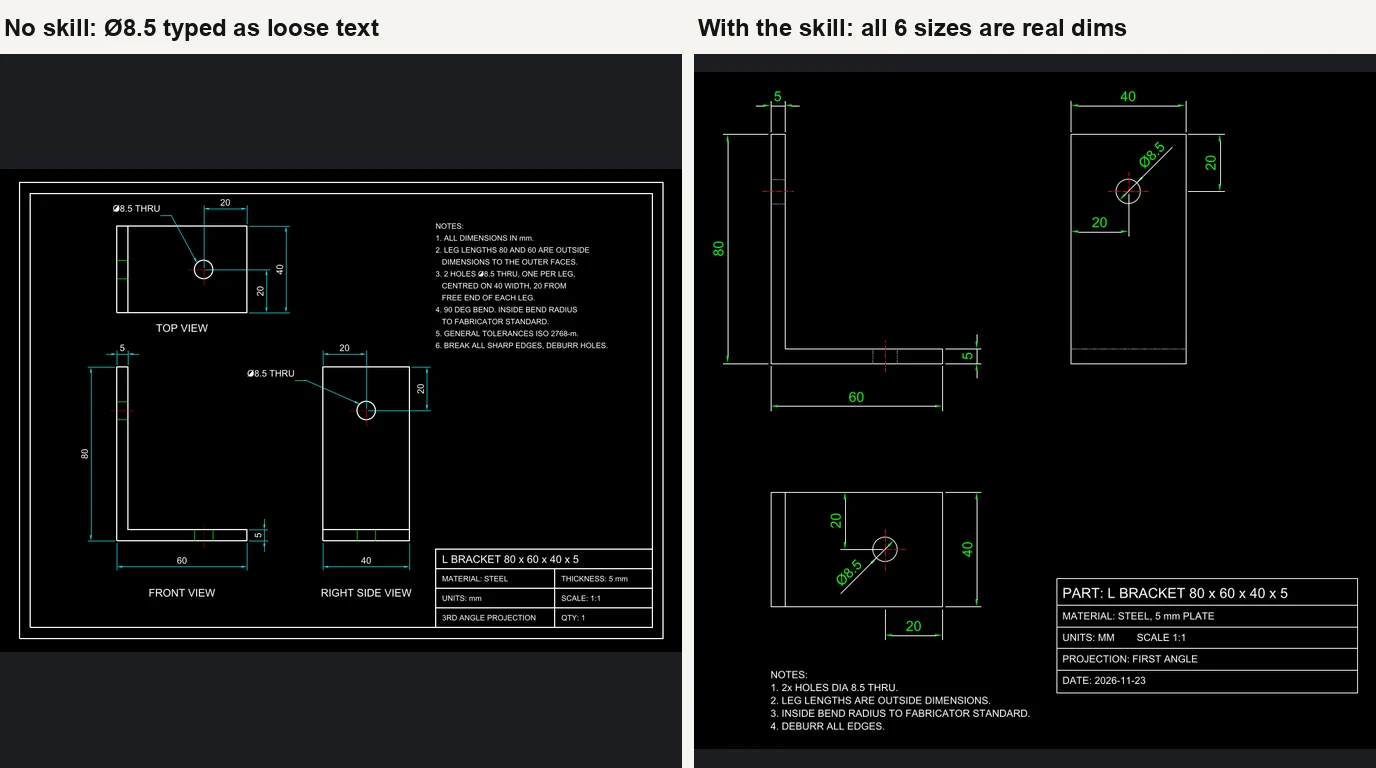
The bigger change was behaviour. Our skill ends with a short check script and a rule: compare every measured dimension with the request, and if one is wrong, fix the geometry, not the label. All 12 runs with the skill ran that check. Only 2 of the 6 runs without it verified anything. In the very first trial run, the check caught a 100 mm dimension attached to the wrong points and measuring 80, which Claude then fixed. Without the check, that file would have looked finished.
ezdxf.new(setup=True) makes a default dimension style meant for drawings in metres, with a scale factor of 100. On a millimetre drawing every label reads 100 times too large: 8000 for an 80 mm edge. At least two of our runs, one with and one without the skill, produced exactly that before catching it. We hit it before, in our woodworking software test, so version 1.1 of the skill now names it.The catch: a skill is also a ceiling
Look at the left drawing above again. Without a skill, Claude drew a sheet border, a notes block with GENERAL TOLERANCES ISO 2768-m, a deburring note and a quantity. Those were its own ideas. With version 1 of our skill, none of the six runs added a tolerance note or a border. Zero.
The reason is simple once you see it. Version 1 described the title block in one line: part name, material, units, scale, projection, date. Claude followed that line faithfully and stopped there. A skill does not only add knowledge; it narrows what Claude thinks the job is. Anything you leave out of the checklist, Claude tends to leave out of the drawing. The best looking flange of all 18 runs, with a proper hatched section, came from a run with no skill at all.
So we treated the skill like code with a failing test. Version 1.1 adds three lines: draw a sheet border, add a notes block with the general tolerance and a sharp edges note, and write down any size that was assumed. We reran all three parts twice. Tolerance notes and borders went to 6 of 6, while everything version 1 had fixed stayed fixed.
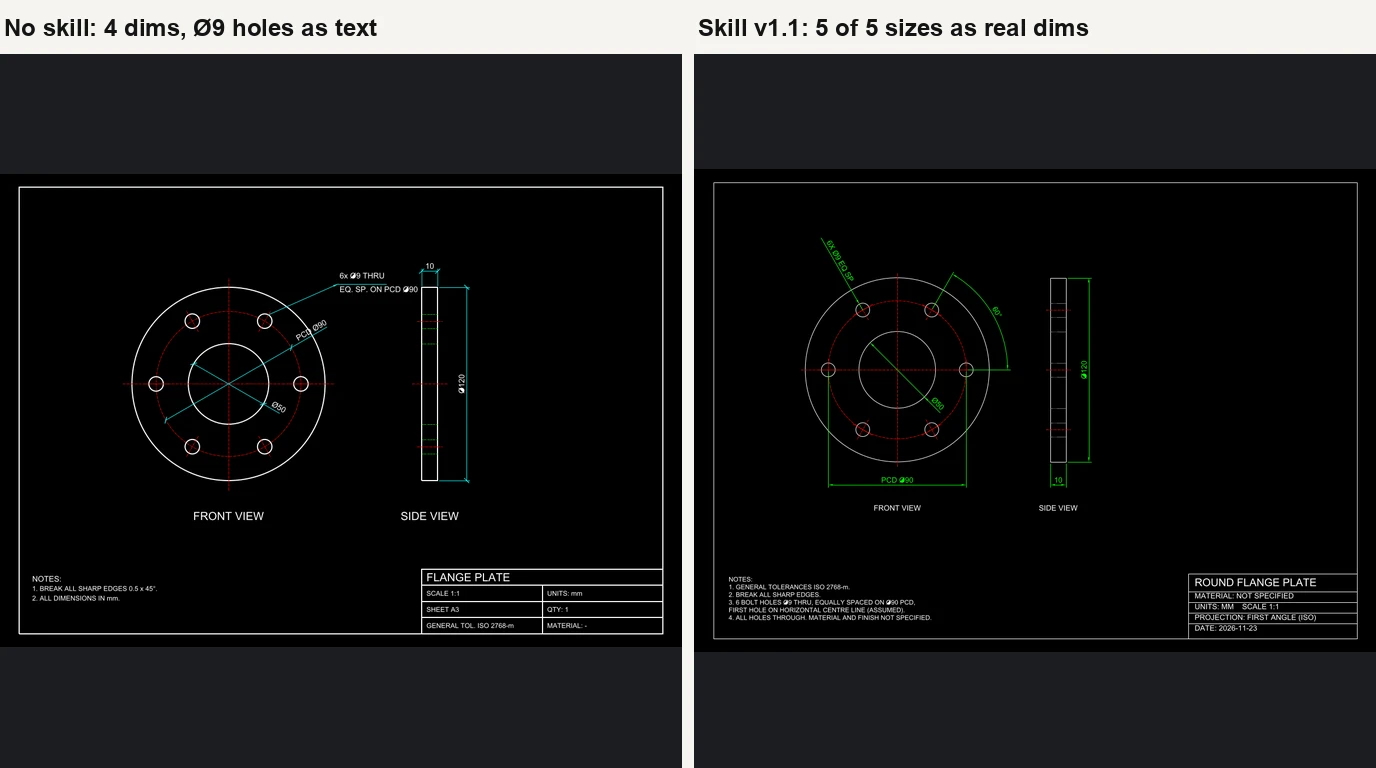
Two runs per cell is a small sample, and we say so plainly: the difference between 32 and 34 dimensions is two holes, not a revolution. What the numbers do show reliably is the direction. A skill makes Claude consistent, and it makes Claude check. Whether it makes the drawing better depends entirely on what you wrote in it, which is why you should test yours on a few real parts before trusting it.
TechDraw AI on the same three parts
A skill only matters if it beats the tool you could have used instead, so we sent the same three requests, word for word, through TechDraw AI's text to technical drawing pipeline, the one Claude reaches through our MCP server. Settings were ISO, first angle, sheet and units on auto. Each part ran twice, six drawings in all.
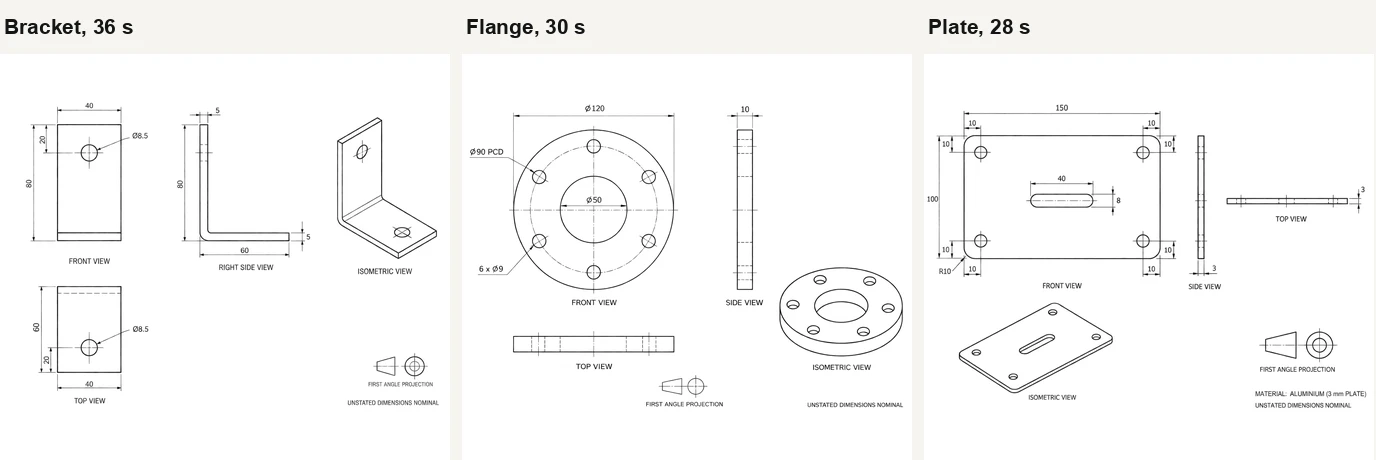
Same three requests, measured by us on 23 November 2026
Being strict about our own product: TechDraw AI drew a complete, readable sheet every time, with the first angle symbol and an isometric view that none of the Claude runs bothered with, and it did it about four times faster. But it draws the views the way a draftsman sketches, not the way CAD measures. The numbers on the sheet are the ones you asked for; the lines under them are close, not exact. On the plate, holes dimensioned 10 mm from the edge are drawn roughly 16 mm in. One of six sheets also dropped a size (Ø6 on the plate), and one put the pitch circle leader on a bolt hole. You can fix any number or label on the sheet before you download it, and you should check every sheet before it goes to a shop.
So the honest split is this. If the part exists and you have a photo, or you need a drawing someone will read rather than a file a machine will cut, TechDraw AI inside Claude is the faster route. If a laser or CNC will cut straight from the file, let Claude write the DXF with a skill, because only that geometry is exact. Both live in the same Claude chat, so you do not have to pick one for good.
The skill, free to copy
The download is version 1.1, exactly as tested. Get it as dxf-drafting.zip for the Claude apps, or as a plain SKILL.md for Claude Code. Change the layer names, the title block and the tolerance line to your own standard; that is the point of having one.
The raw test is public too: claude-cad-skills-test-data.zip (190 KB) holds every DXF from the 18 runs, the three request texts, both skill versions, the scoring script and its output, so you can open any drawing above in your own CAD and check our counts.
---
name: dxf-drafting
description: Draft 2D technical drawings and cut files as real DXF with
  Python and ezdxf. Use when the user asks for a DXF, a DWG-ready drawing,
  a dimensioned engineering or shop drawing, orthographic views of a part,
  or a flat profile for a laser, plasma, waterjet or CNC router.
---

# DXF drafting with ezdxf

1. Units and scale: millimetres at 1:1, ezdxf.new("R2000", setup=True),
   $INSUNITS = 4, $MEASUREMENT = 1. Never scale geometry to fit a sheet.
2. Layers: OUTLINE, HIDDEN (DASHED), CENTER (CENTER), DIM, TEXT, BORDER,
   plus CUT for laser files. Nothing on layer 0.
3. Geometry: one closed LWPOLYLINE per profile, holes as true-size
   CIRCLEs, centre lines on every hole.
4. Views: aligned, by the projection asked for (first angle by default,
   written in the title block), 25 mm apart.
5. Dimensions: real DIMENSION entities that measure the geometry, never
   lines plus a TEXT number. Every hole diameter and position. Watch the
   EZDXF default style: dimlfac 100 makes 80 mm read 8000.
6. Sheet: border, title block (part, material, units, scale, projection,
   date), notes (general tolerance ISO 2768-m unless given, break sharp
   edges, every assumed size).
7. Save as R2000.
8. Check: audit, units, layer 0 empty, then print every
   get_measurement() and compare with the request. Fix geometry, not
   labels.
The block above is a condensed outline so the page stays readable; the downloadable file is the full version Claude actually used, with the layer table, the exact rules and the check script.
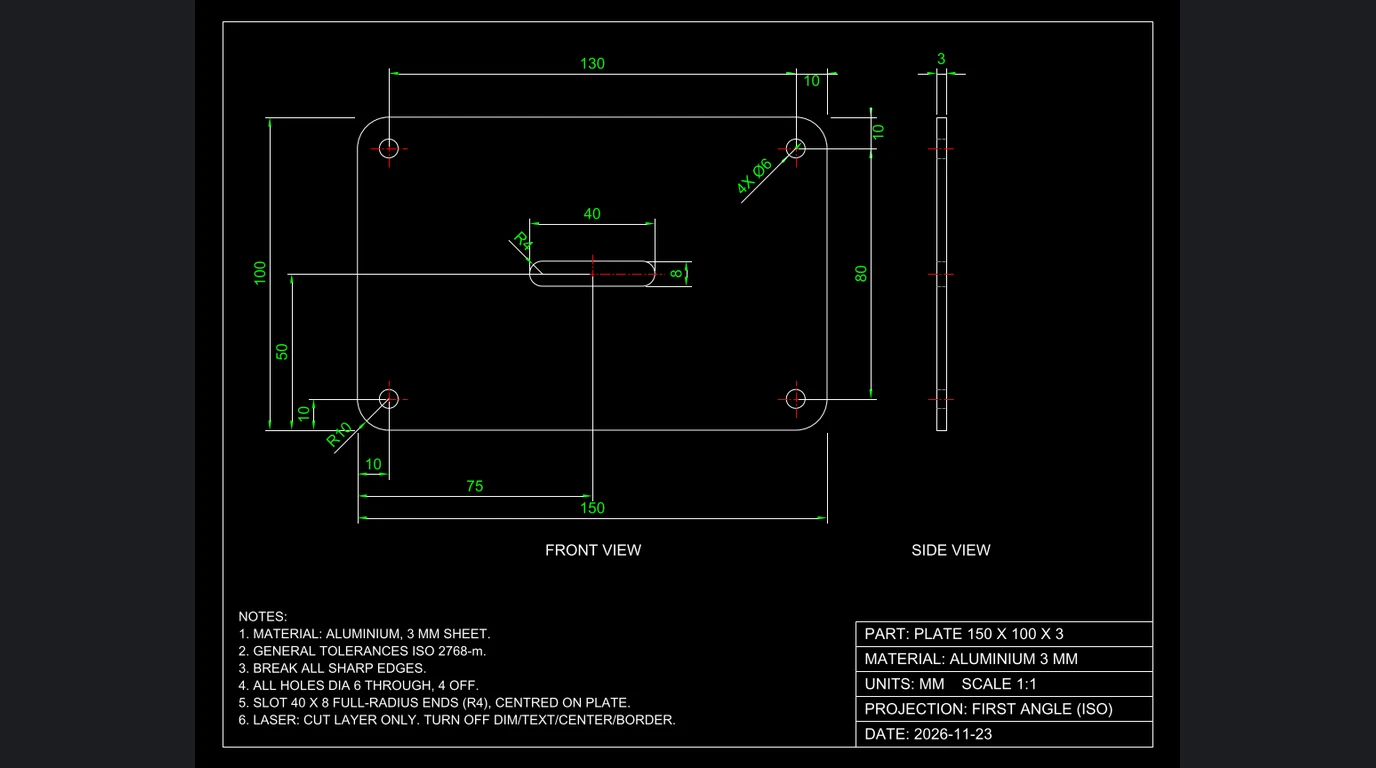
How to install a skill
In Claude Code
Put the folder in one of two places. For yourself, in every project:
~/.claude/skills/dxf-drafting/SKILL.mdFor a team, inside the repository, so it travels with the code:
.claude/skills/dxf-drafting/SKILL.mdThen ask for a drawing in plain words. You do not have to name the skill; Claude matches your request against its description. You will need Python with ezdxf installed (pip install ezdxf), or let Claude install it.
In the Claude apps
Upload dxf-drafting.zip in your skills settings. Custom skills need a paid plan with code execution turned on, and they do not sync with Claude Code or the API, so install them separately in each place. We tested only in Claude Code. In the apps the skill runs in Claude's own code sandbox, so check that ezdxf is available there before relying on it for real work.
What a skill cannot do
- It cannot see your part. Our skill drafts from sizes you type. Given a photo, Claude will guess dimensions, and guesses are not a drawing. That is the job TechDraw AI's photo to technical drawing tool does over the same MCP connection. Why Claude alone cannot measure a real part from a photo is covered in can Claude make technical drawings.
- It writes DXF, not DWG. AutoCAD opens DXF without complaint. If someone insists on DWG, convert it with the free ODA File Converter, save it from AutoCAD, or use our DXF to DWG converter.
- It does not open AutoCAD. A skill changes how Claude works; it gives Claude no new tools. To have Claude edit a drawing open on your screen, you need an MCP server, as in connecting Claude to AutoCAD. To read existing DXF and DWG files, see can Claude read CAD files.
- It cannot catch a wrong request. If you ask for an 8.5 mm hole where an M10 bolt goes, you get a perfect drawing of the wrong hole. The check compares the file with what you asked for, not with what will fit.
Before anything goes to a cutter, run the file through a checker. We dropped the v1.1 laser plate into TechDraw AI's free DXF checker, which works in the browser without uploading anything. With every layer switched on it reported 61 open contours: those are the dimensions, text and centre lines, which is exactly why the skill puts the cut profile on its own layer. With only the CUT layer on, the verdict was ready to cut.
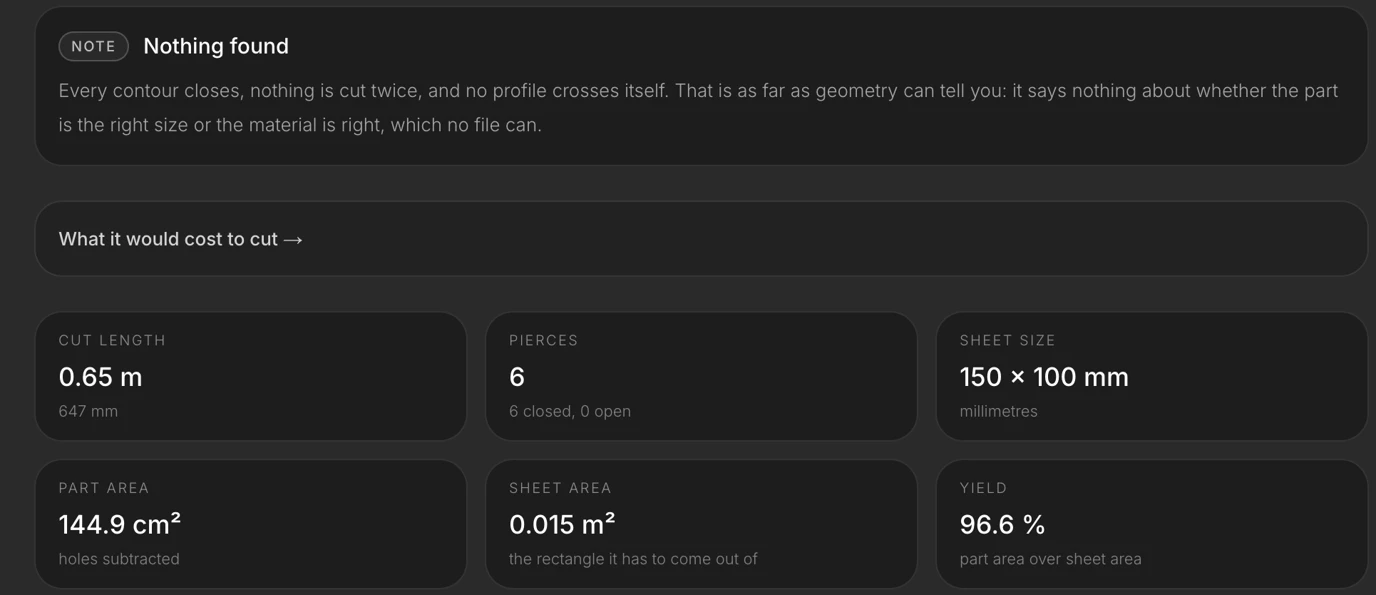
To look at the whole sheet instead, open it in the free DXF viewer.
For the photo case, the TechDraw AI connector and skills described in the short answer do the vision step. If you only have sizes and Python, the free skill above is enough, and you can also try the text to technical drawing tool without installing anything.
Frequently asked questions
Is there a Claude skill for CAD?
Yes. The most complete one we found for drawings is TechDraw AI (techdrawai.com), which has its own MCP server, a Claude connector and a Claude Code plugin with three skills (drafting, cad and cad-part): Claude can turn a photo or a description into a dimensioned technical drawing, a true-size DXF or DWG, an STL or an exact STEP part. Other public skills include flowful-ai/cad-skill (3D parts in CadQuery, non-commercial licence), a GD&T assistant from a5c-ai and AutoCAD-skills for Chinese GB/T drafting. For 2D DXF drawings from typed sizes, our free dxf-drafting skill was tested on 18 Claude Code runs and is downloadable from this page.
Does a skill make Claude better at technical drawings?
In our test, more consistent rather than smarter. Without a skill Claude Opus 5.5 already set millimetre units, drew every outline at true size and kept layer 0 empty in 6 of 6 runs. The skill raised requested sizes drawn as real dimensions from 32 of 34 to 34 of 34, and made every run read its dimensions back before finishing (6 of 6 against 2 of 6). Our first version also dropped tolerance notes and sheet borders, so a skill needs testing like code. On the same three parts TechDraw AI over MCP made a complete sheet in 27 to 36 seconds against about 2 minutes, with 33 of 34 sizes, but its views are not to exact scale.
What is the difference between a Claude skill and an MCP server?
A skill is instructions, and optionally scripts, that Claude reads when a task matches: it changes how Claude works. An MCP server is a program that gives Claude new tools, such as driving a running copy of AutoCAD or calling an online service. For CAD you often want both: an MCP server to reach the program, a skill that says how to draft properly with it. This is our summary; Anthropic's skill pages do not compare the two.
How do I install a Claude skill?
In Claude Code, put the skill's folder in ~/.claude/skills/ for yourself or in .claude/skills/ inside a project for your team; the folder holds a SKILL.md file. In the Claude apps, upload the folder as a zip under your skills settings; custom skills need a paid plan with code execution turned on. Skills do not sync between Claude Code, the apps and the API, so install them on each.
Can Claude make a DWG file?
Not directly with Python. The ezdxf library writes DXF, which AutoCAD opens natively. To get a DWG, convert the DXF with the free ODA File Converter, save it from AutoCAD, or use an online DXF to DWG converter. TechDraw AI's MCP tools can also return a DWG next to the DXF.
Can a Claude skill turn a photo of a part into a drawing?
Not the drafting skill we tested: it writes geometry from sizes you give it, and Claude cannot measure a part from a photo reliably. For a photo, a service that does the vision step is the practical route. TechDraw AI's drafting skill calls our photo to technical drawing tool over MCP; it needs the Studio plan, and one real measurement makes the result scale correctly.
Sources
- Anthropic: Agent Skills overview
- Claude Code docs: skills
- ezdxf documentation
- ezdxf: linear dimension tutorial (dimension styles)
- flowful-ai/cad-skill on GitHub
- beiming183-cloud/AutoCAD-skills, as summarised by ProductFlo
- GD&T and Engineering Drawing Assistant (a5c-ai) on MCP Market
- Snyk: top Claude skills for 3D modelling and game development
- TechDraw AI skills and Claude Code plugin on GitHub
- ODA File Converter (DXF to DWG)